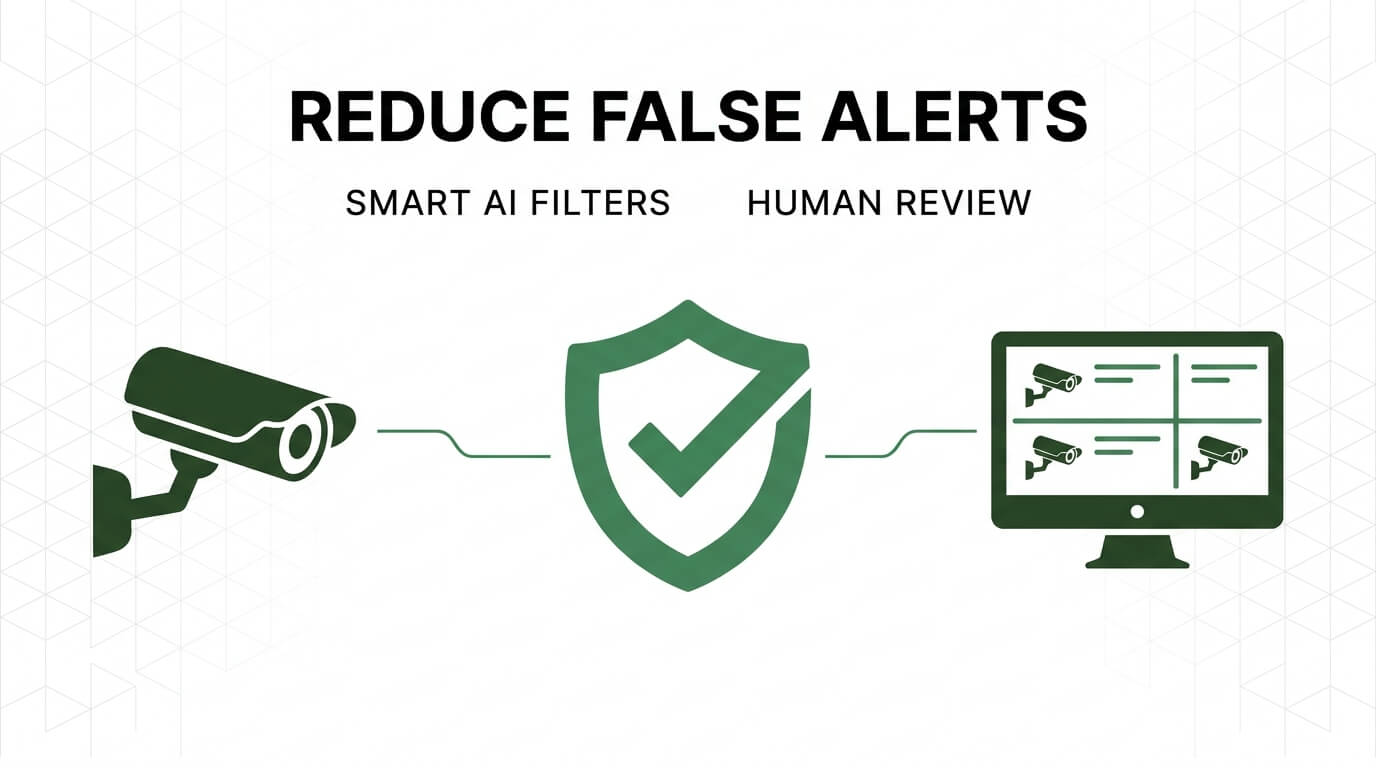
The most effective way to stop security camera false alerts is to narrow the detection area, enable person or vehicle detection when available, reduce sensitivity gradually, and reposition the camera away from moving trees, roads, direct sunlight, and other recurring triggers.
For homeowners across the United States, repeated security camera notifications can quickly become more than an annoyance. A driveway camera may alert every time a car passes on the street, a porch camera may react to a flag moving in the wind, and an outdoor camera may send dozens of notifications during rain or changing sunlight. The goal is not simply to reduce the number of alerts. You want the remaining alerts to be meaningful enough that you will continue checking them.
False alerts usually happen because the camera detects movement or changes in heat, light, or the image rather than understanding whether the event is actually a security concern. Depending on the camera, the trigger may come from pixel-based motion detection, passive infrared sensing, or AI-based object detection. The best troubleshooting approach is therefore to identify what is causing the alerts first, then adjust placement and detection settings in a controlled order.
Source: YouTube > Security Camera King
Why Do Security Cameras Send False Alerts?
Security cameras send false alerts when their detection system interprets harmless environmental or human activity as an event worth reporting. Traditional motion detection often reacts to changes between video frames, while PIR-based cameras respond to changes in infrared heat. Neither method automatically knows that a moving tree branch is harmless or that a passing car is outside your property.
Common triggers include wind-blown vegetation, animals, insects, rain, snow, moving shadows, headlights, reflections, direct sunlight, camera vibration, and normal household activity. The exact cause depends on the camera’s detection technology and where it is installed.
Before changing settings, review several false-alert clips if your camera saves recordings. Look for a pattern. If every alert contains the same tree branch, road, shadow, or nighttime insect activity, you have a specific trigger to address rather than a general sensitivity problem.
Source: guardianintegratedsecurity.com
Moving vegetation
Branches, bushes, grass, flags, and hanging objects can repeatedly move inside the detection area, especially during windy weather.
Traffic and pedestrians
A camera pointed toward a street or busy sidewalk can detect normal traffic that has nothing to do with your property.
Weather
Rain, snow, wind-driven debris, and rapidly changing outdoor conditions can create enough visual or infrared activity to trigger detection.
Light and reflections
Headlights, moving shadows, sunlight, reflective surfaces, and sudden exposure changes can look like movement to some detection systems.
Animals and insects
Pets, wildlife, birds, and insects near the lens can trigger alerts, with insects becoming particularly troublesome around infrared illumination at night.
Motion Detection, PIR, and AI Detection Work Differently
Pixel-based motion detection looks for changes in the image. It can therefore react to many things that are not people, including shadows, rain, leaves, and headlights.
PIR, or passive infrared, detection looks for changes in infrared energy associated with heat. It can reduce some visual-motion problems but may still respond to moving warm objects, temperature changes, or environmental conditions.
AI object detection adds another layer by attempting to classify what appears in the scene, such as a person or vehicle. When supported and configured correctly, this can make notifications more selective because harmless motion does not necessarily become a person or vehicle alert.
If alerts happen mainly during wind
Check vegetation, flags, loose objects, and camera vibration before making major sensitivity changes.
If alerts happen mainly at night
Inspect spider webs, insects, infrared illumination, headlights, and reflective surfaces around the camera.
If alerts happen at the same time every day
Look for changing sunlight, moving shadows, automatic day-night switching, or reflections.
How to Stop Security Camera False Alerts Step by Step
Start with the easiest and most targeted changes before making the camera less sensitive. A good troubleshooting sequence is to identify the trigger, narrow the detection area, enable object filtering, adjust sensitivity, improve camera placement, and then retest.
Make one meaningful change at a time when possible. If you change sensitivity, camera angle, detection zones, and notification rules simultaneously, it becomes difficult to determine which adjustment actually solved the problem.
Source: public.alertsense.com
Step 1: Identify the recurring trigger
Review several alert clips and determine whether the trigger is a person, vehicle, animal, vegetation, weather, light, reflection, heat source, or camera movement.
Step 2: Check the camera and lens
Clean the lens or housing and look for spider webs, insects, dirt, condensation, loose mounting hardware, or anything moving close to the lens.
Step 3: Narrow the detection area
Use an activity or motion zone to monitor the driveway, entrance, walkway, or other relevant area while excluding roads, neighboring properties, trees, and other nuisance areas.
Step 4: Enable object detection
If supported, configure person or vehicle detection instead of receiving notifications for all motion.
Step 5: Reduce sensitivity gradually
Move sensitivity down one level at a time and test whether a person approaching the protected area still triggers the camera.
Step 6: Reposition the camera
Change the viewing angle if the camera continues to face moving branches, direct sunlight, roads, reflective surfaces, or other persistent sources of false activity.
Step 7: Adjust schedules or notification rules
If certain activity is expected at predictable times, use supported schedules or notification controls instead of disabling security alerts completely.
1. Review the False Alert Before Changing Settings
The first step is diagnosis. Open several false-alert recordings and note exactly what the camera saw. One clip can be misleading, but repeated clips often reveal the same trigger.
For example, if every notification shows a tree moving at the edge of the image, changing the sensitivity may help but excluding that part of the image or repositioning the camera is usually a more targeted solution.
Look for repetition
Repeated alerts from the same area of the frame usually indicate a persistent environmental trigger.
Check the time
Alerts concentrated around sunrise, sunset, or nighttime can point toward lighting, infrared, insects, or heat-related causes.
2. Clean the Lens and Remove Spider Webs
A dirty lens, spider web, or insect close to the camera can create unusually strong motion in the image. This is especially noticeable at night when infrared illumination can make nearby insects or webs appear bright.
Clean the camera according to the manufacturer’s maintenance instructions and remove visible webs around the lens and housing. Avoid scratching the lens or using cleaning products that the manufacturer does not recommend.
Check at night
A camera that behaves normally during the day but produces repeated nighttime alerts deserves an inspection for webs, insects, reflections, and infrared-related issues.
3. Create a Smaller Motion or Activity Zone
A detection zone tells the camera where motion matters. This is often one of the most useful adjustments because you can exclude a nuisance area without reducing detection sensitivity everywhere else.
For a front-door camera, for example, you may want to monitor the walkway and porch while excluding the street. For a driveway camera, you may want the driveway and garage entrance but not a neighboring yard or distant sidewalk.
Exclude roads
Passing vehicles and pedestrians can generate repeated alerts when the street is inside the active detection area.
Exclude moving vegetation
Remove trees, shrubs, tall grass, or branches that repeatedly move in the wind.
Protect relevant approach paths
Do not make the zone so small that a person approaching the door, gate, driveway, or other protected area can bypass detection.
Adjust Motion Sensitivity Without Missing Real People
Lowering motion sensitivity can reduce nuisance alerts, but it should not be your first or only solution. A lower setting can also make the camera less responsive to smaller or more distant movement, depending on the camera’s detection system.
Instead, reduce sensitivity gradually and test the result. Walk through the area you actually want to protect from several directions and at different distances. If the camera still detects those movements while ignoring the recurring nuisance trigger, the setting is closer to what you need.
Source: montavue.com
Too sensitive
The camera reacts to leaves, small animals, distant traffic, shadows, or minor environmental changes.
Too insensitive
The camera may fail to detect people who are farther away, moving slowly, or crossing an area with weaker detection conditions.
Balanced setting
The camera reliably detects activity in the area that matters while producing fewer notifications from predictable background movement.
How to Test a New Sensitivity Setting
After each adjustment, perform a simple walk test. Approach from the direction an unwanted visitor would realistically use, cross the important detection area, and check whether an alert or recording is generated.
Repeat the test during both daytime and nighttime if the camera operates in both conditions. Environmental triggers can change significantly after dark because of infrared illumination, headlights, temperature differences, and lighting changes.
Test the closest approach
Confirm the camera recognizes someone near the protected entrance or boundary.
Test a longer approach
Check whether a person approaching from farther away is still detected when that movement matters to your security plan.
Test the nuisance trigger
Confirm that the tree, road, shadow, or other recurring cause now produces fewer unwanted notifications.
Use Person and Vehicle Detection When Available
If your camera supports AI-based person or vehicle detection, enable the object categories that match your security goal. This can be more useful than simply lowering general motion sensitivity because the camera can attempt to distinguish target objects from other movement.
For example, a driveway camera may benefit from person and vehicle detection, while a backyard camera may primarily need person detection. The exact categories and notification behavior vary by manufacturer and model, so use the settings documented for your camera.
Useful when your main concern is someone entering a yard, walkway, porch, driveway, or other restricted area.
Vehicle detection
Useful for driveways, parking areas, gates, and other locations where vehicles are relevant events.
Animal detection
Some systems can classify animals separately, which may help you choose whether animal events should generate notifications.
Do Not Assume AI Detection Eliminates Every False Alert
Object classification can reduce irrelevant notifications, but it is not a guarantee of perfect accuracy. Cameras can still misclassify difficult scenes, and environmental conditions, image quality, camera angle, distance, and lighting can affect detection.
Keep the detection area sensible even when AI filtering is available. A well-defined zone and a suitable camera position can reduce unnecessary processing and notifications before classification becomes the final filter.
Use AI as a filter
Treat person and vehicle detection as one layer of a broader configuration rather than a replacement for good camera placement.
Fix Camera Placement Problems
If settings changes do not solve the problem, inspect the camera’s physical position. A poorly positioned camera can create recurring false alerts that no sensitivity setting completely eliminates.
Avoid aiming the camera directly at areas with constant movement or rapidly changing light when those areas are not relevant to security. Depending on the situation, a small change in angle can remove a road, tree, reflective wall, or bright light source from the detection area.
Source: pioneersecurity.com
Move away from moving branches
Trim vegetation or change the camera angle so branches and leaves are outside the active detection area.
Avoid direct sunlight when practical
Strong sunlight and changing shadows can complicate detection, especially when the camera faces a direction with significant daily light changes.
Avoid reflective surfaces
Glass, polished vehicles, water, and other reflective surfaces can introduce moving highlights or reflections into the image.
Secure the mounting point
A camera that vibrates in wind or because of a loose mount can create image changes that interfere with motion detection.
Consider the background
A person is easier to detect reliably when the camera has a useful view of the area where that person is expected to move.
Camera Angle Matters More Than Many Settings
Suppose a front-door camera includes half of the street, a large tree, and the driveway in its field of view. Lowering sensitivity may reduce alerts from those areas, but it also changes sensitivity for the doorway. Repositioning or masking irrelevant areas is more targeted.
The practical objective is to make the important path prominent in the frame and reduce unnecessary background activity. This can improve the usefulness of both traditional motion detection and AI-based detection.
Good target
The entrance, walkway, driveway, gate, or other area where a meaningful security event would occur.
Poor target
A busy street, large moving tree, reflective wall, or open area containing constant activity unrelated to the property.
Stop False Alerts From Weather, Shadows, and Lighting
Outdoor cameras are exposed to changing conditions that can look like movement. Wind, rain, snow, moving shadows, clouds, headlights, and reflections can all affect detection depending on the camera technology.
The right fix depends on the pattern. If wind causes the problem, address vegetation or camera placement. If headlights cause it, exclude the road or reposition the camera. If the problem occurs at sunrise or sunset, inspect the field of view for strong reflections and moving shadows.
Source: www.youtube.com > ieGeek®
Wind
Trim or remove vegetation that moves in the active zone, secure loose objects, and check whether the camera itself is vibrating.
Rain and snow
Check whether weather events coincide with the alert bursts and use appropriate detection filters or zones where supported.
Moving shadows
Exclude areas where shadows regularly cross the scene if those areas do not need monitoring.
Headlights
If passing vehicles cause alerts, exclude the road or adjust the camera view so headlights do not dominate the detection area.
Sunlight
Look for strong glare, reflections, or daily shadow patterns and adjust the camera position if practical.
Why Nighttime False Alerts Can Be Different
Nighttime detection may behave differently because the camera can switch to infrared illumination or another low-light mode. Small objects close to the lens, such as insects or spider webs, can become highly visible under infrared light.
If your false alerts occur almost exclusively after dark, compare daytime and nighttime recordings rather than assuming the same cause applies around the clock.
Night-only alerts
Inspect infrared-related reflections, insects, webs, headlights, and other nighttime environmental triggers.
Use Notification Schedules Instead of Turning Alerts Off
If certain activity is predictable and harmless during specific periods, a notification schedule may be better than disabling alerts permanently. Some camera systems allow users to pause or limit notifications during selected times.
For example, if regular household activity causes unnecessary notifications during a known period, scheduling notification rules may reduce noise while preserving detection or recording functions, depending on the system.
Source: microsegur.com
Keep detection running when appropriate
Some systems can continue recording or detecting events while limiting push notifications during selected periods.
Use schedules for predictable activity
Schedules can help when nuisance activity occurs at regular times, but they should not hide periods when an unexpected event could matter.
Avoid permanent notification muting
Turning alerts off completely can make a security system less useful because genuine events may be missed.
Use the pattern of the alerts to choose the most targeted fix. The table below is a troubleshooting aid rather than a guarantee because camera behavior varies by model and detection technology.
Source: guardianintegratedsecurity.com
Tree branches or leaves
Reduce the active zone, trim vegetation, reposition the camera, or adjust sensitivity after confirming people remain detectable.
Passing cars
Exclude the road from the detection zone and use person or vehicle filtering according to what you actually want to monitor.
Cats, dogs, or wildlife
Use available animal filtering or person-only alerts, and adjust the detection area if animals regularly cross an irrelevant part of the scene.
Spider webs or insects
Clean the camera and remove webs, particularly when false alerts occur mostly at night.
Headlights
Exclude the road, change the camera angle, or reduce exposure to direct vehicle lighting.
Moving shadows
Identify the source and exclude the affected area or change the camera angle.
Rain or snow
Use supported object filters and detection zones, and avoid unnecessarily broad motion areas.
Camera vibration
Secure the mount and check whether wind, a loose bracket, or another physical source is moving the camera.
A false-alert problem is often caused by configuration or the environment rather than a defective camera. However, hardware becomes more plausible when the camera behaves abnormally after you have checked the detection zone, sensitivity, placement, lens, mounting stability, and environmental triggers.
Before replacing the camera, check for firmware updates and review the manufacturer’s troubleshooting guidance for the exact model. If the device has physical damage, water intrusion, persistent rebooting, or other abnormal behavior, manufacturer or qualified technical support may be appropriate.
Document the pattern
Record when the problem happens and what the camera appears to detect. This information can make manufacturer troubleshooting much easier.
Frequently Asked Questions
Q
Why does my security camera keep detecting nothing?
The camera may be detecting movement that is difficult to see in the notification preview, such as shadows, insects, rain, vegetation, reflections, or heat changes. Review the recorded clip and look for a recurring environmental trigger before changing sensitivity.
Q
Should I lower the sensitivity on my security camera?
You can lower sensitivity when the camera is reacting to minor unwanted movement, but do it gradually. Test the camera after each adjustment to make sure it still detects a person entering the area you actually want to protect.
Q
How do I stop my security camera from detecting trees?
The best options are to exclude the trees from the motion or activity zone, reposition the camera, trim the vegetation, or use person and vehicle filtering when available. Avoid simply reducing sensitivity so far that meaningful movement is also missed.
Q
Why does my security camera send more false alerts at night?
Nighttime operation can introduce infrared illumination, insects near the lens, spider webs, headlights, reflections, and different temperature conditions. Inspect the camera after dark and compare the nighttime clips with daytime alerts to identify the specific trigger.
Q
Can AI detection stop all security camera false alerts?
No. AI-based person and vehicle detection can reduce irrelevant notifications, but it is not guaranteed to be perfect. Camera angle, image quality, lighting, distance, environmental conditions, and the specific detection system can affect classification accuracy.
✦ Wrapping Up
Conclusion
Stopping security camera false alerts is usually a matter of improving what the camera is allowed to detect rather than simply turning sensitivity down. Start by reviewing the alert clips, identify the recurring trigger, and then address that specific cause.
For most installations, the most useful combination is a focused detection zone, appropriate sensitivity, person or vehicle filtering when supported, and a camera position that avoids unnecessary roads, vegetation, reflections, direct sunlight, and other sources of repeated movement. After each change, test the camera with realistic movement so you know you have reduced nuisance alerts without creating a blind spot.
If the camera continues generating false alerts after careful configuration and physical inspection, check the manufacturer’s documentation for your exact model and consider whether a different detection technology or a better camera position would better match the environment.
💡 Key Takeaway
Start with one false-alert clip today: identify exactly what triggered it, exclude that area or cause when possible, enable relevant object filtering, then perform a walk test to confirm that real people are still detected.
I’m Ethan Carter, a home security systems specialist at Diggons.com. I focus on modern surveillance solutions and smart protection technologies that help people keep their homes safe and secure.
I have hands-on experience working with security cameras, video doorbells, alarm systems, and motion detection devices. I test real products and explore practical setups so I can provide clear, easy-to-follow guidance for everyday users.
My goal is to simplify home security by helping you understand how these systems work, how to fix common issues, and how to choose the right products with confidence. At Diggons.com, I share honest insights, comparisons, and real-world advice to make home security easier and more effective.