To program a smart door lock, open the manufacturer’s app or use the keypad and programming button to set an administrator code, add a personal entry code, and test the lock with the door open. Exact steps depend on your lock’s brand and model.
Across the United States, smart door locks are used on houses, apartments, rental homes, and small offices. They let people unlock a door with a keypad, a phone, a fingerprint, or another supported method. Many models also let owners create separate entry codes for family members, guests, and service workers.
Programming a smart lock is often simple once you know which controls your model uses. Some locks rely on a mobile app, while others use a physical button, a touchscreen, or a mix of both. A Schlage Encode, a Yale Assure, and a Kwikset SmartCode lock can use different steps, so one brand’s instructions should not be treated as a universal method.
Before you start, find the model number and read the matching user guide. Keep the door open while changing settings, use fresh batteries when needed, and test every new code before closing the door. These simple steps help prevent lockouts and make the setup process easier to manage.
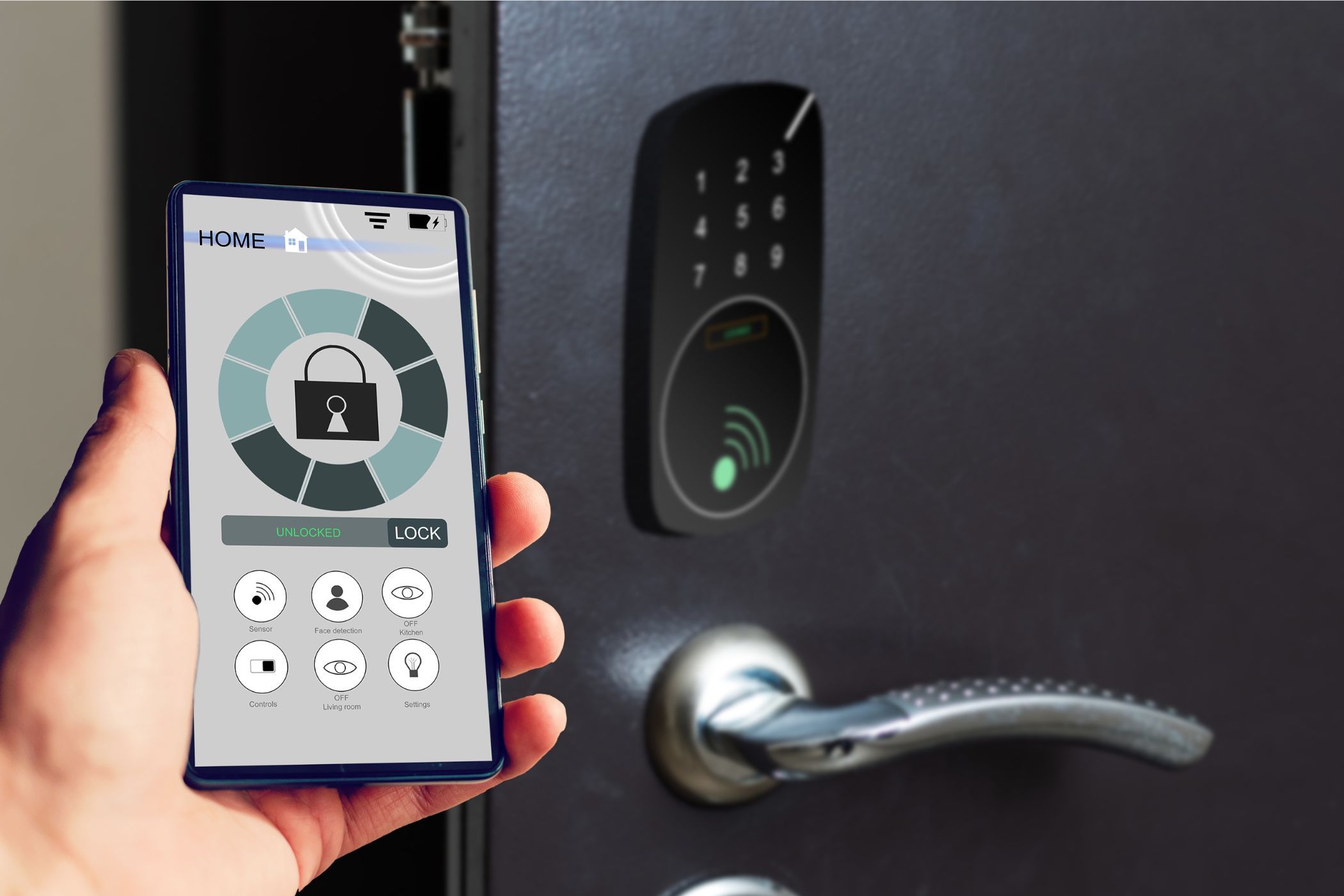
Source: www.makeuseof.com
What You Need Before Programming a Smart Door Lock
Gather the right information before pressing any buttons. Most programming problems begin when someone follows instructions for a different lock or tries to add a code without entering the correct setup mode.
Start by checking the label on the lock, the packaging, the installation paperwork, or the manufacturer’s app. Write down the model number and look for the matching manual on the official support website. If the lock came with a home security system, check whether its settings are managed through that system instead.
You may need the lock’s existing administrator code, a smartphone, the official app, working batteries, and access to the inside of the door. Some models also need a Wi-Fi connection, a compatible hub, or an account to use remote features. Basic keypad programming may work without an internet connection.
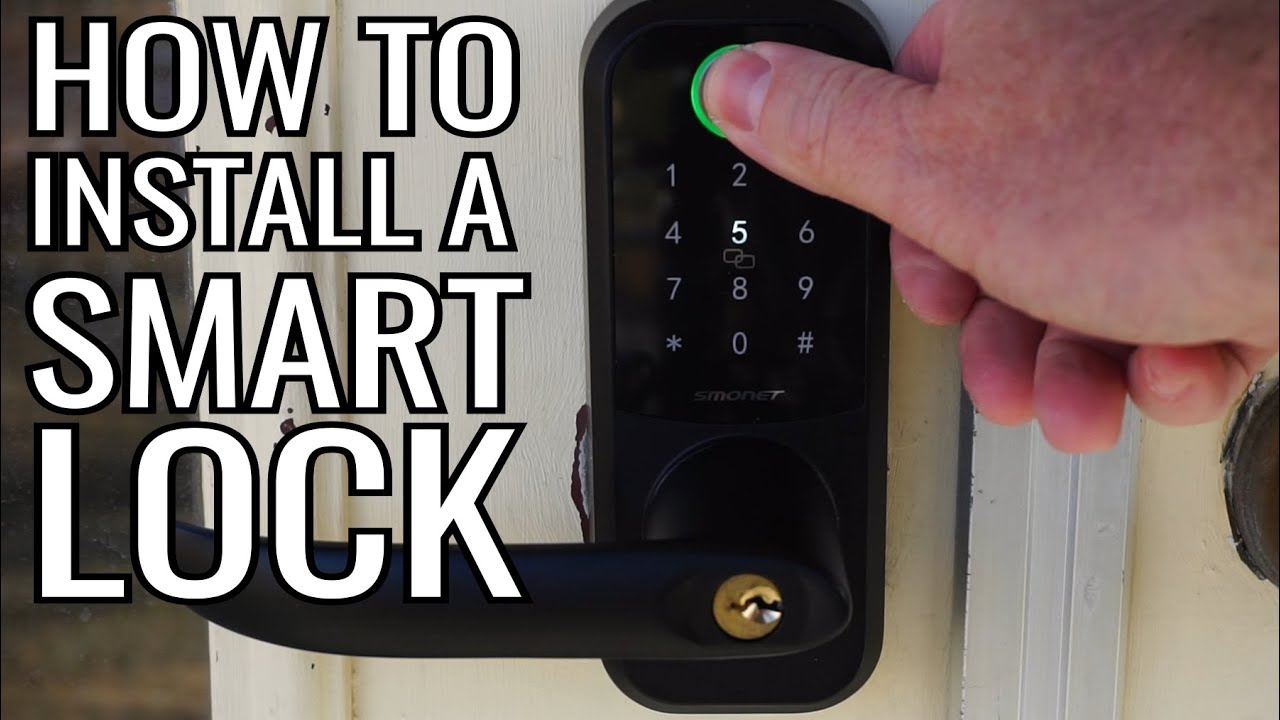
Source: www.youtube.com, Tutorial Geek
The exact model number
Use it to find the correct programming sequence, supported code length, user capacity, and reset procedure.
The existing programming credentials
Have the current master code, programming code, or authorized app account ready. Do not assume a code printed in a generic online guide applies to your lock.
Working batteries
Replace weak batteries if the keypad is dim, the motor is slow, or the lock reports low power. Follow the manual’s battery type and polarity instructions.
A safe test setup
Keep the door open and make sure you can operate the bolt by hand. This lets you test a new code without risking a lockout.
Know the Difference Between a Master Code and a User Code
A master code or administrator code controls settings on models that support it. Depending on the lock, it may let you add users, remove codes, or change other options. A user code is usually meant for everyday entry.
Some brands use the term programming code for a credential that changes settings but does not unlock the door. Other locks combine some of these functions. Check your manual rather than assuming that all master, administrator, and programming codes work the same way.
Administrator or programming code
Protect it carefully because it may allow changes to the lock’s access settings.
Personal entry code
Give each regular user a separate code when the lock supports multiple users. This makes it easier to remove one person’s access without changing every other code.
How to Program a Smart Door Lock Step by Step
The safest way to program a smart door lock is to follow the exact instructions for your model. The steps below explain the usual process for adding a user code, but the button names, key sequence, and code length may differ.
Before you begin, check that the door opens and closes freely and that the bolt is correctly aligned with the strike plate. A motor that struggles to move the bolt may indicate a mechanical alignment issue rather than a programming problem.
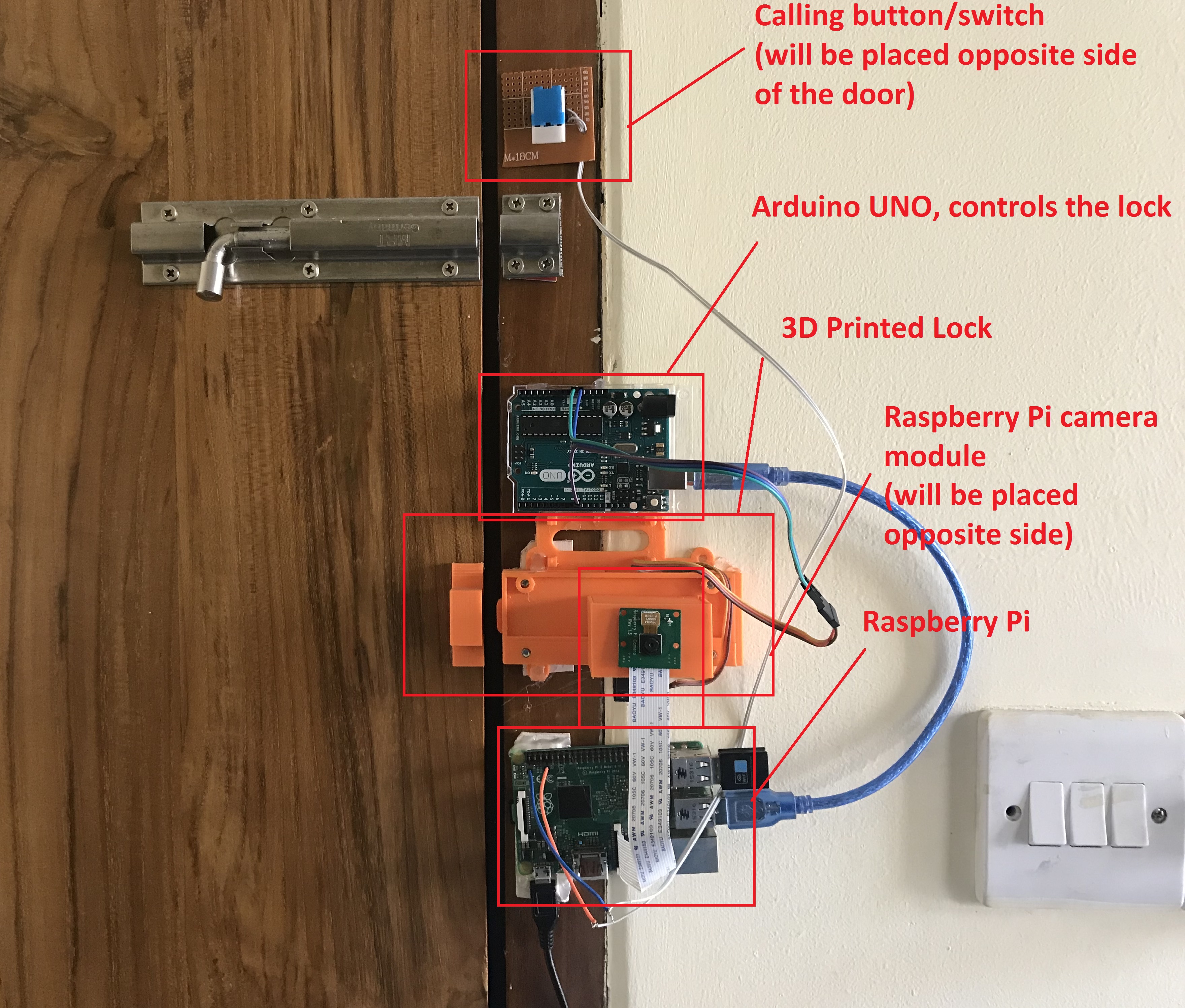
Source: Vardan Meliksetyan
Step 1: Open the door
Leave it open throughout programming and testing. If possible, extend and retract the bolt by hand to check that it moves without binding.
Step 2: Wake the keypad or open the app
Touch the keypad, press the designated button, or open the official app. Use the method listed in your model’s manual.
Step 3: Enter the authorized programming mode
Use the existing administrator credential or press the designated programming button. Some models require the interior battery cover to be removed first.
Step 4: Choose the add-code function
Select the option for adding a user or entry code. A keypad lock may use a number sequence, while an app-controlled model may have an Add User or Access Code menu.
Step 5: Enter a new code
Choose a code that meets the model’s length and format rules. Avoid easy-to-guess choices such as 1234, 0000, or a street number.
Step 6: Confirm the entry
Press the required confirmation key or save button. Wait for the success light, tone, app message, or other signal described in the manual.
Step 7: Test the code
Lock the door while it remains open, then enter the new code to unlock it. Repeat the test if needed and check that the bolt moves fully in both directions.
For a keypad lock, the interior programming button often starts the setup process. Some models require you to enter a master code first, while others allow authorized programming directly from the button. Follow the instructions for your exact model and complete each step within the permitted time.
For example, Kwikset publishes model-specific SmartCode instructions that may use a Program button, a user code, and a Lock button. Other models use a touchscreen, a checkmark symbol, or a different key sequence. These are examples of different designs, not steps that can be applied to every lock.
If the keypad flashes red or produces an error tone, stop and read the error information in the manual. Repeating random button combinations may cause the lock to leave programming mode or trigger a timeout.
Watch the confirmation signal
A green light or short beep may indicate success on some models, but the exact meaning depends on the manufacturer.
Check the code rules
Some locks reject duplicate codes or limit how many digits can be shared at the start of different codes.
Programming a Smart Lock With a Phone App
If your lock supports app-based programming, install the official app and sign in to the account authorized to manage the device. Add or select the correct lock, then look for a menu such as Users, Guest Access, Entry Codes, or Access Management.
Follow the app prompts to create a code and assign it to the right person. Depending on the lock and app, you may be able to set a start time, an end time, or a recurring access schedule. Some features require a compatible Wi-Fi connection, hub, or subscription, so check the product documentation before relying on remote access.
After saving the code, confirm that the app reports the change as complete. Test the code at the door while keeping it open. If the app shows that the lock is offline, determine whether local keypad programming is still available before making further changes.
Use the official app
Download it from the official app store listing or the manufacturer’s website. Avoid third-party tools that ask for your lock credentials without a clear, trusted purpose.
Check the connection
Bluetooth, Wi-Fi, and hub requirements differ by model. An internet connection is not required for every local keypad function.
How to Set or Change the Master Code
Set a new administrator or master code if your lock supports one and the current code is still the factory default. This reduces the chance that someone who knows the original setup details could change your lock settings.
The procedure varies by model. Some locks ask you to enter an existing master code and then choose a setting number. Others require the interior Program button, a touchscreen menu, or the manufacturer’s app. Read the model-specific directions before changing the code.
Choose a code that is hard to guess and do not reuse a code that you use for your bank account, email, or other sensitive services. If the lock allows a separate programming credential and daily entry credential, keep them different. Store any recovery information in a secure place.
Source: manuals.plus
Confirm the current setup
Find out whether a master code already exists and whether the lock requires it to authorize changes.
Follow the exact code format
Minimum length, maximum length, and allowed digits depend on the model. Some locks use a different length for administrator and user codes.
Save the change and test it
Confirm the success signal, then check that the new credential performs the intended function. Do not assume a master code can unlock the door.
What If You Do Not Know the Existing Master Code?
If you bought a home with a smart lock or received a lock from another owner, ask the previous owner or property manager for the authorized handover procedure. If the lock is linked to an account that you do not control, use the manufacturer’s official account-transfer instructions.
If the code is lost, consult the manual for the model’s recovery or reset procedure. A factory reset may remove saved entry codes, Wi-Fi settings, paired hubs, and app connections. Some connected systems also need the device removed from an old account before you can set it up again.
Do not try to bypass the lock or use undocumented methods to gain access. If the door is locked and you cannot enter, contact the owner, authorized property manager, manufacturer support, or a qualified locksmith.
Avoid guessing factory codes
Default credentials vary and may have been changed. Use official documentation for the exact model.
Understand reset consequences
Check which settings and credentials will be erased before starting a reset.
How to Add, Delete, and Manage User Codes
Separate user codes make it easier to manage who can enter your home. Rather than sharing one code with everyone, create individual codes when your lock supports multiple users. You can then remove access for one person without changing the codes used by the rest of the household.
Use the lock’s keypad or app to open the user management menu. Choose the person or code you want to add, change, or remove, then follow the on-screen or manual instructions. Keep the door open until you have tested any new or changed code.
Source: smartlockadvice.com
Add a family member
Create a unique code and confirm that it works before relying on it for daily entry.
Provide temporary guest access
If supported, set an expiration date or schedule for a guest, cleaner, or contractor. Verify the start and end times before sharing the code.
Remove an old user’s access
Delete the person’s code through the approved programming method or app. Test that the removed code no longer unlocks the door.
Review the user list
Remove codes that are no longer needed and confirm that each remaining user still has the correct permissions.
Choose Codes That Are Easy to Manage but Hard to Guess
Avoid predictable numbers such as 123456, 111111, or a birth date that others may know. Use the longest code your lock safely supports, subject to the manufacturer’s rules. Do not share the administrator code when a regular entry code will do.
If a code is exposed, remove it promptly and create a replacement. If you suspect someone has access to the administrator credentials, change those credentials as well and review the lock’s user list, paired devices, and account access.
Use individual codes
Separate codes make it easier to revoke access without changing every user’s credentials.
Limit shared information
Send codes only to the people who need them, and use temporary access where the lock offers it.
Understand Auto-Lock and Access Schedules
Many smart locks offer an auto-lock feature that locks the door after a set period. The delay and available settings vary by model. If you enable auto-lock, check that the door closes correctly and that the bolt can extend without obstruction.
Some app-controlled locks also allow schedules for individual users. A schedule can be useful for regular service visits or guests who need access only during certain hours. Verify the lock’s time zone and schedule settings, especially after a power or network issue, and never assume that every keypad lock supports scheduled codes.
Test the lock delay
Confirm that the door locks when expected and that the feature does not interfere with normal entry.
Review temporary access
Check the expiration time and remove a code early if access is no longer needed.
Smart Door Lock Programming Problems and Fixes
When programming fails, check the simplest causes first. A low battery, an incorrect code length, a full user list, or a missed confirmation step can prevent a new code from being saved. Start with the lock’s status lights or error messages, then follow the troubleshooting instructions for the exact model.
Do not factory-reset the lock as your first response. A reset may remove the very settings you need to restore access. If the lock is attached to a security system or managed by a landlord, check with the authorized administrator before changing its setup.
Source: storage.googleapis.com
The new code will not save
Check that you entered the correct programming mode, used the required number of digits, and confirmed the entry within the permitted time. Check for duplicate-code rules and available user slots.
The keypad flashes red or beeps
Use the manual to interpret the signal. It may indicate an invalid code, a timeout, a full code list, or another model-specific issue.
The lock does not respond
Check the batteries, battery contacts, and keypad activation method. Follow the manufacturer’s instructions before removing or replacing any components.
The app cannot connect
Confirm that Bluetooth, Wi-Fi, or the required hub is available and that the phone is signed in to the correct account. Check the app’s device status and official support guidance.
The code works but the bolt will not move
Check the door and bolt alignment while the door is open. If the bolt binds or the motor strains, address the mechanical problem before relying on the lock.
Troubleshooting Checklist
Work through these checks in order and retry the official programming procedure only after correcting the likely cause. This is safer and more effective than repeatedly pressing buttons at random.
1. Check power
Replace weak batteries with the type specified in the manual, observing the correct polarity.
2. Verify the model
Make sure every step comes from the guide for the installed lock, not a similar model.
3. Confirm permissions
Use the authorized administrator code or app account. Some locks restrict local programming when a particular setting is enabled.
4. Check code limits
Confirm the allowed length, duplicate-code rules, and number of available user slots.
5. Repeat the sequence carefully
Follow the steps in the listed order and finish within the specified timeout.
6. Escalate when needed
Contact the manufacturer or a qualified locksmith if the lock remains unresponsive or cannot be operated safely.
When Should You Factory-Reset a Smart Lock?
A factory reset may be appropriate when the official recovery procedure calls for it, the lock has been transferred to a new owner, or the manufacturer recommends it after a persistent setup failure. The correct reset steps and results depend on the model.
Before resetting, check whether you have the necessary account access, setup instructions, physical keys if supplied, and time to pair the lock again. After the reset, follow the manufacturer’s setup process, establish new credentials, reconnect supported devices, and test the lock while the door remains open.
Do not reset blindly
Understand which user codes, paired devices, network settings, and account links may be erased.
Protect access during recovery
Keep the door open and use the manufacturer’s recovery instructions. Seek authorized help if you cannot restore the lock safely.
Frequently Asked Questions
Q
How do I program a smart door lock without the app?
If your model supports local programming, you may be able to use the keypad, an interior programming button, and an authorized master or programming code. Open the manufacturer’s manual and follow the steps for your exact model. Some app-managed locks require the app for certain features, even if basic keypad entry works without it.
Q
Can I program a smart lock without the master code?
That depends on the lock. Some models allow programming through an interior button when no separate programming code is enabled, while others require an authorized credential or app account. If you do not know the existing code, use the official recovery procedure or contact the owner or manufacturer. Do not assume that a factory default will still work.
Q
How many digits should a smart door lock code have?
Use a code length supported by your specific lock. The allowed range varies by brand and model, and administrator codes may have different rules from user codes. Choose a code that is hard to guess and avoid obvious number patterns or personal dates.
Q
Why does my smart lock reject a new code?
Common causes include entering the wrong programming mode, using an unsupported code length, choosing a duplicate code, reaching the lock’s user limit, or taking too long to finish the sequence. Low batteries can also cause problems. Check the model’s error signals and correct the likely cause before trying again.
Q
Can I program a smart door lock without Wi-Fi?
Some keypad locks allow local code programming without Wi-Fi, and some app-based functions work over a local Bluetooth connection. Remote access, notifications, and integrations may need Wi-Fi or a compatible hub. Check your model’s documentation to see which features work offline.
Q
How do I remove a guest’s access code?
Open the lock’s user management menu or follow the manual’s keypad deletion sequence. Select the correct user or code and confirm removal. If the lock supports temporary codes, check whether the code has an expiration setting. Keep the door open and test that the removed code no longer grants access.
Q
Will programming a smart lock erase my existing codes?
Adding a new user code usually does not erase existing codes, but a factory reset often removes stored credentials and settings. The result depends on the model and the operation you perform. Read the manual before resetting or changing the lock’s configuration.
Q
What should I do if my smart lock will not open after programming?
Keep the door open during setup whenever possible. If the door is already closed and the lock will not open, use an authorized backup method described in the manual, such as a physical key or approved emergency power method if your model has one. Contact the property owner, manufacturer support, or a qualified locksmith if needed. Avoid forcing the bolt or trying undocumented bypass methods.
✦ Wrapping Up
Conclusion
Learning how to program a smart door lock is easier when you start with the correct model manual and understand how your lock manages administrator credentials, user codes, and app settings. The exact procedure varies, but the main goal is the same: make authorized access easy to manage while keeping your home secure.
Keep the door open during setup, use strong and separate codes, watch for the lock’s confirmation signals, and test each change before closing the door. If a programming attempt fails, check power, permissions, code rules, and the manual before considering a reset.
For US homeowners and renters, one final check is worth the time: make sure the lock works from both sides as intended, confirm that the bolt moves freely, and keep an approved backup entry method available. If the lock belongs to a rental property or shared building, get permission before changing administrator settings or resetting the device.
💡 Key Takeaway
Find the model number on your smart lock, open the manufacturer’s official programming guide, add one unique user code, and test it with the door open before relying on it.
I’m Ethan Carter, a home security systems specialist at Diggons.com. I focus on modern surveillance solutions and smart protection technologies that help people keep their homes safe and secure.
I have hands-on experience working with security cameras, video doorbells, alarm systems, and motion detection devices. I test real products and explore practical setups so I can provide clear, easy-to-follow guidance for everyday users.
My goal is to simplify home security by helping you understand how these systems work, how to fix common issues, and how to choose the right products with confidence. At Diggons.com, I share honest insights, comparisons, and real-world advice to make home security easier and more effective.