
Quick Answer: What Is Actuation on a Keyboard?
Keyboard actuation is the point where a keypress registers on your computer. It happens before the key fully bottoms out. A shorter actuation point feels faster, while a deeper actuation point feels more controlled for typing.
I’m Daniel Brooks, and I’ve spent years testing keyboards, desk tools, and computer accessories in real workspace setups. James Walker once asked me why his new gaming keyboard typed letters before he felt fully ready. That question leads to the key idea behind this guide: actuation changes how your keyboard feels, reacts, and performs.
What Keyboard Actuation Means and Why It Matters
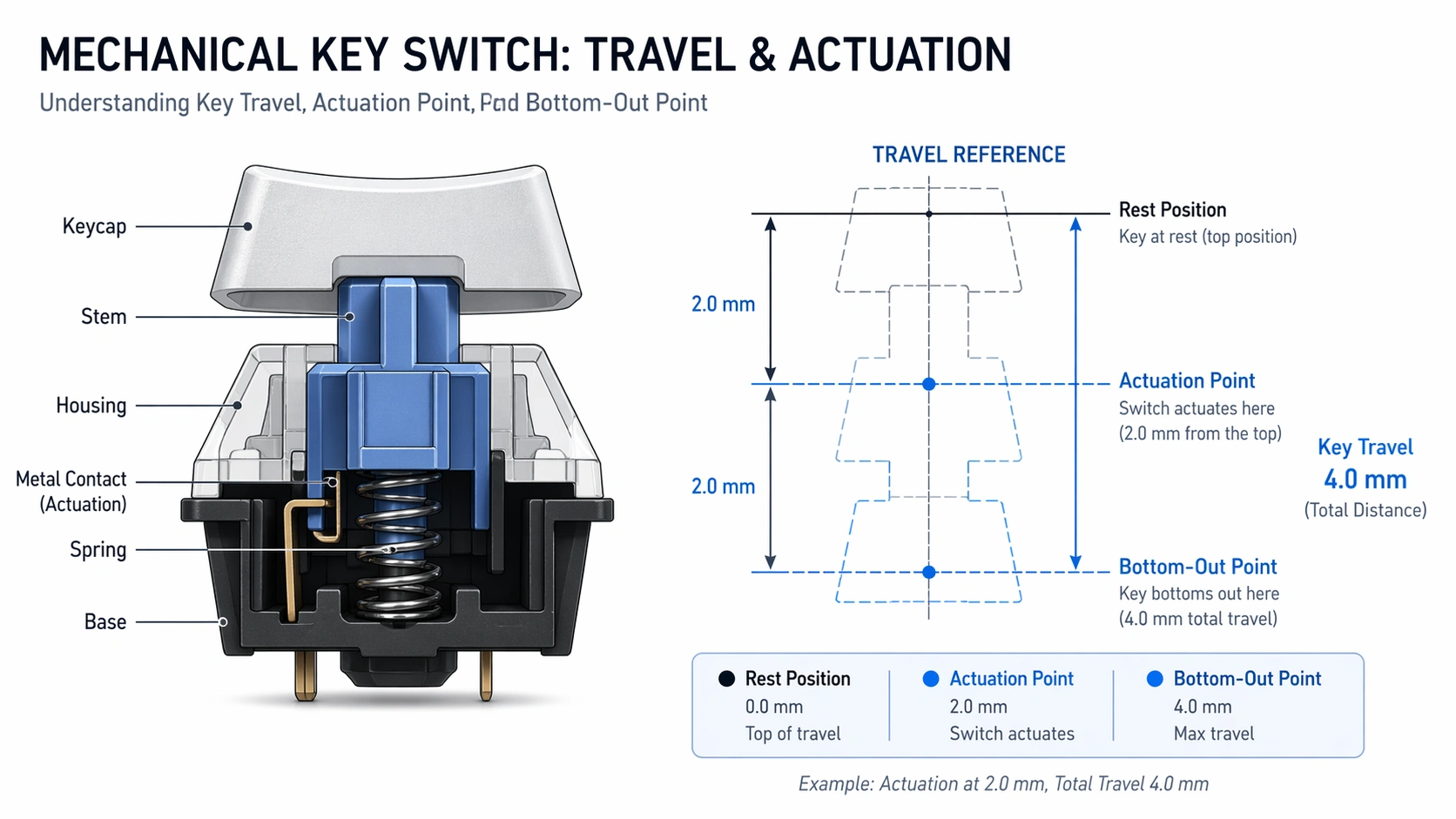
Actuation is the moment a keypress becomes an input. You press a key. The switch moves down. At a certain point, the keyboard sends the signal to your PC, laptop, or console.
You do not always need to press a key all the way down. On many mechanical keyboards, the key registers before it reaches the bottom. That is why some keyboards feel fast, light, or easy to trigger.
Actuation Point vs Travel Distance
The actuation point is where the key registers. Travel distance is how far the key can move from top to bottom.
| Term | Simple Meaning | Why It Matters |
|---|---|---|
| Actuation point | The depth where the keypress registers | Affects speed and accidental presses |
| Total travel | The full distance the key can move | Affects how deep the key feels |
| Pre-travel | Distance before the key actuates | Affects how soon the input happens |
| Bottom out | When the key reaches the bottom | Affects comfort, sound, and fatigue |
Actuation Force vs Bottom-Out Force
Actuation force is how much pressure you need to register the key. Bottom-out force is the pressure needed to press the key all the way down.
A light switch can feel fast, but it may also cause more typing mistakes. A heavier switch can feel more stable, but it may tire your fingers during long work sessions.
Why Actuation Changes How a Keyboard Feels
Low actuation feels quick. This helps in fast games where movement keys matter. But in office work, it can cause accidental letters, extra spaces, or shortcut mistakes.
Deeper actuation feels more deliberate. I usually prefer it for writing, spreadsheets, coding, and email because it gives my fingers more control.
How Keyboard Actuation Works Inside a Switch
Every keyboard switch has a way to detect a press. Some use metal contacts. Some use light. Some use magnets. The technology affects speed, feel, durability, software control, and price.
Mechanical Switches
Traditional mechanical switches use physical contact points. When the switch stem moves down far enough, the circuit closes and the keypress registers.
Many common mechanical switches have fixed actuation. You cannot change the actuation point in software. You choose the switch type before you buy the keyboard.
Optical Switches
Optical switches use light to detect movement. When the key stem crosses the sensor point, the keyboard registers the press.
Some optical keyboards support adjustable actuation. Razer, for example, offers keyboard models where users can customize the actuation point through supported controls and software. You can read the official guide here: Razer keyboard actuation point guide.
Hall Effect and Magnetic Switches
Hall effect keyboards use magnets and sensors. They can measure how far a key is pressed instead of only checking one fixed point.
This is why many magnetic keyboards support adjustable actuation and rapid trigger. SteelSeries explains adjustable actuation and Rapid Trigger on its Apex Pro line here: SteelSeries Apex Pro Gen 3 keyboard page.
Wireless and USB Keyboard Power Basics
Most USB keyboards use 5V USB power. The exact amps and wattage are usually handled by the USB port, not by the user. Still, power problems can happen when you use a weak hub, damaged cable, or overloaded dock.
Wireless keyboards add battery and Bluetooth or 2.4GHz connection issues. If your keyboard disconnects, misses inputs, or fails to wake, the problem may be power or connection quality, not actuation.
Best Keyboard Actuation Types Explained
The best actuation depends on what you do most. A competitive gamer may want a very short actuation point. A writer may want a deeper and more controlled press. A shared office may need quiet switches more than extreme speed.
Linear, Tactile, Clicky, Optical, and Magnetic Switches
| Switch Type | Feel | Best For | Actuation Notes |
|---|---|---|---|
| Linear | Smooth press with no bump | Gaming and fast typing | Can feel sensitive if too light |
| Tactile | Small bump before actuation | Office work and writing | Helps you feel the press |
| Clicky | Tactile bump with click sound | Solo typing setups | Clear feedback but loud |
| Optical | Fast sensor-based input | Gaming and responsive setups | Some models allow adjustment |
| Hall effect | Magnetic sensing | Advanced gaming and profiles | Often supports adjustable actuation |
Device Type Table for Office, Gaming, and Home Use
| Keyboard Type | Best Use | Main Benefit | Main Concern |
|---|---|---|---|
| Basic membrane keyboard | Simple office use | Low cost and quiet feel | Less precise switch feel |
| Mechanical keyboard | Typing, coding, gaming | Better feel and switch choice | Can be louder or heavier |
| Optical gaming keyboard | Fast gaming setup | Quick response | Software support varies |
| Hall effect keyboard | Competitive gaming and custom profiles | Adjustable actuation and rapid trigger | Higher price |
| Wireless keyboard | Clean desk and laptop setup | Less cable clutter | Battery and connection issues |
How to Check or Adjust Keyboard Actuation Step-by-Step
You cannot adjust actuation on every keyboard. Most regular membrane and many mechanical keyboards have fixed actuation. Adjustable actuation usually appears on optical or Hall effect gaming keyboards.
Step 1: Identify Your Keyboard Type
Check your keyboard model. Look at the product page, box, manual, or software. Search for terms like adjustable actuation, rapid trigger, analog switch, optical switch, or Hall effect switch.
Step 2: Install the Correct Keyboard Software
Use the official app from your keyboard brand. Do not download random driver tools from unknown websites. For example, SteelSeries uses GG software for many keyboards, while Razer uses Synapse for supported models.
Step 3: Test Keypress Registration
Open a text document and press each key slowly. Notice when the character appears. If letters appear with a tiny touch, your actuation may be too shallow for typing.
Step 4: Adjust Actuation If Supported
If your keyboard supports it, open the actuation settings and choose a depth. For gaming movement keys, a short setting can feel fast. For typing keys, a deeper setting can reduce mistakes.
| Use Case | Suggested Actuation Feel | Why |
|---|---|---|
| FPS gaming | Short and fast | Helps movement keys react quickly |
| Office typing | Medium to deeper | Reduces accidental letters |
| Programming | Medium | Balances speed and accuracy |
| Shared workspace | Controlled and quiet | Reduces noise and errors |
| Creative shortcuts | Deeper for risky keys | Prevents accidental commands |
Step 5: Save Profiles for Work and Gaming
I like using one profile for work and one for games. My work profile uses safer actuation. My gaming profile uses faster actuation on movement keys.
Why Your Keyboard Feels Too Sensitive or Too Slow
A keyboard can feel wrong for several reasons. Actuation is one reason, but it is not the only one. Switch weight, keycap height, desk angle, software settings, cable quality, and Bluetooth strength can all change the experience.
Low Actuation Can Cause Accidental Presses
If your keyboard registers keys too easily, the actuation point may be too shallow. This happens often on speed switches and adjustable gaming keyboards.
Common signs include extra letters, accidental spaces, unwanted game movement, and shortcut mistakes.
High Actuation Can Feel Slow or Heavy
If the actuation point is deeper, you need to press farther before the key registers. This can feel stable for typing, but slow for competitive gaming.
Software, Firmware, and USB Issues Can Add Delay
Sometimes the switch is fine, but the setup is not. A bad USB hub, old firmware, weak Bluetooth signal, or buggy keyboard app can cause missed inputs or delay.
Common Keyboard Actuation Problems and Fixes
Before buying a new keyboard, check the simple fixes first. I have seen many “bad keyboard” cases turn out to be cable, software, or cleaning problems.
| Problem | Likely Cause | Fix |
|---|---|---|
| Keys feel too sensitive | Low actuation or light switches | Increase actuation depth if supported, or use heavier switches |
| Keyboard double types | Dirty switch, debounce issue, or failing switch | Clean keyboard, update firmware, test another USB port |
| Keys do not register | Bad switch, loose cable, software issue | Reconnect cable, reset keyboard, test on another computer |
| Keyboard app not detecting device | Wrong app, bad cable, outdated firmware | Install official software and use direct USB connection |
| Wireless keyboard disconnects | Low battery or signal interference | Recharge, move receiver closer, avoid crowded USB hubs |
| RGB works but keys do not type | Driver, mode, or firmware fault | Restart PC, factory reset keyboard, update firmware |
Keyboard Double Typing
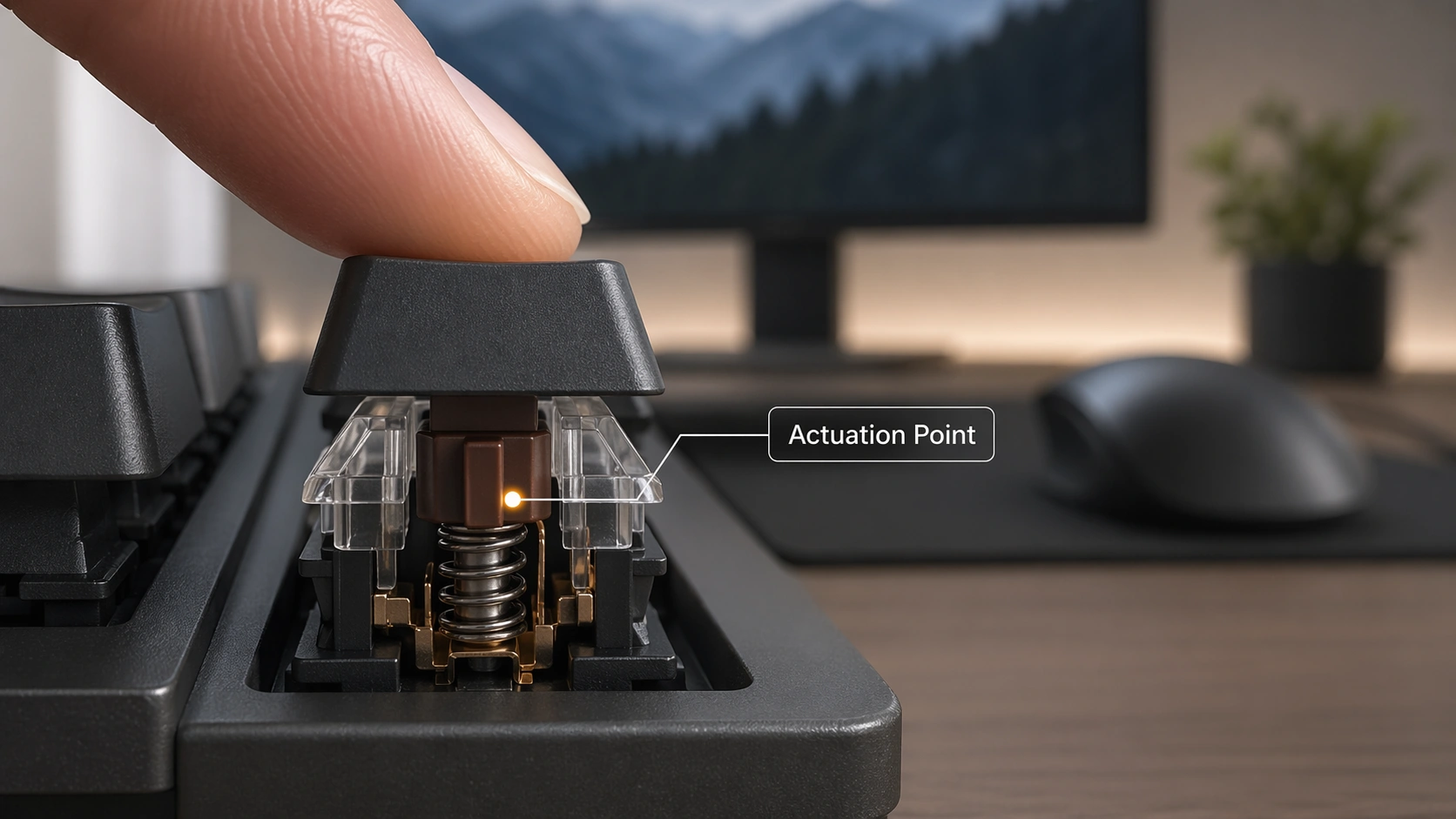
Double typing means one press creates two inputs. It can come from dust, worn switches, firmware issues, or very light actuation.
Try cleaning the switch area, testing another USB port, and updating firmware. If it happens on one key only, the switch may be failing.
Keys Not Registering
If a key does not register, test it in a keyboard tester tool. Then try another cable and another computer. This helps you know if the issue is the keyboard, software, or PC.
Keyboard App Not Detecting Device
Use the correct brand software. Plug the keyboard directly into the computer. Avoid docking stations during firmware updates because power or data drops can cause setup problems.
Wireless Keyboard Keeps Disconnecting
Bluetooth keyboards can disconnect because of low battery, interference, or sleep settings. For daily office work, I prefer a 2.4GHz receiver or wired mode when reliability matters.
RGB Works but Keys Do Not Type
This can happen when the keyboard has power but no proper data connection. Try a different USB-C cable because some cables charge only and do not carry data.
Common Keyboard Actuation Mistakes to Avoid
Many people buy a fast keyboard and expect it to fix every typing or gaming issue. Actuation helps, but it needs to match your real use.
Choosing Speed Switches for Office Typing Without Testing
Speed switches can be great for games, but they may feel too sensitive for long writing sessions. If you write emails, reports, or code all day, test before you buy.
Ignoring Wrist Position and Desk Setup
A poor desk setup can make any keyboard feel bad. Keep your wrists relaxed. Keep the keyboard at a comfortable angle. Do not blame actuation before checking posture.
Using One Actuation Setting for Every Task
A single actuation setting may not work for everything. Fast settings help games. Safer settings help typing. Profile switching is useful if your keyboard supports it.
Blaming Actuation Before Checking Connection Problems
If your keyboard lags, disconnects, or misses keys, check the cable, USB port, battery, firmware, and software first.
Pro Tips for Better Typing, Gaming, and Workspace Setup
Here is the practical advice I use when setting up keyboards for myself and other people.
Use Deeper Actuation for Writing
For office work, I prefer a controlled press. It reduces accidental input and makes long sessions feel calmer.
Use Shorter Actuation for Competitive Gaming
For fast games, shorter actuation can help movement keys respond quickly. This matters most for players who already have good control.
Keep Work and Game Profiles Separate
If your keyboard supports profiles, make one for typing and one for gaming. Use safer settings for passwords, spreadsheets, and shortcut-heavy apps.
Clean and Test Your Keyboard Regularly
Dust and crumbs can change how a key feels. Use a keycap puller, soft brush, and compressed air. Do not soak switches with liquid cleaner.
Tool Recommendations for Testing and Improving Keyboard Actuation
You do not need a full repair bench. A few simple tools can help you test switches, clean your board, and avoid bad buying decisions.
| Tool | What It Does | Who Needs It |
|---|---|---|
| Keyboard switch tester | Lets you feel different switches before buying | Beginners and switch shoppers |
| Keycap puller | Removes keycaps for cleaning | Anyone with a mechanical keyboard |
| Switch puller | Removes switches on hot-swap boards | DIY users and enthusiasts |
| USB-C data cable | Fixes many connection and detection issues | Wired keyboard users |
| Powered USB hub | Helps stable power for desk accessories | Office and docking station setups |
Keyboard Switch Tester
A switch tester is one of the cheapest ways to learn what actuation feels like. It helps you compare linear, tactile, and clicky switches before spending money on a full keyboard.
Keycap Puller and Switch Puller
These tools help with cleaning and switch swaps. Use them gently. Pull straight up to avoid bending stems or damaging sockets.
USB-C Cable and Powered Hub
If your keyboard software does not detect the device, try a known data cable. Many setup problems come from poor cables, weak hubs, or docking stations.
Adjustable Actuation Keyboards
If you want full control, look at optical or Hall effect keyboards. These are best for users who want separate work and gaming profiles.
Keyboard Actuation Comparison: What Works Best?
The best actuation is not always the shortest one. The best option is the one that matches your hand control, typing style, and work setup.
Low vs High Actuation
| Feature | Low Actuation | High Actuation |
|---|---|---|
| Feel | Very sensitive | More deliberate |
| Best for | Fast games | Typing and office work |
| Main benefit | Quick input | Better control |
| Main downside | More accidental presses | Can feel slower |
| Good for beginners? | Sometimes | Usually easier to control |
Mechanical vs Optical vs Hall Effect
| Keyboard Switch Tech | Actuation Control | Best Buyer | Value Notes |
|---|---|---|---|
| Mechanical | Usually fixed | Typists, programmers, office users | Great switch variety |
| Optical | Fixed or adjustable, depending on model | Gamers who want speed | Fast and smooth on many boards |
| Hall effect | Often adjustable | Advanced gamers and power users | Best for custom actuation profiles |
| Membrane | Fixed | Basic home and office use | Affordable but less precise |
Best Choice for Gaming, Typing, Office, and Programming
| Use Case | Best Actuation Style | Recommended Switch Feel |
|---|---|---|
| Competitive gaming | Short or adjustable | Linear, optical, or Hall effect |
| Daily office work | Medium and controlled | Tactile or quiet linear |
| Long writing sessions | Medium to deeper | Tactile or heavier linear |
| Programming | Balanced | Tactile or smooth linear |
| Shared workspace | Controlled and quiet | Silent tactile or silent linear |
Recommended Keyboards and Accessories
These product ideas are for people who want to test or control actuation in a real setup. I recommend choosing based on your use, not hype.
SteelSeries Apex Pro Gen 3
Best for: gamers who want adjustable actuation, rapid trigger features, and a full software-controlled setup.
This is a strong pick if you want to tune movement keys for games and use deeper actuation for typing or office work.
Razer Huntsman V3 Pro
Best for: users who want an optical gaming keyboard with customizable actuation on supported models.
This is useful if you want fast gaming input but still want to test different actuation levels for comfort.
Keychron K2 HE
Best for: people who want a cleaner desk keyboard with magnetic switch control and a more office-friendly design.
This type of board makes sense for users who split time between work, casual gaming, and home desk setups.
FAQ About Keyboard Actuation
What is a good actuation point for a keyboard?
A good actuation point depends on your use. For typing, a medium or deeper actuation often feels more controlled. For gaming, a shorter actuation can feel faster.
Does keyboard actuation affect gaming?
Yes. A shorter actuation point can help keys register faster. This is most useful in fast games where movement and reaction time matter.
Is lower actuation better?
Lower actuation is not always better. It can feel faster, but it can also cause accidental keypresses. For office work, a slightly deeper setting may be better.
Can I change actuation on any keyboard?
No. Most basic keyboards and many mechanical keyboards have fixed actuation. You usually need an adjustable optical or Hall effect keyboard to change it.
What is the difference between actuation and travel distance?
Actuation is where the keypress registers. Travel distance is how far the key can move from top to bottom.
Why does my keyboard register keys too easily?
Your keyboard may have a low actuation point, light switches, or sensitive software settings. Dust, firmware issues, or a failing switch can also cause problems.
Are Hall effect keyboards worth it?
Hall effect keyboards are worth it if you want adjustable actuation, rapid trigger, and custom profiles. For basic office work, a normal mechanical keyboard may be enough.
Final Thoughts
Keyboard actuation is simple once you feel it. It is the point where your keypress becomes an input. Short actuation feels fast. Deeper actuation feels controlled.
If you type all day, do not chase the fastest switch without testing it. If you game often, adjustable actuation can be a real upgrade. The best keyboard is the one that fits your hands, your desk, and your daily work.
About Daniel Brooks
I’m Daniel Brooks. I test keyboards, desk accessories, and computer tools in real home office and gaming setups. My goal is simple: explain tech in plain English so you can buy better gear and fix common problems without stress.