Yes, many smart locks let multiple people use the same door lock. Depending on the model, each person can have a unique keypad code, a phone-based digital key, a fingerprint, or an invited account with set permissions. The best setup gives each person only the access they need.
For families across the United States, sharing a front door key can be a daily hassle. Parents may need to let their children in after school, a dog walker may need access during the workday, and a house cleaner may visit once a week. A smart lock can handle these needs without requiring everyone to carry the same physical key.
A smart lock with multiple users lets the owner manage who can enter and, on supported models, when they can enter. Some locks use separate keypad codes, while others allow an owner to invite people through a mobile app. Certain models also support fingerprints, temporary passes, activity records, and remote access.
These features vary by lock, app, and connection method. A lock that supports several keypad codes may not support several administrator accounts, and a lock with Bluetooth may need an additional device or Wi-Fi connection for remote control. Before sharing access, check the exact model’s user guide and confirm which permissions it supports.
Source: freepik.com
How Does a Smart Lock Work With Multiple Users?
A smart lock with multiple users stores or manages more than one approved way to unlock a door. Instead of giving every person one shared key or PIN, the owner can create separate credentials for different people. The lock checks each credential against its allowed access rules before unlocking.
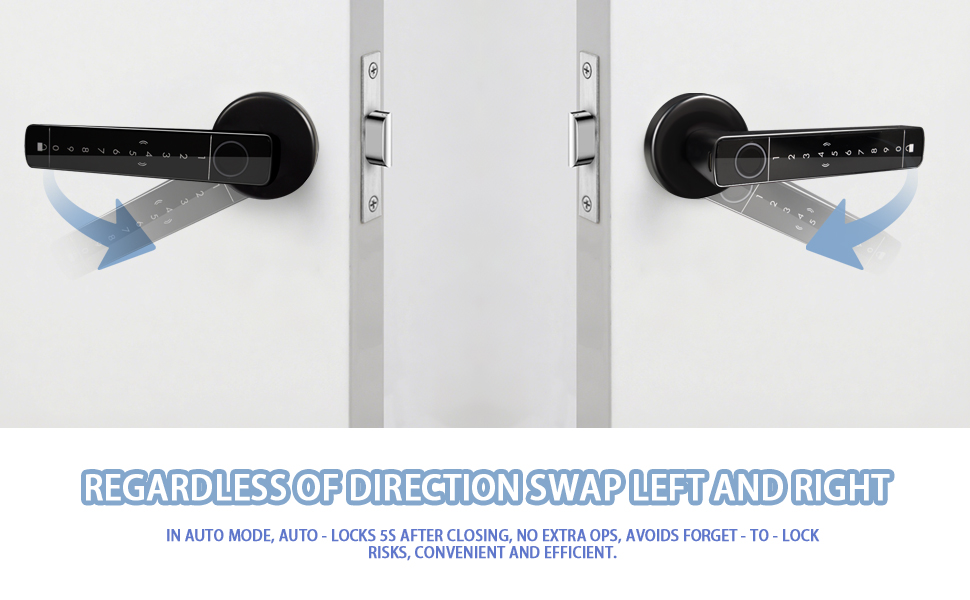
The exact process depends on the technology. A keypad lock checks a number entered on the keypad, a fingerprint model checks a stored biometric template, and a connected lock may receive an unlock command from an approved phone or account. Some products combine several methods in one device.
For example, a family in Texas might give each adult a separate app invitation and each child a personal keypad code. The family could then create a limited code for a housekeeper. If the housekeeper stops working for them, the owner can remove that code without changing the adults’ credentials.
Source: inslocks.com
Individual PIN codes
Each person enters a personal number on a compatible keypad. The owner can often add, edit, or delete codes through the lock or its app.
Mobile app access
The owner invites another person to use a compatible app. Depending on the product, that person may be able to lock or unlock the door and view some activity.
Fingerprint access
A compatible biometric lock can store approved fingerprints. The number of supported fingerprints and the process for deleting them vary by model.
Temporary digital keys
Some systems allow access for a defined period or on selected days. This can help with guests and scheduled service visits.
Does Multiple Users Mean Multiple Administrator Accounts?
No. A lock may support many entry codes while allowing only one owner account or a limited number of people who can change settings. An entry code usually opens the door, while an administrator account may manage other users, change settings, or review activity records.
Check the difference before inviting someone. A child or occasional guest may need entry access only, while a spouse or trusted household member may need broader control. Giving everyone administrator rights can make it harder to manage security and prevent unwanted changes.
Owner or administrator
Typically manages setup, credentials, permissions, and supported security settings.
Regular user
Can enter the home using approved credentials, with other app functions depending on the lock.
Guest or service user
May receive restricted, scheduled, or temporary access if the product supports these options.
How to Add Multiple Users to a Smart Lock
You can usually add users through the lock’s companion app or its built-in keypad, but the exact steps differ by brand and model. Before you start, identify the lock’s model number and read the official instructions. Some products require the owner to pair the lock with an account before creating additional credentials.
Have the lock’s app installed on the owner’s phone, make sure the lock has enough battery power, and confirm that you can access the owner account. If the lock uses Wi-Fi or a hub for remote features, check that the required connection is working. You may still be able to add local keypad codes on some models when the internet is unavailable.
Source: inextechnologies.com
Step 1: Open the correct lock
Launch the official app and select the door lock you want to manage. If you have several locks, confirm that you selected the right door.
Step 2: Find user management
Look for a menu called Users, Access, Guest Access, Passcodes, PIN Codes, or a similar name. Menu labels vary by app version.
Step 3: Choose the access method
Select a keypad code, app invitation, fingerprint, or other supported credential. Not every lock offers every method.
Step 4: Create the credential
Follow the app or keypad prompts. Use a code that is not easy to guess, and avoid using a birthday, street number, or a simple sequence.
Step 5: Set permissions
If available, choose permanent, recurring, or temporary access. Confirm the dates, days, and times before saving.
Step 6: Test the new access
Test the credential while you are home and can use another approved entry method if it fails. Confirm that it works only as intended.
How to Invite Someone Through a Smart Lock App
If your lock supports app-based sharing, open the user or guest section and select the option to invite a person. The app may ask for an email address, phone number, or account associated with its service. Follow the instructions sent to that person and check whether the invitation must be accepted before access becomes active.
Give the invited person only the permissions they need. If they only need to enter the house, avoid granting broader control over the lock or other smart home devices unless it is necessary. Once the invitation is accepted, ask them to test access before they rely on it.
Confirm the invitation
Check that the correct person accepted the invitation and appears in the lock’s access list.
Check phone requirements
Verify that the person’s phone, operating system, and app meet the manufacturer’s requirements.
Test before relying on it
Confirm that the invited user can unlock the intended door and cannot access doors or functions they were not meant to control.
Some keypad and fingerprint locks let an owner add users directly at the lock. Others rely on an app, an internet connection, or a hub for at least part of the setup. There is no universal offline setup method, so check the model’s manual before disconnecting a network or resetting a device.
If local programming is supported, follow the official instructions and use the required administrator or programming credential. Do not guess programming sequences from another lock brand. If the app cannot connect, first check the battery, Bluetooth permissions, phone proximity, and network status before considering a reset.
What may work offline
Previously saved PIN codes or fingerprints may continue to work locally, depending on the lock.
What may need a connection
Remote unlocking, cloud invitations, notifications, and access-history updates may depend on internet or hub connectivity.
How Many Users Can One Smart Lock Support?
The number of users a smart lock can support depends on its model and the type of credential. A lock might allow dozens of keypad codes but have a different limit for fingerprints, app accounts, or administrator profiles. These limits should be checked separately rather than treated as one overall user count.
As one documented example, Schlage states that its Encode models BE489, BE499, and FE789 support up to 100 unique user codes. That figure applies to those identified models and their user-code feature. It does not mean that every smart lock supports 100 users or that the lock allows 100 administrator accounts.
Before buying a lock for a large household, rental property, or small business, check the user capacity, whether credentials can be scheduled, and how quickly they can be removed. Also confirm that the lock’s access history can identify the credential used. A record showing that a code was used may not prove which person entered if several people share it.
Source: yorfan.com
Small household
A few unique PIN codes or app invitations may be enough for residents and occasional visitors.
Large family or shared home
Check the maximum number of codes, fingerprints, and app users separately. Consider how easily old credentials can be removed.
Rental property
Look for temporary codes, scheduled access, and a clear process for removing access when a guest or tenant leaves.
Small workplace
Confirm that the product is designed for the number of users and doors you need. A consumer smart lock may not provide the audit or administration features required for business use.
Can Multiple Users Share One Access Code?
Yes, if the lock accepts that code, but sharing one code is usually less useful than assigning a separate code to each person. When everyone uses the same number, the owner may not be able to tell which person used it. Removing one person’s access may also require changing the code and notifying everyone else.
Individual credentials make changes simpler. If a housekeeper leaves, the owner can remove that person’s code while leaving family codes unchanged. This approach also reduces the need to send one permanent PIN to every visitor.
Better accountability
Separate credentials can help match an entry event to the code or account used, where activity records are supported.
Easier access removal
The owner can usually disable one credential without changing every other user’s access.
Less code sharing
People do not need to pass a permanent household PIN to friends, contractors, or other visitors.
Permanent, Temporary, and Scheduled Access
The most useful multi-user smart locks do more than add people. Compatible models can also control when each credential works. This helps a homeowner give a trusted person ongoing access while limiting a visitor to a specific period or recurring time window.
Permanent access is suitable for people who live in the home and need regular entry. Temporary access may suit a visiting relative or a contractor who needs to enter during a defined period. Recurring access can be useful for a dog walker who visits on weekdays, provided the lock supports schedules and the correct time zone is set.
Scheduling options are not universal. Some locks support time-based codes, while others allow only basic code creation and deletion. Read the product manual to learn whether a schedule is enforced by the lock itself, the app, or a connected service, and what happens if the network is down.
Source: smartlocksreviewed.com
Permanent access
Use for residents or trusted people who need ongoing entry. Review these credentials when household members move out or no longer need access.
Temporary access
Use for a visitor or service provider who needs entry for a limited period. Confirm the start and end times before sharing the code.
Recurring access
Use for scheduled visits, such as a cleaner arriving on selected weekdays. Verify that the lock supports specific days and time windows.
Entry-only access
Where available, let someone unlock the door without giving them administrator control over settings or other smart home devices.
Example: Setting Up Access for a Housekeeper
Imagine a homeowner in Florida who employs a housekeeper every Tuesday from 10 a.m. to noon. If the smart lock supports recurring schedules, the owner can create a separate credential for the housekeeper and set it to work during the agreed hours. The owner should test the code and confirm the schedule before the first visit.
If the housekeeper’s schedule changes, update the access window or contact the person to agree on a new arrangement. When the service ends, delete the credential or revoke the invitation. A scheduled code should not be assumed to expire correctly until the owner has verified the settings.
Use a separate credential
Do not give a service provider the same permanent code used by every resident.
Check the schedule
Confirm the correct days, start time, end time, and expiration date.
Remove old access
Delete the credential when it is no longer needed, even if its schedule should already have ended.
Can You Manage Several Smart Locks in One App?
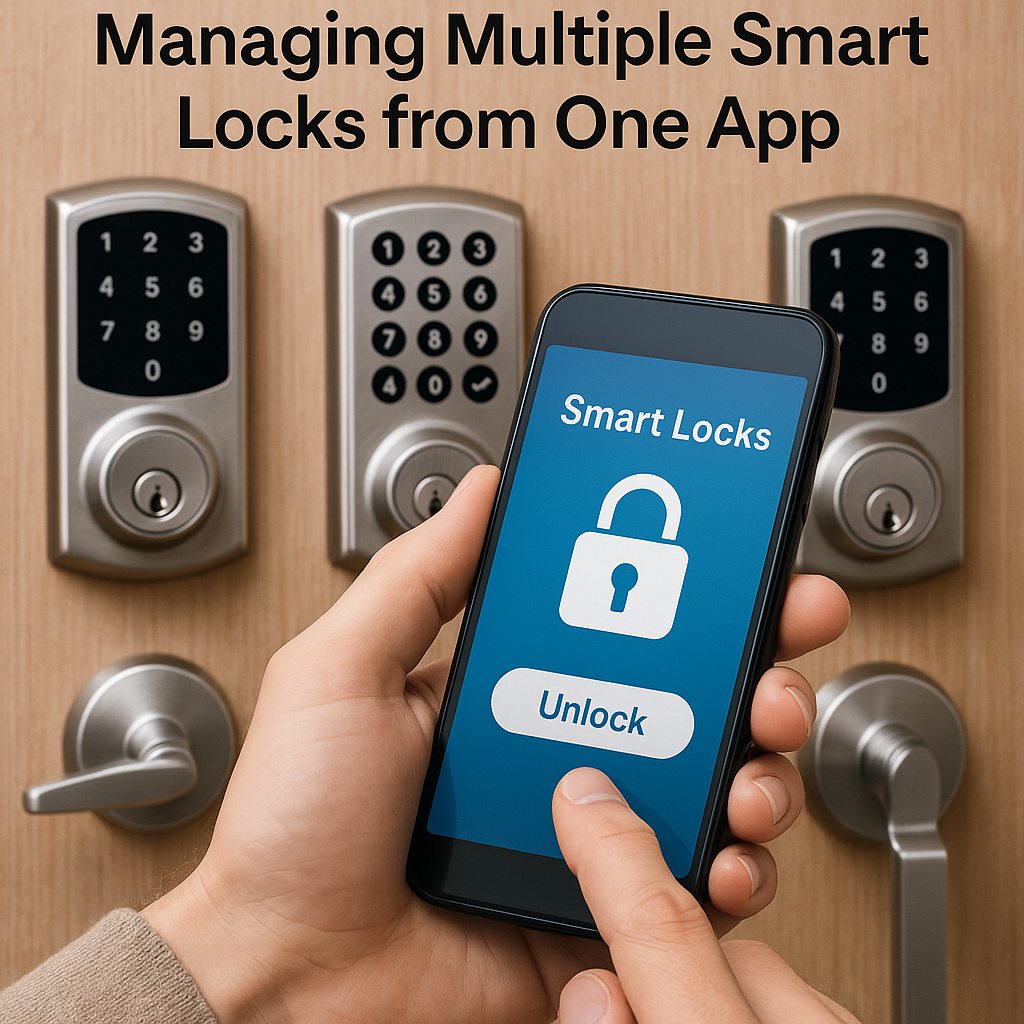
Some smart home apps let an owner manage multiple compatible locks from one account. This can help with a front door, side entrance, garage entry, or a second property. However, support for several locks in one app does not always mean that users and codes automatically synchronize across every lock.
For example, Schlage’s support documentation states that its Home app can use the same access code on multiple compatible Encode Series locks, but changes to a code on one lock do not automatically update that code on every other lock. If you use a shared code across several doors, check each lock after making a change.
Name each door
Use clear labels such as Front Door, Side Door, and Rental Unit to reduce mistakes when managing access.
Check synchronization
Do not assume a change to one lock applies to every other lock. Confirm the status of each device.
Limit access by door
Give each person access only to the doors they need, if the app supports separate permissions.
Smart Lock Security Tips for Multiple Users
Adding more users is convenient, but every active credential is another way someone may enter. A secure setup balances easy access for trusted people with clear limits on who can unlock the door, change settings, and invite others. Review the access list rather than assuming that an old code has stopped working.
Start with unique credentials, strong account passwords, and multi-factor authentication when the lock’s app offers it. Keep the phone used to manage the lock protected with a screen lock, and install official updates when available. If a phone used for access is lost, follow the manufacturer’s instructions to revoke its access or secure the account.
Smart locks do not replace the need for a sound door, a secure deadbolt, and good household habits. Check that the bolt moves freely, the door closes fully, and the lock is installed according to its instructions. Keep a permitted backup entry method available, and understand how to regain access if the batteries run low or the app stops working.
Source: goldshiner.com
Give each person a separate code
Unique codes make it easier to remove one person’s access and can make supported activity records more useful.
Avoid easy-to-guess PINs
Do not use common sequences, birthdays, or information that visitors can find on public profiles.
Protect the owner account
Use a strong, unique password and multi-factor authentication when available. Avoid sharing the owner login with everyone in the household.
Review the user list
Remove credentials for former tenants, contractors, visitors, or household members who no longer need entry.
Keep the lock updated
Use official firmware and app updates when offered, and review the manufacturer’s security notices.
Keep a backup plan
Understand the lock’s physical-key, battery, emergency-power, or manual-entry options. Features vary by model.
What to Do if Someone Knows Your Smart Lock Code
If a person who should no longer have access knows a shared PIN, change that PIN as soon as you can do so safely. If everyone uses the same code, you may need to create a new code and tell the remaining authorized users. If the lock supports individual credentials, remove the affected person’s code instead.
Review app invitations, administrator accounts, and activity records if those features are available. If you suspect someone has taken control of the owner account, secure the associated email account and smart lock account, revoke unknown sessions where possible, and follow the manufacturer’s account recovery instructions.
If you believe someone has entered without permission or there is an immediate threat, prioritize personal safety and contact local emergency services when appropriate. Do not rely on a digital access log as the only evidence of what happened.
Change or revoke the exposed credential
Remove the specific code or replace the shared code, depending on the lock’s capabilities.
Review authorized accounts
Look for unfamiliar users, invitations, or administrator permissions and remove access you cannot verify.
Check physical security
Inspect the door and lock for signs of damage and seek qualified help if the hardware is compromised.
What Happens When the Internet or Battery Fails?
A loss of internet access does not affect every smart lock in the same way. A lock with locally stored PIN codes may continue to accept them, while remote unlocking, cloud-based invitations, or notifications may stop working until the connection returns. Bluetooth and hub-based features also depend on the model and the state of the connected devices.
Low batteries can reduce reliability or eventually prevent electronic unlocking. Check the battery status in the app or on the lock when available, replace batteries using the type listed in the manual, and learn the manufacturer’s emergency-entry procedure before you need it. Never assume that every lock has an external battery contact or a physical key override.
If the app cannot connect
Check the phone’s Bluetooth permission, proximity to the lock, Wi-Fi status, and any required hub before resetting the device.
If a PIN does not work
Verify the code, its schedule, the selected door, and whether the credential is active. Follow the model-specific troubleshooting guide.
If the battery is low
Replace or recharge it as directed by the manufacturer and test normal operation after the change.
How to Choose a Smart Lock for Multiple Users
Choose a smart lock based on how people will use the door, not simply on the number of credentials listed on the product page. A family may value separate PIN codes and simple access management, while a rental host may need temporary codes and reliable remote administration. A workplace may need more detailed logs and stronger access controls than a consumer lock provides.
Before buying, confirm that the lock fits your existing door and deadbolt, supports the phones or smart home system you use, and offers the entry methods you need. In the United States, door thickness, backset, deadbolt style, and existing hardware can affect installation compatibility. Follow the manufacturer’s measurements rather than assuming that all residential doors are the same.
Consider the long-term work of managing users. A lock that is easy to install may still be inconvenient if removing an old credential takes several steps, schedules are not supported, or every new user needs a paid service. Check current terms, app requirements, warranty details, and the availability of official support before making a decision.
Source: gunsafesecurity.com
Credential capacity
Check the supported number of unique PIN codes, fingerprints, mobile users, and administrators separately.
Access scheduling
Confirm that the lock supports temporary and recurring access if you need to manage visitors or service providers.
Connectivity
Determine whether the lock uses Bluetooth, built-in Wi-Fi, a hub, or another supported connection, and identify which features need internet access.
Activity history
Check what the logs show, how long records are retained, and whether the records identify a credential, an account, or a verified person.
Installation and backup access
Verify door compatibility, battery requirements, backup entry options, and the procedure for recovering access.
Ongoing costs
Review whether remote access, additional users, history, or other desired functions require a subscription or extra hardware.
A multi-user smart lock can be useful when several trusted people need independent access or when visitors need entry at set times. The ability to revoke a single code can reduce the hassle of replacing shared keys or changing one code for an entire household. App alerts and access records may also help owners review activity when the features are supported.
The benefits depend on the household’s needs and the lock’s design. If only one person uses a door and physical keys already work well, multiple-user features may not add much value. If several people come and go, look for a simple way to add, test, and remove access rather than paying for features you will not use.
A good fit
Households, shared homes, and property owners who need separate credentials or controlled access for visitors.
A possible poor fit
People who do not need remote access, schedules, app management, or multiple credentials and prefer a simpler lock.
A point to verify
Confirm that the product’s actual access controls meet your needs instead of relying only on a general claim that it supports multiple users.
Frequently Asked Questions
Q
Can two people use the same smart lock at the same time?
Yes. Two or more authorized people can generally use the same smart lock, although they may not be able to operate it at the exact same moment. Each person can use an approved code, phone, fingerprint, or other supported credential. The lock processes each valid request according to its design and current state.
If you need several people to enter independently, give each person a working credential and test it before relying on it.
Q
Can I add family members to my smart lock without giving them my password?
Often, yes. Many connected smart locks let the owner invite other people through an app or create individual keypad codes. Invited users may use their own accounts, while keypad users may not need an account at all.
The available options depend on the model. Avoid sharing the owner’s account password when individual invitations or credentials are available.
Q
Can I give a guest a smart lock code that expires?
Some smart locks support temporary codes that work only during a selected period. Others offer recurring schedules or allow only manual code removal. Check the exact model and confirm the expiration settings before sharing the code.
If automatic expiration is not supported, set a reminder to remove the guest’s credential when access is no longer needed.
Q
Can multiple users unlock a smart lock with their fingerprints?
Yes, if the lock has a fingerprint reader and supports storing multiple fingerprints. The maximum number of stored fingerprints can differ from the number of keypad codes or app users.
Register each authorized person’s fingerprint according to the manual, test it, and remove stored fingerprints when a person no longer needs access.
Q
Will a smart lock still work if the Wi-Fi goes down?
It depends on the lock and the entry method. A model with locally stored PIN codes or fingerprints may continue to unlock the door even when internet service is unavailable. Remote app control, cloud-based invitations, and notifications may stop working until the connection returns.
Read the manufacturer’s offline-operation and emergency-entry instructions before relying on a smart lock as your only way into the home.
Q
How do I remove a person from a smart lock?
Open the lock’s official app or follow the manufacturer’s local programming instructions. Find the person’s individual code, fingerprint, or app invitation and delete or revoke it. If several people share one code, you may need to change that code and distribute the replacement only to authorized users.
After removing access, check the user list and test the change where practical. If you suspect that an administrator account has been compromised, secure the account as well as the lock credentials.
Q
Can I manage several smart locks with one account?
Some smart home apps support several compatible locks under one account. The owner can often select a door, review its status, and manage its users from the same app. However, shared codes, permissions, and settings may not synchronize automatically across every lock.
Check the app’s support documentation and verify changes on each door. Use clear names for locks so you do not accidentally edit the wrong entry.
✦ Wrapping Up
Conclusion
A smart lock with multiple users can make everyday entry easier for American households, shared homes, and property owners. Individual PIN codes, app invitations, fingerprints, and scheduled guest access can help different people enter without sharing one permanent key or password.
The best setup depends on your lock’s actual features. Check its user capacity, access schedules, account permissions, connectivity needs, and backup entry method. Give every person only the access they need, test new credentials, and remove old ones as soon as they are no longer required.
Before buying a new lock, compare its user-management features with your household’s needs and confirm that it fits your door. If you already own a compatible smart lock, start by checking the official app or manual for the option to add a user or create an access code.
💡 Key Takeaway
Start today by opening your smart lock’s official app, reviewing the current access list, and assigning separate credentials to trusted users. Test each credential, confirm any schedule or expiration date, and remove access that is no longer needed.
I’m Ethan Carter, a home security systems specialist at Diggons.com. I focus on modern surveillance solutions and smart protection technologies that help people keep their homes safe and secure.
I have hands-on experience working with security cameras, video doorbells, alarm systems, and motion detection devices. I test real products and explore practical setups so I can provide clear, easy-to-follow guidance for everyday users.
My goal is to simplify home security by helping you understand how these systems work, how to fix common issues, and how to choose the right products with confidence. At Diggons.com, I share honest insights, comparisons, and real-world advice to make home security easier and more effective.