

Rekeying a smart lock is a simple way to enhance your home security without replacing the entire lock. This guide walks you through the process easily and securely, helping you regain control over your smart home access in just a few steps.
Key Takeaways
- Understanding smart locks: Learn how smart locks differ from traditional locks and why rekeying them is important.
- Tools and preparation: Gather the right tools and information before starting the rekeying process.
- Step-by-step rekeying: Follow clear instructions to reset or reprogram your smart lock safely at home.
- Integration tips: Know how to rekey your smart lock while maintaining compatibility with your home automation system.
- Troubleshooting common issues: Identify and solve problems that may arise during rekeying.
- Security best practices: Protect your home by regularly updating your smart lock’s credentials and settings.
How to Rekey a Smart Lock Easily and Securely at Home
Smart locks are a fantastic addition to any home, combining convenience with enhanced security. But what happens when you need to change who has access? Rekeying a smart lock is the solution, allowing you to update access credentials without replacing the entire lock. In this guide, you’ll learn how to rekey your smart lock quickly and securely, ensuring your smart home stays safe and under your control.
Understanding What Rekeying a Smart Lock Means
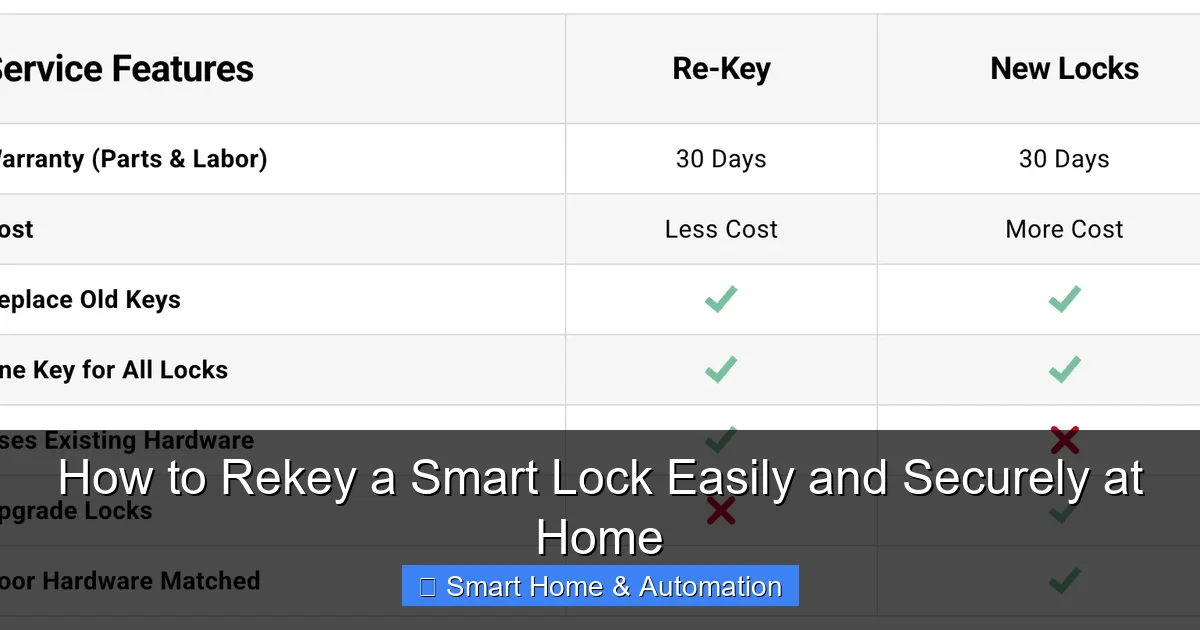
Unlike traditional locks that use physical keys, smart locks often use digital codes, keycards, or smartphone apps for entry. Rekeying a smart lock usually means changing the digital access codes or resetting the lock’s credentials. This process helps prevent unauthorized access if a code is compromised or if you want to remove old users.
Visual guide about How to Rekey a Smart Lock Easily and Securely at Home
Image source: a-1locksmith.com
For a deeper dive into smart lock basics, you might find our article What Is A Smart Key helpful.
Tools and Preparation You’ll Need
Before starting, gather these essentials:
Visual guide about How to Rekey a Smart Lock Easily and Securely at Home
Image source: i.ytimg.com
- Smartphone or tablet with the lock manufacturer’s app installed
- Original installation manual or digital instructions
- Wi-Fi or Bluetooth connection (depending on your lock model)
- Access to the current admin or master code
- Small screwdriver (optional, for some models)
Having these ready will make the rekeying process smooth and hassle-free.
Step 1: Identify Your Smart Lock Type
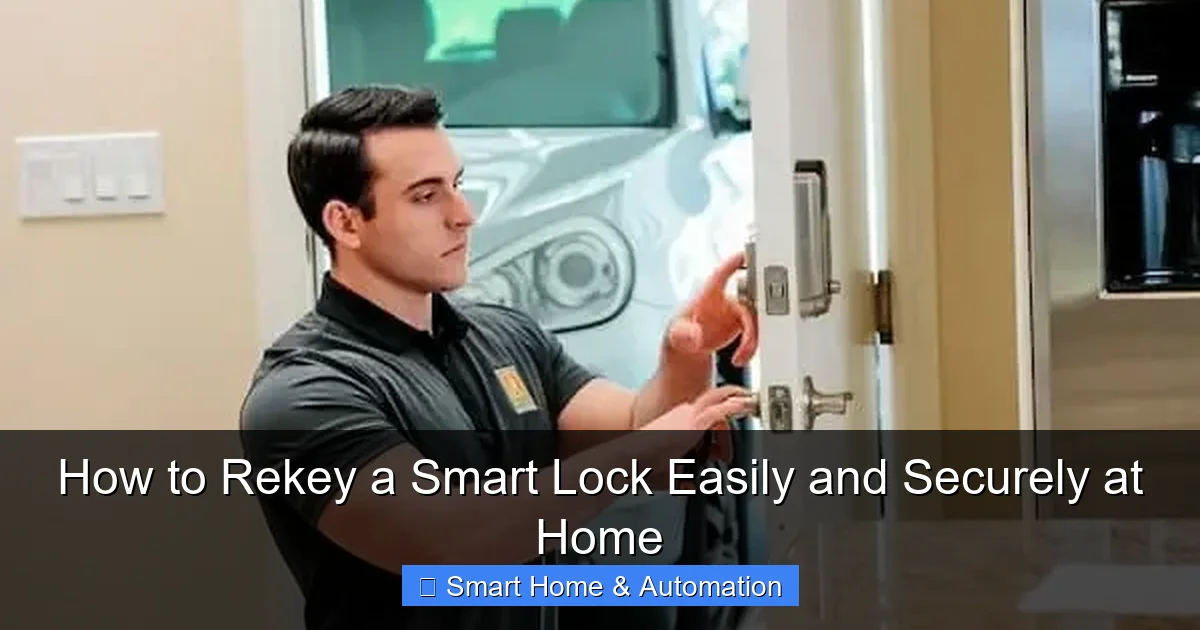
Smart locks come in various types—Wi-Fi enabled, Bluetooth, keypad, or biometric. The rekeying process depends on your lock’s model and connection type.
Visual guide about How to Rekey a Smart Lock Easily and Securely at Home
Image source: ik.imagekit.io
Check the Manufacturer’s Guide
Look up your lock’s model number and refer to the user manual for rekeying instructions. If you’ve misplaced the manual, most manufacturers provide PDFs online.
Example:
If you have a keypad smart lock, rekeying might involve resetting the access codes. For Bluetooth locks, you may need to update settings via the app.
Step 2: Remove Old Access Codes or Credentials
This step ensures previous users no longer have access.
Using the App
- Open the lock’s management app on your smartphone.
- Navigate to the “Users” or “Access Codes” section.
- Select all existing codes or users you want to remove.
- Delete or disable these entries.
Manual Reset (If Applicable)
Some locks allow manual resetting via a physical reset button or sequence of keypad presses. Consult your manual for specifics.
Step 3: Set Up New Access Codes or Users
Now, add new users or codes to your smart lock.
Through the App
- Go to the “Add User” or “New Access Code” section in the app.
- Enter the new code or invite users by email or phone number.
- Assign permission levels, such as temporary or permanent access.
- Save your changes and test the new access.
Tips for Strong Access Codes
- Use a mix of numbers and letters if supported.
- Avoid obvious codes like “1234” or birthdays.
- Change codes periodically for added security.
Step 4: Synchronize Your Smart Lock with Your Home Automation System
If your smart lock is integrated with a broader smart home system, updating access can affect the entire setup.
For advice on maintaining smooth integration while rekeying, check out How To Integrate Smart Locks With Existing Systems.
Re-sync Devices
- After updating codes, confirm your lock is communicating properly with your home hub.
- Check automation rules that may involve lock status or user notifications.
- Update user permissions if your system uses centralized control.
Step 5: Test Your Rekeyed Smart Lock
Before finishing, test all new codes or user credentials.
- Try unlocking with each new code or user device.
- Confirm that removed users can no longer access the lock.
- Check lock status via the app to ensure it reflects the current settings.
Testing prevents lockouts and confirms your home is secure.
Troubleshooting Common Rekeying Issues
Problem: New Codes Not Working
- Double-check you saved changes in the app.
- Ensure your smartphone or tablet has a strong connection to the lock.
- Restart the app or your device and try again.
Problem: Lock Not Responding to Commands
- Check the lock’s battery level and replace batteries if low.
- Reset the lock manually if the app fails to communicate.
- Refer to your user manual’s troubleshooting section.
Problem: Can’t Remove Old Users
- Make sure you’re logged in as an admin or master user in the app.
- Update the app to the latest version.
- Contact the lock manufacturer’s customer support if problems persist.
Additional Tips for Smart Lock Security
- Regularly update your smart lock’s firmware through the app.
- Use strong, unique passwords for the lock’s management app.
- Enable two-factor authentication if available.
- Keep your smartphone’s software updated to ensure compatibility.
Conclusion
Rekeying your smart lock is a straightforward way to keep your home safe and control who has access. By following these steps, you can update access codes securely without needing professional help. Remember to test thoroughly and maintain your lock’s software regularly. With your smart lock rekeyed, enjoy peace of mind knowing your smart home access is in your hands.
For more on how smart locks can enhance your home security, explore How Smart Locks Improve Home Access Control.
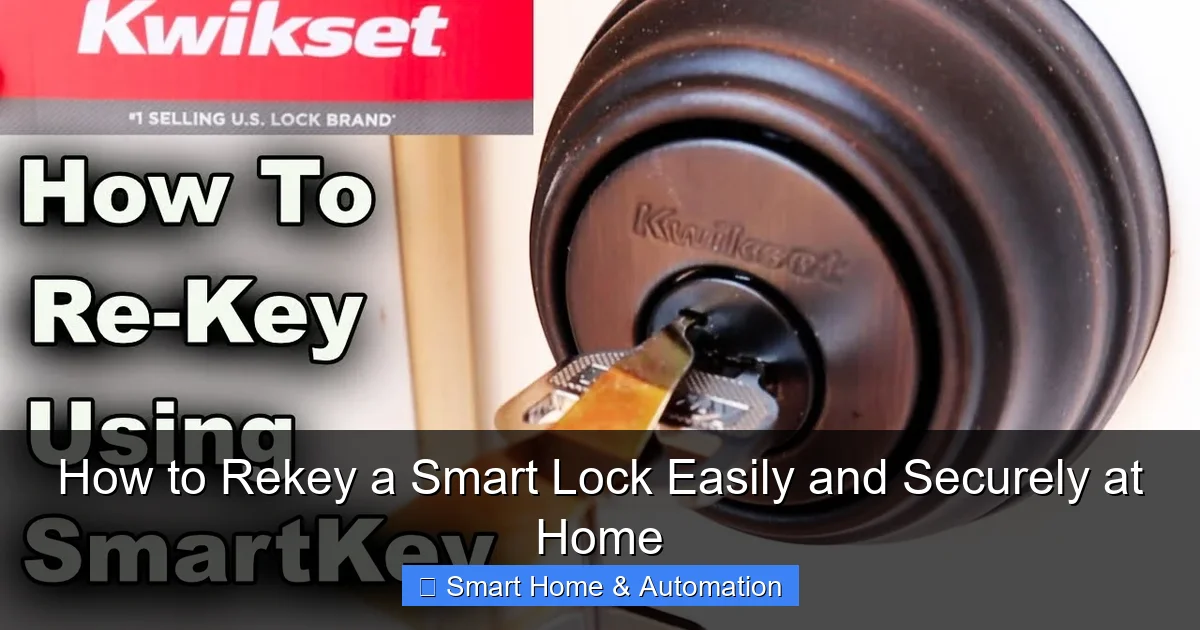
🎥 Related Video: Kwikset Smart Key Rekey / Reset – EASY DIY
📺 Key Fob Rob
Smartkey Tool off Amazon – https://amzn.to/4aewyhM New precut keys off Amazon – https://amzn.to/3LIbNmZ Here is a quick little …