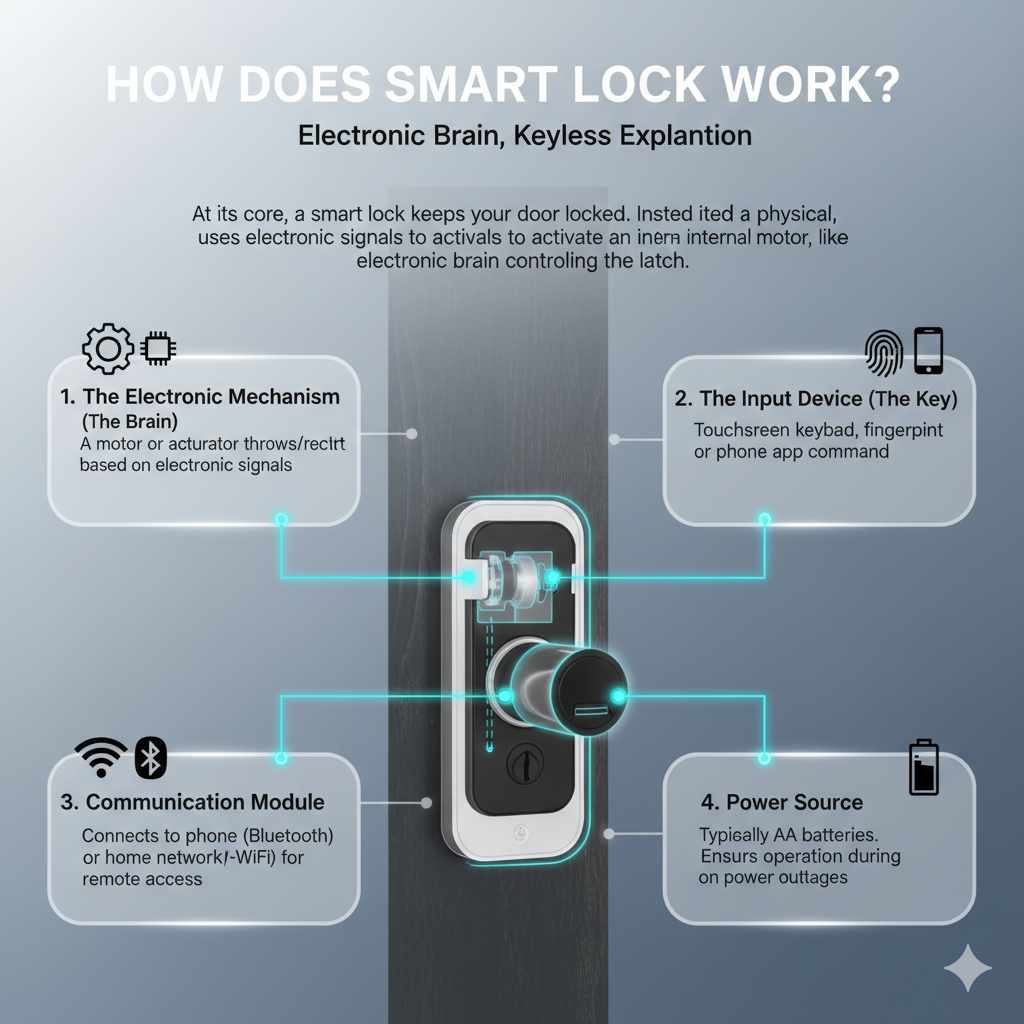
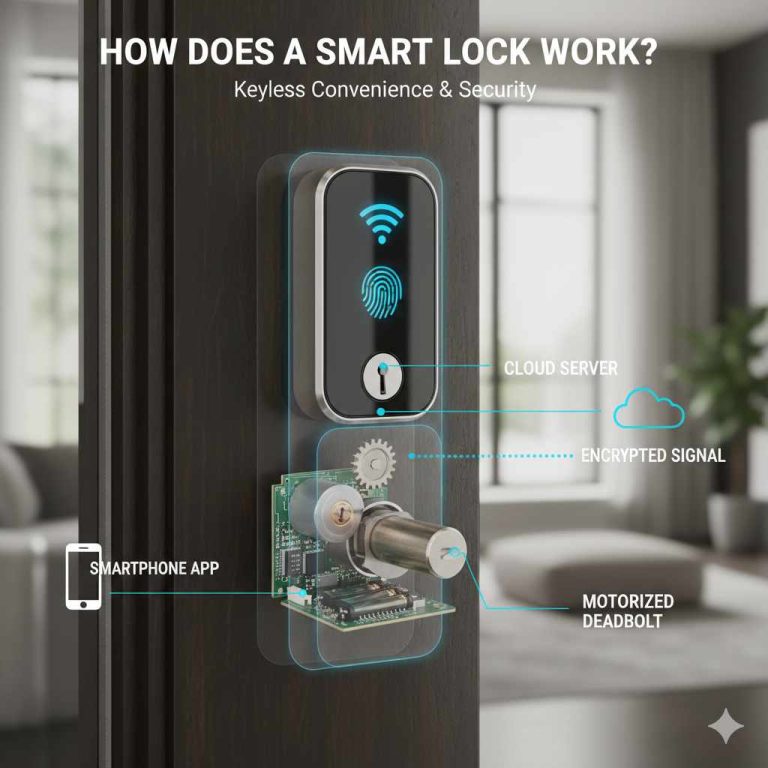
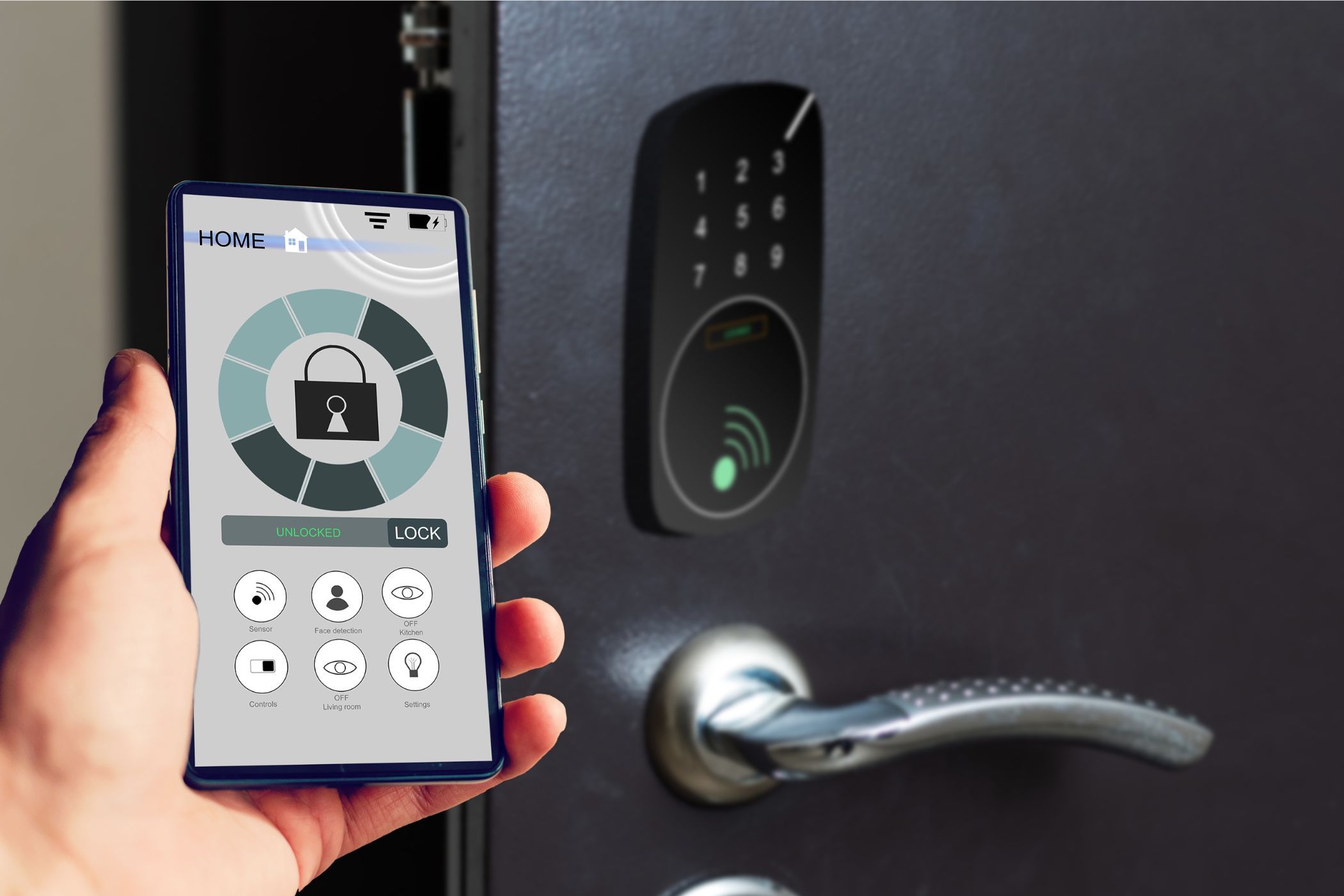
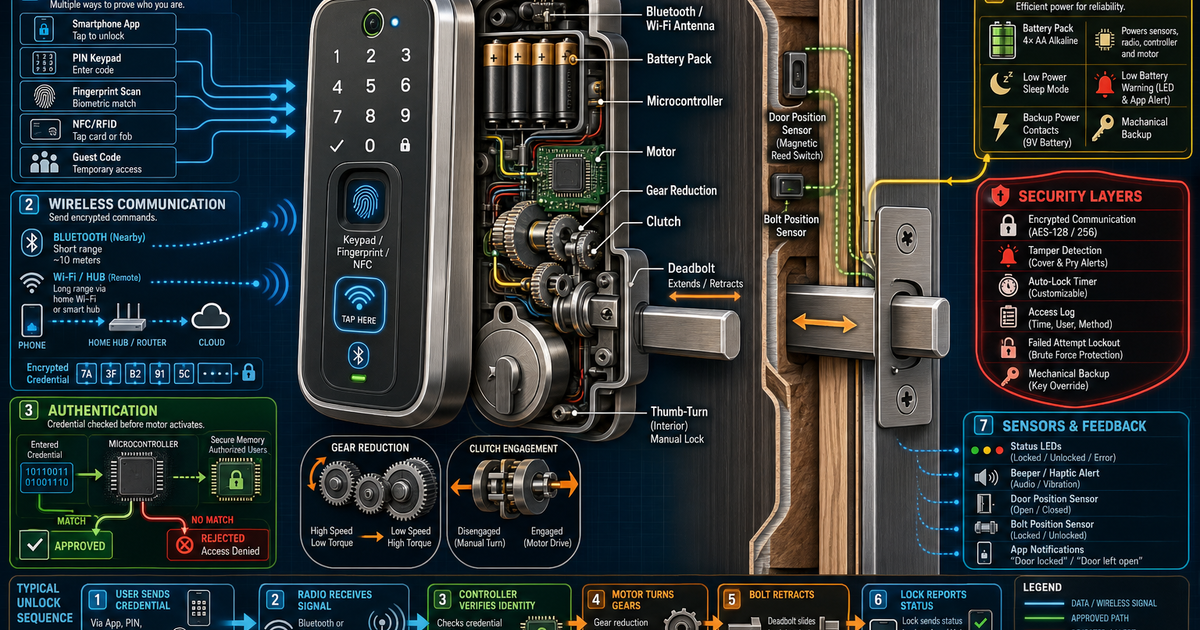
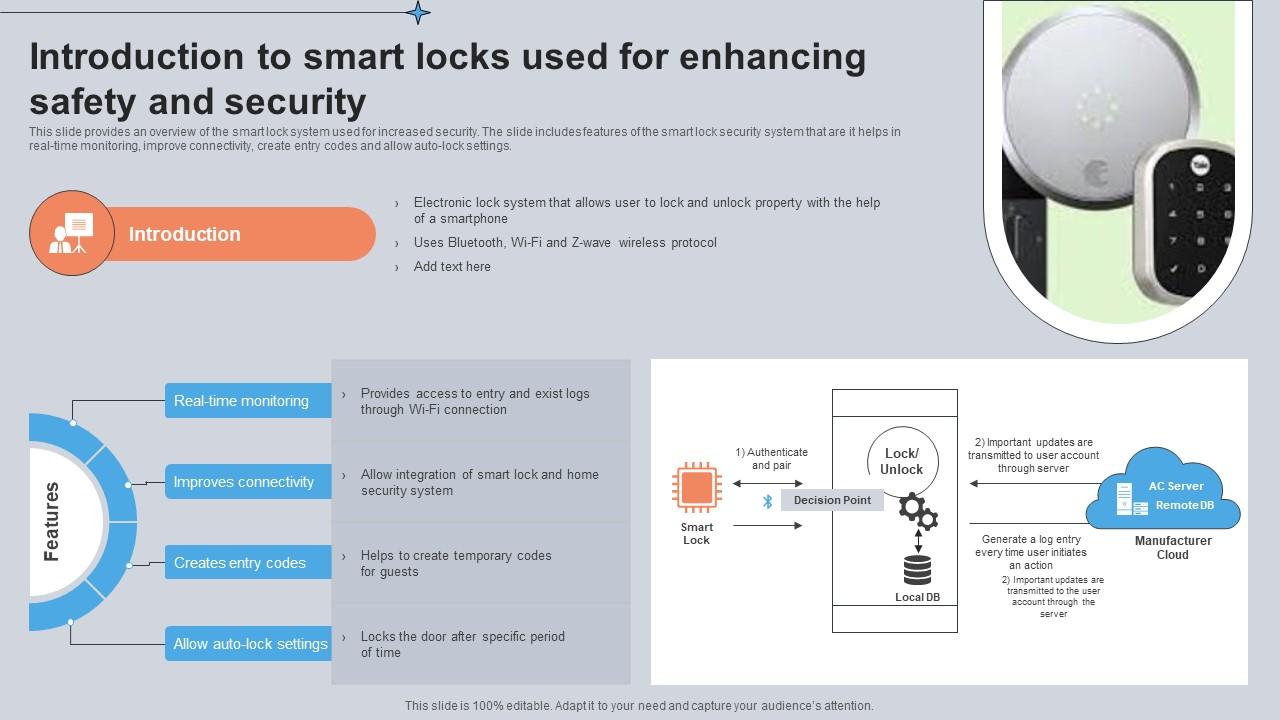
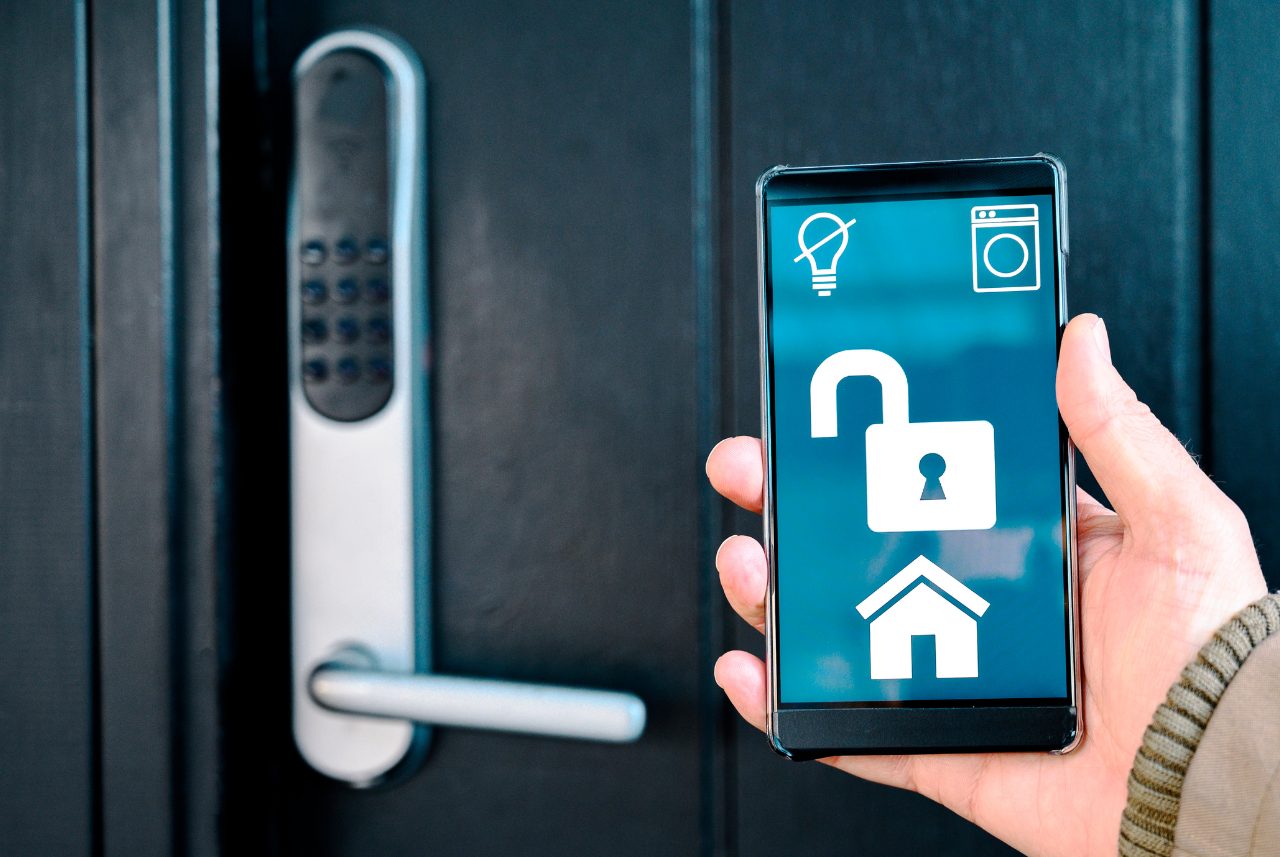
A smart lock works by using electronic parts, a motor, and a control system to lock or unlock a door after checking an approved phone, PIN code, fingerprint, key card, or other access method. Depending on the model, it connects through Bluetooth, Wi-Fi, or a smart home hub, while a battery or wired power source runs the system.
Across the United States, homeowners use smart locks on front doors, garage entry doors, apartments, and vacation rentals. These devices offer a way to manage access without handing out physical keys. You can unlock a compatible door with a phone, enter a PIN on a keypad, or give a guest temporary access when the lock supports that feature.
A smart lock does more than respond to a button. It checks whether a person or device has permission to enter, then tells a small motor to move the locking mechanism. Some models work locally without an internet connection, while others offer remote control, activity alerts, and smart home features through an app.
The main benefit is control over who can enter and when. However, a smart lock is not automatically more secure than every traditional deadbolt. Its real protection depends on the physical lock, the door and frame, the quality of its electronic security, and how well you manage access codes and accounts.
Source: decorguider.com
How Does a Smart Lock Work Step by Step?
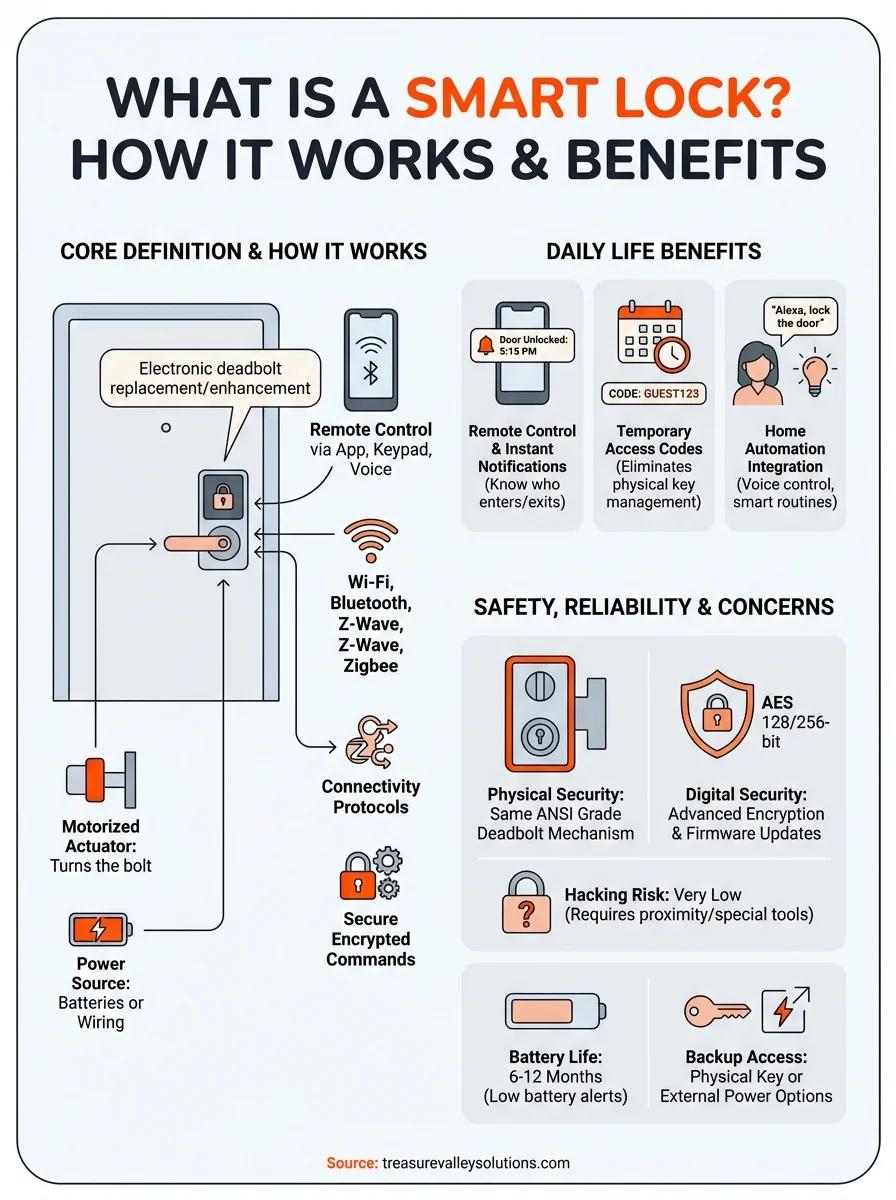
A smart lock works by receiving an access request, checking the credential, and operating the lock if the request is approved. The process often takes only a short time, but several parts must work together. These include the credential reader, control board, power source, and locking mechanism.
Think of the lock as a small security guard. It checks who is asking to enter, decides whether that person has permission, and moves the bolt only when the rules allow it. The exact process depends on whether you use a keypad, smartphone, fingerprint reader, key card, or another supported method.
Source: treasurevalleysolutions.com
Step 1: Send an access request
Enter a PIN, present a fingerprint, tap a compatible card, or use an authorized app. The lock receives the request through its keypad, sensor, radio connection, or other input.
Step 2: Check the credential
The lock or its connected system checks whether the credential matches an approved user. Some systems use locally stored codes or credentials, while others rely on an app, hub, or online service for certain functions.
Step 3: Approve or reject access
If the credential meets the lock’s rules, the control system permits the unlock command. An invalid or expired code should be rejected, although the available checks depend on the model.
Step 4: Move the locking mechanism
A small motor, gear assembly, or electronic actuator turns or retracts the bolt. This allows the door to open without a person manually turning the thumb turn.
Step 5: Report the result
Some locks use a light, sound, phone notification, or activity log to report the action. Door-position and bolt-position sensors may provide extra information when the model includes them.
What Happens Inside a Smart Lock?
The control board acts as the lock’s decision center. It processes input from the keypad, fingerprint reader, phone connection, or other supported device. If the request is valid, it activates the motor or actuator that moves the bolt.
Gears help transfer the motor’s movement to the locking mechanism. Some smart locks replace the full deadbolt assembly, while retrofit models fit over an existing interior thumb turn. In a retrofit design, the original exterior key cylinder may remain available, depending on the product.
Sensors can help the lock determine whether the bolt has reached the expected position. However, a motor command alone does not prove that a door is fully closed or that the bolt has entered the strike plate correctly. Check the specific model’s sensor features before relying on app status messages.
Control board
Processes credentials and manages the lock’s electronic functions.
Motor and gears
Move the bolt or turn the existing thumb turn in motorized models.
Sensors
May detect door position, bolt movement, or other operating conditions.
Power supply
Usually batteries in residential models, although some systems use external or wired power.
What Types of Smart Lock Access Methods Are Available?
Smart locks support different ways to prove that you have permission to enter. The best option depends on who uses the door, how often guests need access, and whether you want to carry a phone or remember a code.
A lock may support several methods at once. For example, a homeowner might use a phone most days, keep a PIN as a backup, and retain a physical key for emergencies. More access methods can improve convenience, but each method must be managed carefully.
Source: decorguider.com
Smartphone app
An authorized app can send an unlock command through Bluetooth, Wi-Fi, a hub, or a supported combination of connections. The phone must meet the lock’s requirements, and remote access may require an internet connection.
Keypad and PIN code
A user enters a stored access code. Depending on the lock, owners can create separate codes for family members, visitors, cleaners, or service workers and remove them later.
Fingerprint reader
The reader compares a fingerprint scan with an enrolled template. Performance can vary with moisture, dirt, skin condition, sensor quality, and how the fingerprint was registered.
Key card or fob
A compatible card or fob communicates with the lock, often through a short-range radio system. Only supported and properly enrolled credentials should be accepted.
Voice assistant or smart home automation
Some locks integrate with a compatible smart home platform. Supported voice commands and remote unlock features may require extra authentication or may be restricted for security.
Physical key
Some smart locks include a conventional key cylinder. Others do not, so check the product design and available emergency-entry options before purchase.
Which Access Method Is Best for Everyday Use?
For many households, a keypad is useful because family members do not need to carry a key or have a charged phone. A phone app can be more convenient for managing access and checking supported activity records. Fingerprint access can reduce the need to remember a code, but it depends on the reader working well for each user.
For a rental property, temporary PINs may be easier to manage than lending out physical keys. Choose a lock that allows you to set expiration times if you need access to end automatically. Confirm whether creating or deleting codes requires the lock to be nearby or connected to the internet.
For families
Consider a keypad, app access, and a practical backup method.
For guests and rentals
Look for individual codes, access schedules, and easy removal of former users.
For people who prefer not to use phones
Choose a model with a reliable keypad, fingerprint reader, or other suitable local method.
How Do Bluetooth, Wi-Fi, and Smart Home Hubs Work?
The connection type determines how your phone communicates with the lock and whether you can control it from outside your home. Bluetooth supports nearby communication, Wi-Fi can provide a direct internet connection, and a compatible hub can link the lock to a home network or automation system.
These connection methods are not interchangeable. A lock that supports Bluetooth does not automatically support remote access, and a Wi-Fi model does not necessarily work with every smart home platform. Read the exact model’s specifications before assuming a feature is included.
Source: easternpeak.com
Bluetooth
Bluetooth lets a compatible phone communicate with the lock at close range. Basic local unlocking may continue when the home’s internet connection is down, provided the phone, lock, and credentials are working.
Wi-Fi
A Wi-Fi smart lock can connect to a home router directly or through an approved bridge. With a supported app and online service, it may allow remote unlocking, status checks, alerts, and access management.
Smart home hub
A hub acts as a bridge between compatible devices and can support local automation or remote control. The lock, hub, communication standard, and smart home platform must all be compatible.
Thread and Matter
Some newer smart home devices use Thread for low-power networking and Matter for compatible smart home control. Support varies by product, and Thread connectivity may require a suitable border router.
Can a Smart Lock Work Without Wi-Fi?
Yes, many smart locks can perform basic functions without Wi-Fi. A locally stored PIN, an enrolled fingerprint, a physical key, or nearby Bluetooth control may still work, depending on the model. Internet access is usually more relevant to remote control, cloud-based features, and some notifications.
If your router loses power, the lock may still operate from its own batteries. However, a feature that depends on a cloud service or remote connection may stop working until the network returns. Before buying, check which features work locally and which require an internet connection or subscription.
Often available offline
Local keypad access, enrolled fingerprints, physical keys, and some nearby phone controls.
May require internet access
Remote unlocking, cloud-based activity history, some alerts, and certain user-management features.
How Does a Smart Lock Connect to Your Phone?
A smart lock connects to a phone through a supported wireless link and a compatible app. During setup, the owner usually creates an account or local administrator profile, pairs the lock, and chooses the available access and security settings. The precise steps differ by manufacturer and model.
After setup, the app can send supported commands, display lock status, manage users, and show activity records. Some models process commands locally, while others use a hub or online service for particular tasks. An app’s display is only as reliable as the information the lock and its sensors can provide.
Source: www.makeuseof.com
Install the official app
Use the app named in the manufacturer’s instructions. Avoid unofficial apps and links sent by unknown people.
Pair the lock
Follow the manufacturer’s pairing process, which may involve Bluetooth, a setup code, a QR code, or a hub.
Secure the administrator account
Use a unique password and enable multifactor authentication if supported. Keep recovery details private and protect access to the phone.
Configure access
Add authorized users, set codes, review remote-access permissions, and turn on useful alerts where available.
Test before relying on it
Try locking and unlocking the door from inside and outside. Test every intended entry method and confirm that the bolt moves freely.
What If the App Cannot Find the Lock?
First, confirm that the lock has power and that your phone’s Bluetooth or required network connection is enabled. Move close to the door, check that the app supports your lock model, and follow the manufacturer’s pairing instructions.
If pairing still fails, close and reopen the app, check for supported software updates, and consult the official troubleshooting guide. Do not factory-reset the lock until you understand the consequences, because a reset may erase user codes, pairings, or configuration settings.
Check power
Replace weak batteries with the specified type if needed, following the product manual.
Check compatibility
Confirm that the phone operating system, app version, lock model, and hub meet the listed requirements.
Check the connection
For Bluetooth, move close to the lock. For remote access, check the router, hub, and internet service.
How Do Smart Lock Batteries and Backup Power Work?
Most residential smart locks use replaceable batteries to power the electronics, wireless radio, sensors, and motor. The motor may draw more power during locking and unlocking than the lock uses while waiting for a command. Battery life varies with the model, battery type, usage, wireless settings, temperature, and the condition of the door.
A smart lock can therefore continue to operate even when the home’s electricity is out, as long as its own power source is working. However, dead batteries can prevent electronic entry, so owners should monitor warnings and know the manufacturer’s emergency procedure before a problem occurs.
Source: livephysics.com
Low-battery warnings
Some locks use app notifications, lights, or sounds to warn that battery power is running low. Alerts may not arrive if the network or phone connection is unavailable.
Emergency power contacts
Certain models have external contacts for a compatible temporary power source. This feature is model-specific and should be used only as described in the manual.
Physical key backup
A lock with a mechanical key cylinder may provide an alternative entry method when electronic access fails.
Battery replacement
Use the battery type specified by the manufacturer. Do not mix old and new batteries or different battery types unless the manual expressly permits it.
What Happens When Smart Lock Batteries Die?
The result depends on the design. A lock with a physical key may still allow key entry, while a model with emergency power contacts may accept temporary power to operate its electronics. Other designs may require a different manufacturer-approved recovery procedure.
Before installing a smart lock, learn how to enter if the batteries fail and keep any required backup key or approved power source accessible. Do not assume that a phone app can unlock a lock with no power or that every keypad has an emergency override.
Before a battery failure
Review the low-battery alert behavior, battery replacement steps, and emergency-entry method.
During a failure
Use only the approved key or emergency-power method. If the door remains locked, contact the manufacturer or a qualified locksmith.
Are Smart Locks Secure?
A smart lock can provide strong access control, but no lock is immune to every physical or digital attack. Security depends on the deadbolt and door hardware, the electronic design, software support, account protection, installation quality, and the owner’s habits.
Traditional locks face physical risks, such as forced entry or picking, while connected locks can also face account theft, insecure settings, or software flaws. Adding an app does not automatically make a door safer. Choose a lock with documented security features, maintain it properly, and make sure the door itself can resist the threats you want to address.
Source: slidegeeks.com
Use unique access codes
Avoid easy-to-guess codes such as repeated digits or dates that others can learn. Give each regular user a separate code when the lock supports it.
Protect the owner account
Use a unique password, enable multifactor authentication if available, and secure the email account used for recovery.
Install updates
Apply official firmware and app updates when available. Check whether the manufacturer still supports the model with security fixes.
Review access permissions
Remove codes and app users when they no longer need access. Review activity logs where supported, but do not assume every model records every event.
Strengthen the door
Check the deadbolt, strike plate, screws, door frame, and overall door condition. A strong electronic lock cannot compensate for weak surrounding hardware.
Some smart locks can be exposed to digital risks if their software, wireless communication, account security, or setup has weaknesses. A stolen phone or compromised account may also create an access risk. These possibilities do not mean that every smart lock is easy to hack, but they show why security features and ongoing support matter.
Look for clear information about authentication, encryption, account recovery, updates, and supported access controls. Avoid relying on vague claims that a lock is completely unhackable. No connected device can offer that guarantee, and product security should be assessed alongside physical resistance and practical backup access.
Before purchase
Check the manufacturer’s security documentation, update policy, and any published limitations for the exact model.
After installation
Secure the app account, review sharing permissions, and remove access that is no longer needed.
Are Smart Locks Safer Than Traditional Deadbolts?
There is no universal winner. A well-installed mechanical deadbolt can provide dependable physical security without an app or wireless connection. A properly designed smart lock can add useful access management, temporary codes, and alerts, but it also introduces electronics and account-related risks.
For a home in the United States, check the physical security ratings and installation requirements relevant to the exact product. ANSI/BHMA grades may help compare applicable lock hardware, but a grade should not be assumed to cover every connected feature or prove that an entire door system is secure. Read what the rating actually applies to.
Choose for physical protection
Prioritize suitable deadbolt hardware, a sound door frame, proper installation, and a product with clearly documented performance.
Choose for access control
Consider user codes, remote permissions, event history, and the ability to remove access quickly.
How to Install a Smart Lock on a US Home Door
Many residential smart locks are designed for do-it-yourself installation, but compatibility comes first. US homes often use standard residential deadbolts, yet door thickness, backset, bore size, handing, trim, and existing hardware can differ. Follow the dimensions and installation rules in the exact product manual rather than assuming that every lock fits every door.
A retrofit lock may attach to the inside of an existing deadbolt, while a full replacement lock may require removing more hardware. Some doors, multi-point locks, narrow frames, and unusual entry systems need a different product or professional help.
Source: vesternet.com
Step 1: Check the door
Measure the door and confirm that the existing deadbolt, bore, backset, and door thickness meet the lock’s stated requirements.
Step 2: Read the instructions
Check the parts list, required tools, battery type, compatibility notes, and any special installation limits.
Step 3: Install the hardware
Mount the lock as directed. Keep the bolt and strike plate aligned, and avoid forcing the mechanism into a tight opening.
Step 4: Set up electronic access
Install the official app if required, pair the device, set an administrator credential, and configure the access methods you plan to use.
Step 5: Test the door
With the door open, operate the lock several times. Then test with the door closed, confirming that the bolt extends and retracts without binding.
How Do You Know the Installation Is Correct?
The bolt should move smoothly and fully enter the strike plate when the door is closed. The lock should respond to each configured credential, and the app should report the status supported by its sensors. If the bolt struggles, do not assume that the motor simply needs more force.
A misaligned door can drain batteries faster, cause repeated errors, or leave the bolt partly engaged. Adjust the door or strike plate only in line with the installation instructions. If the frame is damaged, the lock does not fit, or the door needs substantial modification, consult a qualified locksmith or door professional.
Signs of success
Smooth bolt movement, reliable access with approved credentials, correct sensor behavior, and no unusual motor strain.
Signs of trouble
Grinding noises, repeated failed movements, a bolt that rubs against the frame, or an app status that conflicts with the actual lock position.
Common Smart Lock Problems and How to Fix Them
When a smart lock stops working, start with simple checks before changing its settings or resetting it. Confirm the door can lock normally, inspect the power supply, and identify whether the problem affects every access method or only one. This helps separate a mechanical issue from a connection or account problem.
If the lock is jammed or the door cannot be secured, prioritize safe entry and a secure door over repeated app attempts. Avoid forcing the bolt or dismantling a powered mechanism without following the manufacturer’s instructions.
The motor runs, but the door will not lock
The bolt may be misaligned with the strike plate, the door may be sagging, or the mechanism may be obstructed. Test the bolt with the door open if the manual allows it, then inspect the alignment.
The keypad rejects a valid code
Check that you are using the current code, that the keypad has power, and that the lock is not in a temporary lockout state. Review the manual for code limits and recovery steps.
The phone cannot connect
Check Bluetooth range, app permissions, phone settings, and the lock’s pairing state. For remote access, check the internet connection, router, and hub if one is required.
Remote control has stopped working
The lock may have lost its internet connection, the hub may be offline, or the app service may be unavailable. Try a supported local access method while checking the network.
The battery drains too quickly
Check for repeated motor attempts, a tight bolt, weak or unsuitable batteries, extreme temperatures, or a poor wireless connection. Compare the behavior with the manufacturer’s guidance.
The app shows the wrong status
A sensor may be misaligned, the connection may be delayed, or the app may not have received a recent update. Verify the physical bolt position before relying on the displayed status.
When Should You Contact a Locksmith?
Contact a qualified locksmith if the bolt is stuck, the door cannot be secured, the hardware is damaged, or the installation requires changes you are not equipped to make. Seek manufacturer support when the lock repeatedly fails despite correct installation, fresh batteries, and the prescribed troubleshooting steps.
If you suspect someone has gained unauthorized access to the lock account, secure the associated email and app accounts from a trusted device, remove unknown users where possible, and follow the manufacturer’s account recovery process. If the physical security of the home is at immediate risk, use a safe alternative entry or securing method and seek appropriate local assistance.
Do not force the bolt
Excess force can damage the motor, gears, door, or frame.
Avoid an early factory reset
A reset may erase access codes, pairings, or settings and may not fix a mechanical fault.
Smart Lock Features, Costs, and Compatibility to Check
The right smart lock depends on your door, preferred access method, network setup, budget, and need for remote control. A basic keypad lock may cover everyday entry without requiring a connected hub, while a more connected model may offer remote management and smart home automation. Extra features are useful only when you need them and can maintain them.
Prices, subscriptions, supported phone versions, and product availability can change. Rather than relying on a general price estimate, compare current listings and the manufacturer’s documentation for the exact model. Include any required bridge, hub, installation service, or paid service in your total cost.
Door compatibility
Verify door thickness, backset, bore dimensions, deadbolt type, and any restrictions for the existing handle or trim.
Connectivity
Decide whether nearby phone access is enough or whether you need remote control through Wi-Fi, a bridge, or a hub.
Smart home support
Confirm compatibility with your chosen platform and check whether specific features require a hub, border router, or subscription.
Access management
Look for the ability to create, schedule, and revoke user codes or app permissions when these features matter to your household.
Power and backup
Check battery type, low-power warnings, emergency entry, and what happens if the phone, network, or lock battery fails.
Long-term support
Review the warranty, published update policy, replacement-part availability, and the process for removing a lock from an account when changing owners.
A Simple Smart Lock Comparison
The table below compares common lock categories by their typical capabilities. These are general design patterns, not guarantees for every product. Always check the exact model before making a purchase.
Keypad-only electronic lock
Best for people who want code-based entry without relying on a smartphone for everyday use. Remote management may not be available.
Bluetooth smart lock
Useful for nearby phone control and often suitable for local access. Remote control usually requires an additional supported connection or service.
Wi-Fi smart lock
May provide remote access and alerts through an app. It can depend on router connectivity, internet service, and account security.
Hub-based smart lock
Can integrate with compatible smart home devices and automation rules. Compatibility and the cost of the required hub should be checked.
Fingerprint smart lock
Offers biometric entry without a memorized code, but sensor performance and enrollment quality can affect reliability.
Questions to Ask Before Buying
Ask whether the lock works offline, whether remote access requires a subscription, and whether you can use a physical key or approved emergency power source. Find out how user access is removed, how firmware updates are delivered, and how the lock behaves if a connected service is discontinued.
For a rental property, also check whether the lease, property manager, or local rules restrict hardware changes. Renters should obtain the required permission before replacing or modifying a lock.
For a primary residence
Prioritize physical security, dependable local access, simple battery maintenance, and a backup entry plan.
For a rental home
Prioritize permission to install, easy user management, and a way to restore the original hardware if required.
For a vacation rental
Look for scheduled codes, remote administration, activity information, and a clear plan for network or battery failures.
Frequently Asked Questions
Q
Does a smart lock need Wi-Fi to work?
No, not always. Many smart locks can accept a PIN, fingerprint, physical key, or nearby Bluetooth command without Wi-Fi. Remote unlocking and some app features may need internet access, a hub, or a cloud service, depending on the model.
Q
Can a smart lock be opened with a regular key?
Some smart locks include a conventional key cylinder, while others rely on electronic entry and a different backup method. Check the exact design before buying and learn how to enter if the batteries fail.
Q
What happens if my smart lock battery dies?
Electronic access may stop until power is restored. Depending on the model, you may be able to use a physical key, approved emergency power contacts, or another manufacturer-specified recovery method. Review the instructions before an emergency and replace batteries when warnings appear.
Q
Can I unlock my smart lock when I am away from home?
You can do this only if your lock supports remote access and its required connection, app account, and online service are working. A Bluetooth-only lock usually needs you to be nearby unless it supports an additional bridge or hub.
Q
Are smart locks safe for apartments and rental homes?
They can be suitable, but check the door’s compatibility, the lock’s physical security, and the available backup method. In a rental, get permission from the landlord or property manager before changing the lock, and make sure authorized residents and emergency personnel can follow the property’s access rules.
Q
Can a smart lock lock the door automatically?
Many models offer an auto-lock feature that locks the bolt after a chosen delay or when supported conditions are met. Some use a door-position sensor, while others rely on a timer. Confirm the actual door and bolt state before assuming the feature has secured the entrance.
Q
Will a smart lock work during a power outage?
A battery-powered lock can often keep working during a home power outage because it uses its own batteries. Features that depend on the router, hub, or internet service may stop working. The outcome depends on the lock’s design and the type of outage.
Q
Do smart locks require a monthly subscription?
Not all smart locks require a subscription. Basic local unlocking may be included without a recurring fee, while certain remote management, cloud history, or integrated services may have separate requirements. Check the current terms for the exact model before purchasing.
✦ Wrapping Up
Conclusion
A smart lock works by checking an approved credential and using an electronic mechanism to move a door’s bolt. Depending on the model, you can enter with a phone, PIN, fingerprint, key card, or physical key. Bluetooth, Wi-Fi, and smart home hubs determine how the lock communicates and which remote features it can offer.
The best smart lock is not necessarily the one with the most features. It is the one that fits your door, meets your security needs, provides reliable entry when the internet is down, and has a clear plan for battery failure. Good installation and careful management of users and passwords matter just as much as the device itself.
💡 Key Takeaway
Before choosing a smart lock, verify your door measurements, confirm whether you need remote access, review offline entry and battery backup options, and check the manufacturer’s security and update policies. After installation, test every access method with the door open and closed, then review your access codes and account settings.
I’m Ethan Carter, a home security systems specialist at Diggons.com. I focus on modern surveillance solutions and smart protection technologies that help people keep their homes safe and secure.
I have hands-on experience working with security cameras, video doorbells, alarm systems, and motion detection devices. I test real products and explore practical setups so I can provide clear, easy-to-follow guidance for everyday users.
My goal is to simplify home security by helping you understand how these systems work, how to fix common issues, and how to choose the right products with confidence. At Diggons.com, I share honest insights, comparisons, and real-world advice to make home security easier and more effective.