

Quick Answer: A 75 keyboard usually has 81 to 84 keys. Most standard 75% keyboards have 84 keys because they keep the function row, arrow keys, and several navigation keys while removing the number pad and tightening the layout.
I’m Daniel Brooks, and I’ve spent years testing keyboards, desk tools, and office tech accessories in real work setups. When my friend James Walker asked why two 75% keyboards had different key counts, I knew it was a common problem. The answer is simple once you understand the layout.
In this guide, I’ll explain the key count, what keys you get, what keys are missing, common setup issues, and how to choose the right 75 keyboard for your desk.
Quick Answer: How Many Keys Are in a 75 Keyboard?
The Short Answer for Beginners
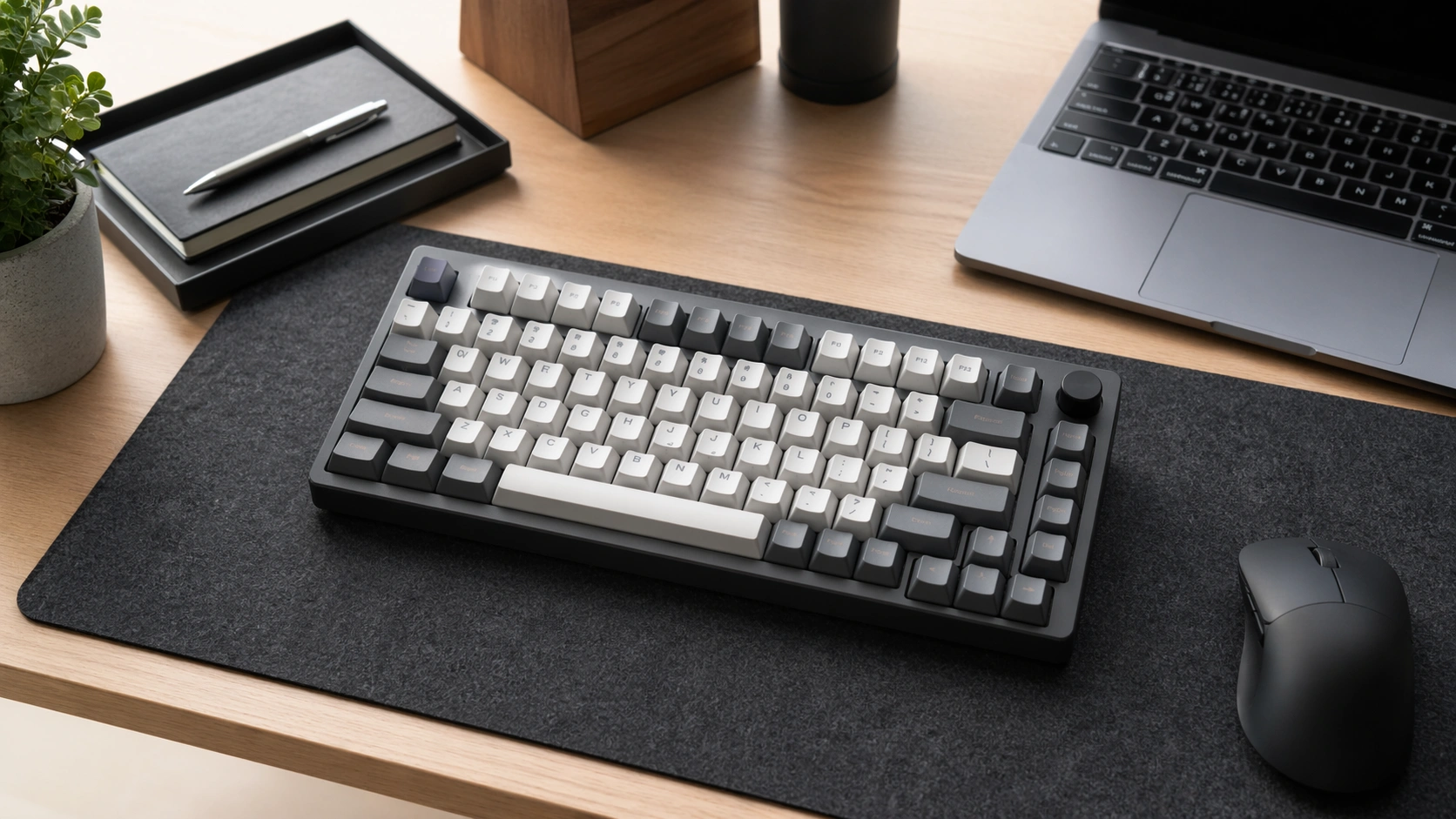
A 75 keyboard usually has 81 to 84 keys. The most common answer is 84 keys, especially on classic 75% mechanical keyboards.
The exact number can change because some keyboards replace a key with a knob, remove one navigation key, or use a tighter custom layout. That is why you may see one 75% keyboard with 81 keys and another with 84 keys.
| 75 Keyboard Type | Common Key Count | What Changes |
|---|---|---|
| Standard 75% keyboard | 84 keys | Full function row, arrows, and navigation keys |
| 75% keyboard with knob | 81 to 83 keys | One or more keys may be replaced by a rotary knob |
| Compact wireless 75% | 81 to 84 keys | Brand may reduce navigation keys to save space |
| Low-profile compact keyboard | Usually around 84 keys | Thin body, laptop-like feel, compact spacing |
Why the Number Can Change by Brand
The term 75% describes the size and layout style, not one fixed key count. A brand can call a keyboard 75% if it keeps most of the useful keys from a larger board while using a compact body.
For example, some models keep Page Up, Page Down, Home, End, and Delete. Others remove one or two of those keys. Some add a volume knob. That small design change affects the final key count.
What Is a 75 Keyboard and Why Does It Matter?
Basic 75% Keyboard Layout Explained
A 75 keyboard is a compact keyboard that keeps the most used keys from a full-size keyboard. It usually includes the main typing area, number row, function row, arrow keys, and a small navigation column.
It removes the number pad and compresses the spacing between sections. This gives you more mouse room without forcing you to give up function keys or arrow keys.
What Keys You Usually Get
Most 75 keyboards include letters, numbers, modifiers, spacebar, Enter, Backspace, Tab, Caps Lock, Shift, Control, Alt, function keys, arrow keys, and a few navigation keys.
This is why I like 75% keyboards for office work. You still get the keys you use every day, but the board feels cleaner on a small desk.
What Keys Are Missing
The main missing section is the number pad. You may also lose a few dedicated navigation keys, depending on the model.
| Key Area | Included on Most 75 Keyboards? | Notes |
|---|---|---|
| Main typing keys | Yes | Letters, numbers, punctuation, and modifiers |
| Function row | Yes | F1 to F12 are usually included |
| Arrow keys | Yes | A major reason people choose 75% |
| Navigation keys | Usually | Delete, Home, End, Page Up, or Page Down may vary |
| Number pad | No | Use a separate numpad if you enter numbers often |
Key Takeaways Before You Buy a 75 Keyboard
Best Points for Office, Gaming, and Daily Typing
A 75 keyboard is best for people who want a compact setup but still need practical keys. It works well for office work, writing, coding, gaming, and mixed home desk use.
The biggest benefit is space. Your mouse sits closer to your keyboard. This can make your shoulder position feel more natural during long work sessions.
Who Should Avoid a 75% Keyboard
You may not like a 75 keyboard if you use a number pad all day. Accountants, data entry workers, and spreadsheet-heavy users may feel slower without a dedicated numpad.
You may also want a larger keyboard if you dislike layers, shortcut changes, or compact key spacing.
How a 75 Keyboard Works in a Real Desk Setup
USB-C, Bluetooth, and 2.4GHz Connections
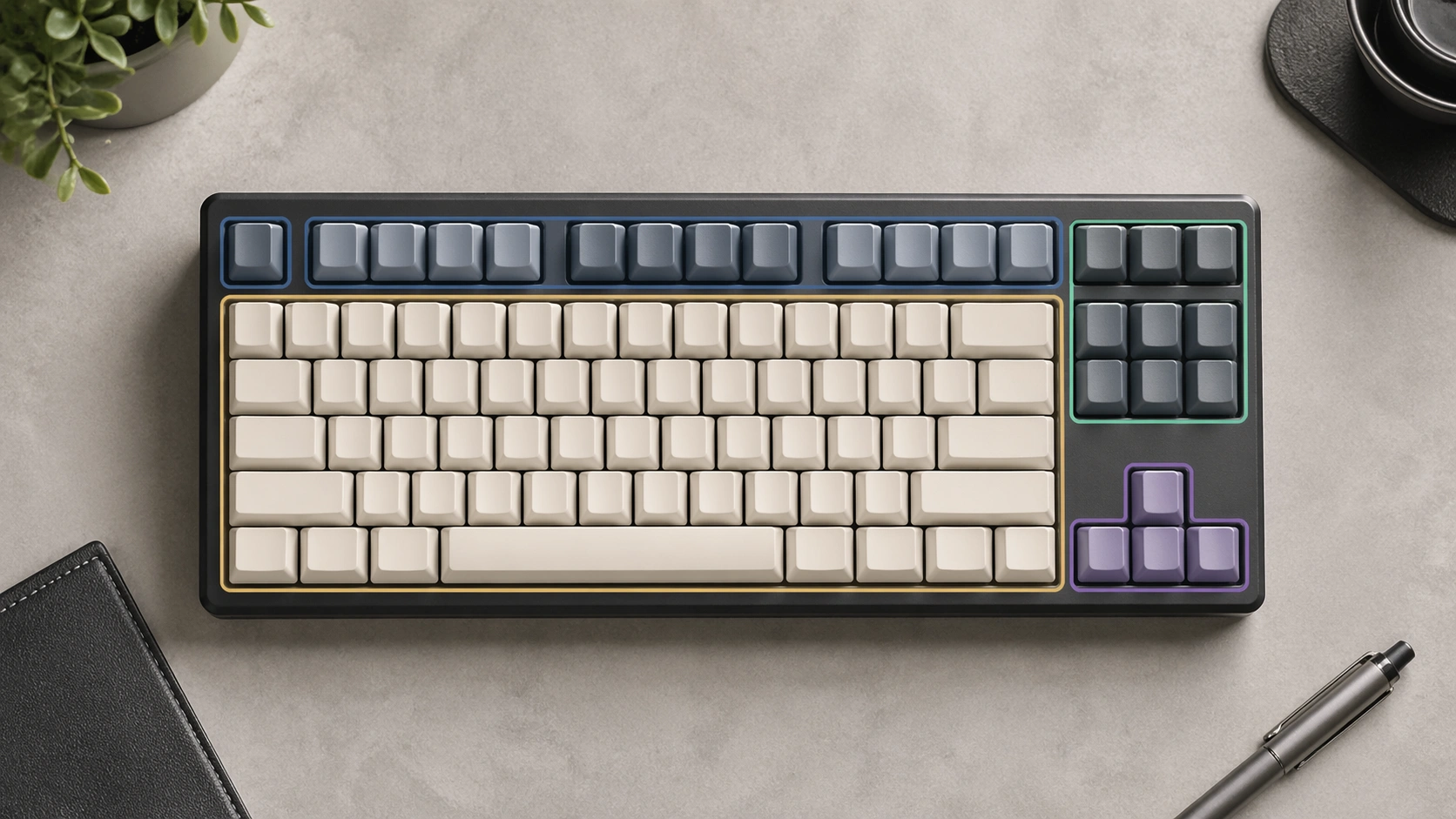
Most modern 75 keyboards connect through USB-C, Bluetooth, or 2.4GHz wireless. A wired USB-C keyboard is usually the easiest setup. You plug it in, and it works.
Bluetooth is better for clean desks and laptop setups, but it can have pairing issues. A 2.4GHz dongle usually feels more stable than Bluetooth for gaming and fast typing.
| Connection Type | Best For | Common Issue | Simple Fix |
|---|---|---|---|
| USB-C wired | Stable office and gaming use | Keyboard not detected | Try another cable or USB port |
| Bluetooth | Laptops, tablets, clean desks | Pairing fails or disconnects | Forget the device and pair again |
| 2.4GHz wireless | Low-lag wireless use | Dongle interference | Use a USB extension or closer port |
Function Row, Arrow Keys, and Navigation Cluster
The function row is one of the main reasons people choose 75% over 65%. You can use F1 to F12 without layers. That helps in apps like Excel, Chrome, video editors, code editors, and games.
The arrow keys are also separate. This makes the board easier for beginners than a 60% keyboard.
QMK, VIA, Mac, Windows, and Workflow Automation
Many popular 75 keyboards support key remapping through QMK or VIA. VIA lets you change keys, create layers, and set macros on supported keyboards. You can learn more from the official VIA keyboard configurator.
This is useful for office automation. You can turn one key into a shortcut for copy, paste, mute, screen capture, app launch, or a custom macro.
Some keyboards also include a Mac and Windows switch. I always check this before buying because wrong modifier placement can make daily work frustrating.
75 Keyboard Key Count and Specs Table
Common 75% Keyboard Specifications
The key count is only one part of the buying decision. You should also check switch type, connection type, layout, software support, and build style.
| Spec | Typical 75 Keyboard Setup | Why It Matters |
|---|---|---|
| Key count | 81 to 84 keys | Shows how complete the layout is |
| Layout | ANSI in the USA | Affects keycap compatibility and Enter key shape |
| Connection | USB-C, Bluetooth, or 2.4GHz | Affects stability and desk cleanliness |
| Switches | Linear, tactile, or clicky | Affects typing sound and feel |
| Hot-swap support | Common on many mechanical models | Lets you change switches without soldering |
| Software | QMK, VIA, or brand app | Controls remapping and macros |
| Power | USB 5V or internal battery | Affects wireless runtime and charging |
Why Some 75 Keyboards Have 81, 82, 83, or 84 Keys
Small design choices change the final count. A knob may replace Delete or Insert. A brand may remove Page Down. A compact model may combine keys through layers.
That does not mean the keyboard is fake. It means the brand uses a custom 75% layout.
How to Count the Keys on a 75 Keyboard Step-by-Step
Step 1: Count the Main Typing Area
Start with the main typing area. Count the letters, numbers, punctuation keys, Space, Enter, Backspace, Tab, Shift, Control, Alt, and other modifier keys.
This section looks similar to a laptop keyboard or tenkeyless keyboard.
Step 2: Count the Function Row
Next, count Esc and F1 through F12. Most 75 keyboards keep this row, which is why they are popular for work and gaming.
If the keyboard has media keys instead of normal function keys, check whether they can switch modes.
Step 3: Count Arrow and Navigation Keys
Now count the arrow keys and nearby navigation keys. Look for Delete, Home, End, Page Up, and Page Down.
This area changes the most between brands.
Step 4: Check for a Knob or Missing Key
If the keyboard has a knob, count the knob separately only if you are comparing physical controls. Do not count it as a normal key unless the brand lists it as a clickable button.
A keyboard with 81 keys and one knob can still be a true 75% keyboard.
Common 75 Keyboard Problems and Fixes
How to Fix a 75 Keyboard That Won’t Connect
If your 75 keyboard will not connect, start with the simple checks. Use a known-good USB-C cable, try another port, and restart the computer.
Many keyboard problems come from power, cable quality, Bluetooth pairing, or software confusion.
| Problem | Likely Cause | Fix |
|---|---|---|
| Keyboard not detected | Bad cable or weak USB port | Use a data-ready USB-C cable and another port |
| Bluetooth will not pair | Old pairing profile | Forget the keyboard and pair again |
| Keyboard keeps disconnecting | Low battery or wireless interference | Charge it fully and move the receiver closer |
| Keys type wrong symbols | Wrong OS layout | Check ANSI, ISO, Mac, and Windows settings |
| VIA does not detect keyboard | Unsupported firmware or browser issue | Use a compatible cable and check VIA support |
| One key does not work | Bad switch or bent pin | Remove and reseat the switch if hot-swappable |
Why Your 75 Keyboard Keeps Disconnecting
Wireless disconnects usually come from low battery, distance, USB interference, or a weak Bluetooth connection.
For a work desk, I prefer 2.4GHz wireless or USB-C when reliability matters. Bluetooth is fine for light use, but it can act up when several devices are paired at once.
How to Fix VIA Not Detecting Your Keyboard
First, make sure the keyboard supports VIA. Not every mechanical keyboard does. Then use a USB-C data cable, not a charge-only cable.
If it still fails, try another browser, desktop VIA app, or the keyboard brand’s support page. The Keychron V1 product page is a good example of a 75% keyboard that clearly lists QMK and VIA support.
How to Fix Keys That Do Not Respond
If one key fails, remove the keycap and check the switch. On a hot-swappable keyboard, pull the switch and inspect the pins. A bent pin can stop the key from working.
If many keys fail at once, check the cable, firmware, keyboard mode, and operating system layout.
Common 75 Keyboard Mistakes to Avoid
Buying the Wrong Layout
In the USA, most buyers want an ANSI layout. ANSI has the wide rectangular Enter key. ISO has a taller Enter key and different key placement.
This matters if you plan to buy replacement keycaps later.
Ignoring Mac and Windows Compatibility
Some keyboards include extra Mac keycaps and a Mac or Windows switch. Others do not. If you move between a MacBook and a Windows desktop, check this before buying.
Choosing the Wrong Switch Type
Linear switches feel smooth and are popular for gaming. Tactile switches have a small bump and work well for typing. Clicky switches make more noise.
For shared offices, I usually avoid loud clicky switches. They feel fun, but they can annoy people nearby.
Forgetting About Desk Space and Wrist Position
A 75 keyboard saves space, but you still need good wrist and mouse placement. Keep the keyboard centered with your body, not pushed too far left.
The goal is comfort, not just a smaller desk setup.
Pro Tips and Best Practices for 75 Keyboard Setup
Best Setup Tips for Office Work
For office work, map your most used actions to easy shortcuts. I like using one key for mute, one for screenshot, and one for opening my task app.
Use tactile or quiet linear switches if you type for hours.
Best Setup Tips for Gaming
For gaming, use wired or 2.4GHz mode when possible. Check the polling rate if you play fast games.
Keep the mouse area clear. This is one of the biggest benefits of moving from a full-size keyboard to a 75% keyboard.
Best Setup Tips for Programming and Shortcuts
For coding, keep the function row active and remap navigation keys only if you know your workflow. Delete, Home, End, and arrows matter more than many beginners expect.
If your keyboard supports layers, create one layer for app shortcuts and one for media control.
Tool Recommendations for 75 Keyboard Users
Best 75 Keyboard for Customization
Keychron V1 75% Mechanical Keyboard
A strong choice if you want a customizable wired 75 keyboard with hot-swappable switches and remapping support.
Best Wireless 75 Keyboard for Small Desks
Royal Kludge RK84 75% Wireless Keyboard
A budget-friendly 75% option for users who want wireless modes, arrow keys, function keys, and a compact desk setup.
Best Low-Profile Compact Keyboard for Office Work
Logitech MX Mechanical Mini
A clean low-profile option for office users who want a compact wireless keyboard with a quiet, laptop-like desk feel.
For a clean office-style compact keyboard, the official Logitech MX Mechanical Mini page is also useful for checking low-profile features, wireless support, and switch options.
75 Keyboard vs Other Keyboard Sizes: Full Comparison
75 Keyboard vs TKL Keyboard
A TKL keyboard is larger than a 75 keyboard. It keeps a more traditional spacing and has a full navigation cluster. A 75 keyboard compresses the same idea into a tighter body.
75 Keyboard vs 65 Keyboard
A 65 keyboard is smaller. It usually removes the function row. If you use F keys often, a 75 keyboard is easier.
75 Keyboard vs Full Size Keyboard
A full-size keyboard has a number pad. A 75 keyboard does not. That makes the 75 keyboard better for small desks, but weaker for heavy number entry.
| Keyboard Size | Typical Keys | Best For | Main Tradeoff |
|---|---|---|---|
| Full size | 104 to 108 | Data entry and accounting | Takes more desk space |
| TKL | 87 | Traditional feel without numpad | Wider than 75% |
| 75% | 81 to 84 | Office, gaming, coding, small desks | Tighter layout |
| 65% | 67 to 68 | Minimal setups and travel | No dedicated function row |
| 60% | 61 | Very compact setups | Needs layers for arrows and F keys |
What Works Best for Office Productivity?
For most office users, a 75 keyboard is the best middle ground. You get arrow keys and function keys, but your mouse has more room.
If you use spreadsheets all day, choose a full-size keyboard or add a separate numpad.
Is a 75 Keyboard Worth It?
When a 75% Keyboard Makes Sense
A 75 keyboard is worth it if you want a smaller keyboard without losing the keys that matter most. It is great for a home office, gaming setup, writing desk, coding station, or dual-monitor workspace.
I recommend it to users who feel cramped with a full-size keyboard but do not want to learn a 60% layout.
When You Should Choose Another Layout
Choose full size if you need a number pad every day. Choose TKL if you want more spacing. Choose 65% if you want something even smaller and do not care about function keys.
The right layout depends on your work, not just the size of the keyboard.
FAQ About How Many Keys in a 75 Keyboard
How many keys are in a 75 keyboard?
A 75 keyboard usually has 81 to 84 keys. The most common full 75% layout has 84 keys.
Why do some 75 keyboards have 81 keys?
Some 75 keyboards have 81 keys because the brand removes a few navigation keys or replaces one key with a knob.
Does a 75 keyboard have function keys?
Yes, most 75 keyboards have a dedicated function row with F1 to F12 keys.
Does a 75 keyboard have a number pad?
No, a 75 keyboard does not include a number pad. You can use a separate external numpad if you need one.
Is a 75 keyboard good for gaming?
Yes, a 75 keyboard is good for gaming because it saves mouse space while keeping arrow keys and function keys.
Is a 75 keyboard good for office work?
Yes, a 75 keyboard is good for office work if you do not need a number pad all day.
What is missing from a 75 keyboard?
The number pad is missing from a 75 keyboard. Some models may also remove or combine a few navigation keys.
Final Thoughts
Simple Buying Advice from Daniel Brooks
A 75 keyboard usually has 81 to 84 keys, with 84 keys being the most common answer. It is a smart layout if you want a compact desk without losing the function row or arrow keys.
I’m Daniel Brooks, and my simple advice is this: choose a 75 keyboard if you want balance. It gives you enough keys for real work, enough space for your mouse, and enough customization for a clean modern setup.
Author Bio
Daniel Brooks tests keyboards, office tech accessories, and practical desk tools for real work setups. He focuses on simple advice, hands-on testing, and clear buying guidance for everyday users.