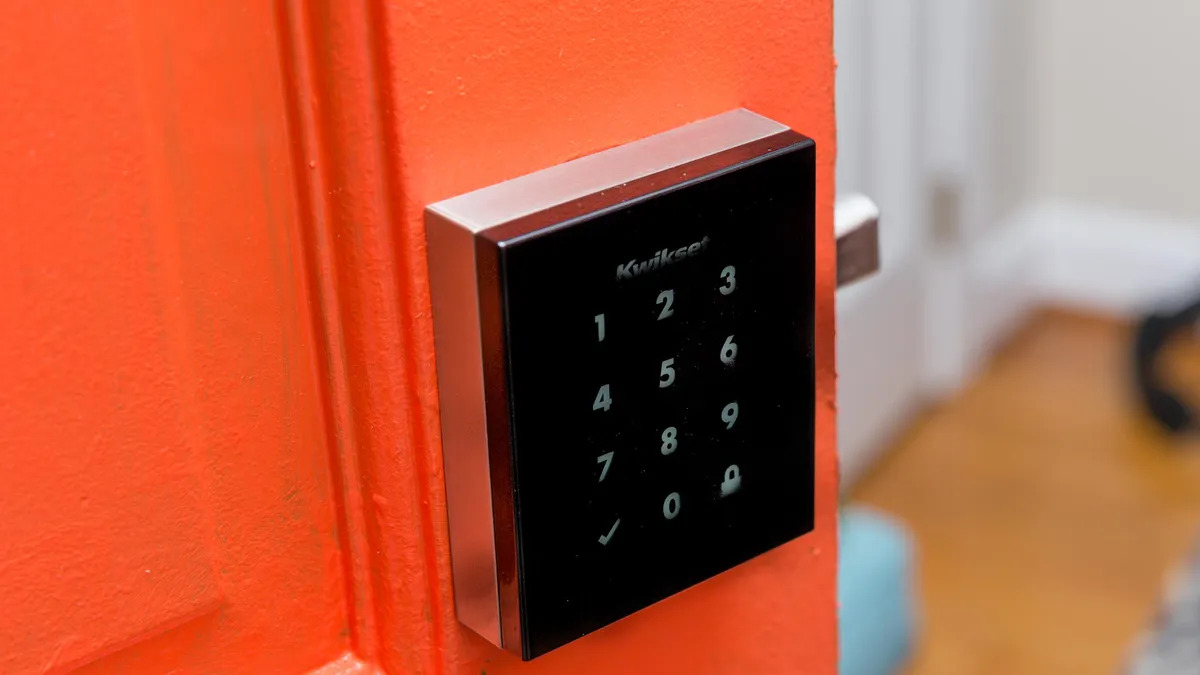
To change the password on a smart door lock, open its official app or enter the lock’s programming mode, verify your administrator credentials, and follow the instructions for changing or deleting an access code. Test the new code with the door open before relying on it.
In homes across the United States, a smart door lock can help families manage entry without handing out physical keys. You might use one on a front door in Texas, an apartment in New York, or a garage entry door in California. If you shared a code with a guest, changed roommates, or simply want better home security, updating the lock’s password is a practical step.
The exact process depends on the lock’s brand and model. Some smart locks use a mobile app, while others rely on a keypad, a master code, or buttons inside the battery compartment. Some systems also support fingerprints, phone-based access, or temporary guest codes. These access methods are not always controlled by the same setting, so changing one password may not remove every way someone can unlock the door.
This guide explains how to change a smart door lock password, how to choose the correct method, and what to do if the new code fails. The instructions are general because programming sequences differ by manufacturer. For exact button combinations, code length, and reset procedures, check the official manual for your specific model.
Source: i.ytimg.com
What Does a Smart Door Lock Password Mean?
A smart door lock password is usually a numeric PIN that lets someone unlock a door through a keypad. Depending on the model, the same term may refer to an administrator code, a master code, a permanent user code, or a temporary guest code. These codes serve different purposes and should not be treated as interchangeable.
Before changing a code, identify which type you need to update. If you only change your personal entry PIN, other people may still be able to enter with their own codes. If your goal is to remove a former roommate’s access, deleting that person’s code may be more useful than changing your own.
A smart lock may also support a phone app, fingerprint reader, physical key, or connected home system. Changing the keypad PIN does not necessarily disable these options. Review the access methods supported by your lock whenever you make an important security change.
Source: static.tp-link.com
Administrator or master code
This code manages lock settings and user access on models that support it. Keep it private and use the manufacturer’s documented procedure to change it.
Personal user PIN
This is the code used by an individual to unlock the door. Some locks allow several separate user codes.
Guest or temporary code
This code may be limited by time or schedule. Check whether it expires automatically or must be deleted manually.
Account password
This is the password used to sign in to the mobile app or online account. Changing it does not automatically change the keypad PIN.
Password, PIN, and access code: Are They Different?
People often use the words password, PIN, and access code to describe the same thing. In a smart lock system, however, the account password may contain letters and numbers, while the keypad PIN is usually numeric. An access code is a broader term that can include permanent and temporary entry codes.
If you want to change the numbers entered on the lock itself, look for settings labeled User Code, Access Code, PIN, Passcode, or Door Code. If you want to secure the account connected to the lock, look for Account, Login, or Security settings in the official app.
Before You Change Your Smart Door Lock Password
Prepare before entering programming mode. A little planning can prevent a failed update, an unexpected lockout, or the loss of access for other household members. The most important step is to identify the exact lock model and read the relevant section of its official manual.
Do not assume that two locks from the same brand use identical programming steps. A model with a touchscreen may work differently from one with physical buttons, and app features can vary by model, firmware, and region.
Source: ilockey.com
Identify the brand and model
Check the lock’s label, purchase paperwork, packaging, or official app. Use this information to find the correct programming instructions.
Get administrator access
Have the required master code or authorized app account ready. If you are not the owner or administrator, ask the authorized person to make the change.
Check the batteries
Replace weak batteries when the lock signals low power. Do not start a programming change if the lock is shutting down or showing power warnings.
Keep the door open
Perform the change while the door is open and physically accessible. This lets you test the new code without risking a lockout.
Record authorized users
Consider who needs continued access. Prepare to update or remove guest codes if the change is part of a household security review.
Find the Correct Programming Instructions
Look for a section titled Change User Code, Add or Delete User, Change Master Code, or Manage Passcodes. The manual should explain whether the lock requires the current code, an interior programming button, or an app-based administrator account.
Avoid following a button sequence from an unrelated video or another lock model. A sequence that works on one device may open a different menu, add a new user, or start a reset on another. When the instructions are unclear, contact the manufacturer’s support team before proceeding.
How to Change Password on Smart Door Lock Using the Keypad
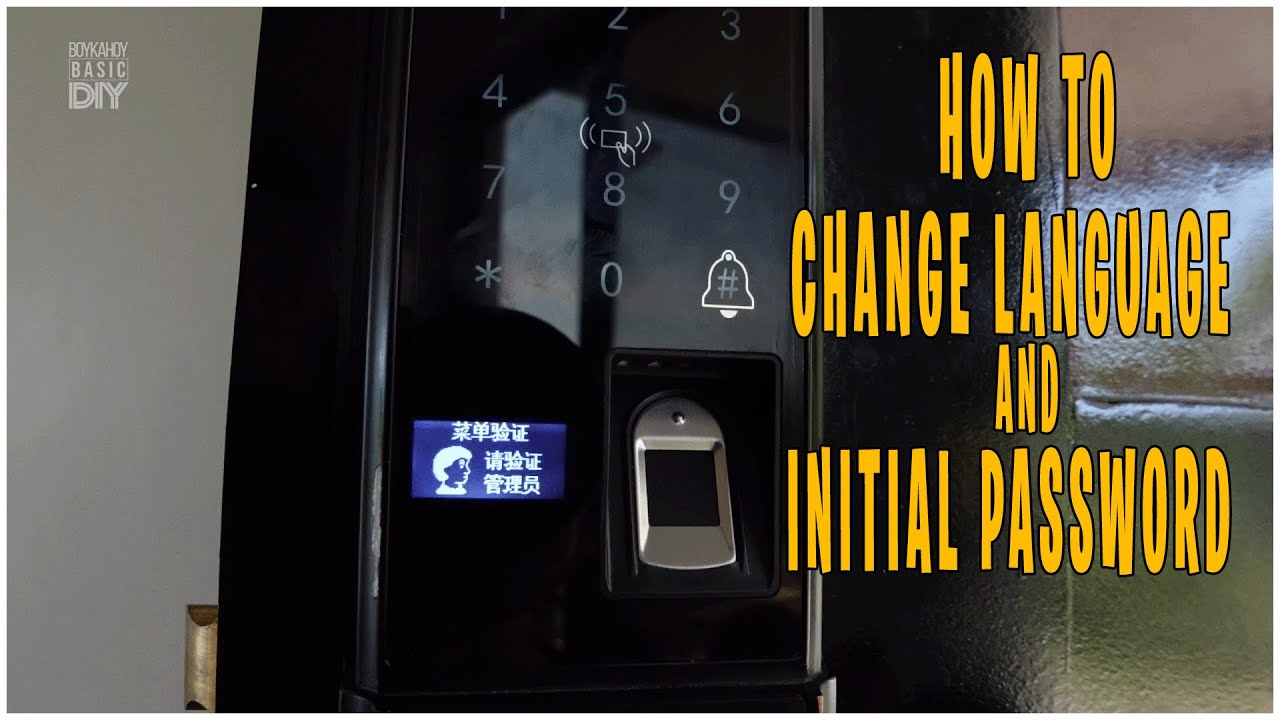
If your smart lock has a physical or touchscreen keypad, you may be able to change the PIN directly at the door. The general process is to enter authorized programming mode, select the user-code function, enter the new PIN, and confirm the change. The exact key sequence and required credentials depend on the model.
Use the steps below as a general workflow, not as a universal button sequence. Follow the manual whenever your lock uses different labels, confirmation tones, or programming rules.
Source: simpled.uk
Signs the change worked
The lock gives its documented success signal, accepts the new PIN, and behaves as expected when you test it with the door open.
If the change fails
Exit programming mode as directed, confirm the code type and required administrator credential, and repeat the procedure from the correct manual.
Step 1: Wake the Keypad
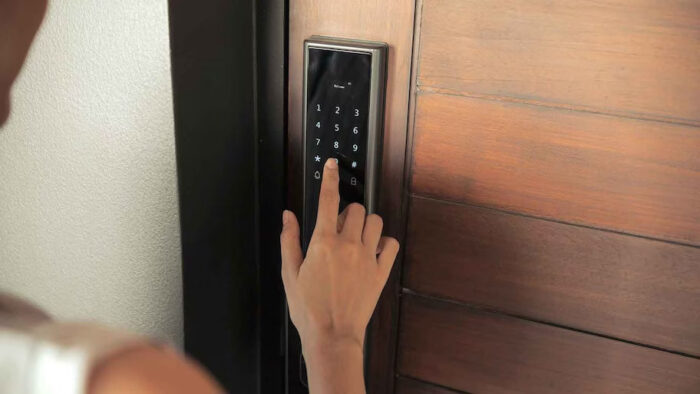
Touch the keypad or press the wake button as described in the manual. Some locks illuminate when you touch the screen, while others require a specific button to begin. Wait until the keypad is ready before entering a code.
If the screen stays dark, check the battery condition and the manufacturer’s instructions for waking the device. Do not remove the batteries during an active programming process unless the manual directs you to do so.
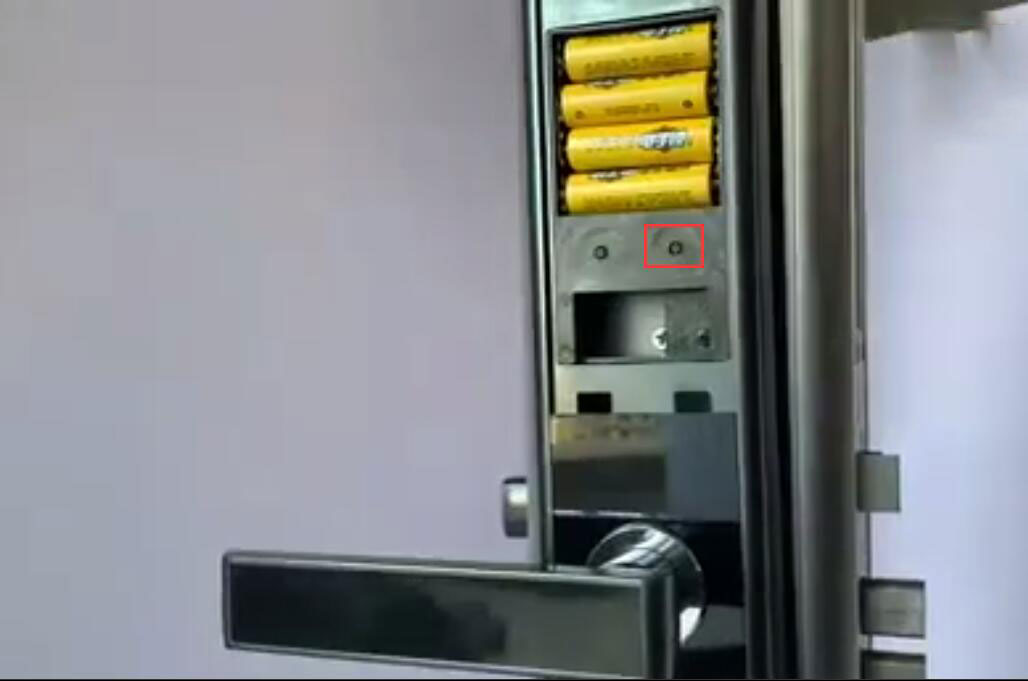
Use the authorized master code, administrator credential, or documented programming button to enter the settings menu. Some models require you to press a program button inside the house, often on the interior side of the lock. Others manage all code changes through the keypad.
Wait for the confirmation signal or menu prompt. If the lock rejects the administrator credential, stop and verify that you are using the correct code for programming rather than an ordinary entry PIN.
Step 3: Choose the User-Code Setting
Select the menu option for changing a code, editing a user, or managing access. If the lock only supports adding and deleting codes, you may need to delete the old PIN and create a new one instead of editing it directly.
Check that the selected user is the person whose code you want to change. Some systems use user numbers or slots, so choosing the wrong slot may affect another household member.
Step 4: Enter and Confirm the New PIN
Enter a new PIN that meets the lock’s documented length and format rules. Depending on the model, the lock may ask you to enter the new code twice or press a confirmation key. Follow the displayed prompt rather than guessing the next step.
If the keypad beeps, flashes, or displays an error, check the manual to understand the signal. A tone alone does not always prove that the code was saved, so wait for the documented success message or indicator.
Step 5: Test the New Code
Keep the door open and test the new PIN according to the manual. If the lock uses a handle or deadbolt, verify that the mechanism moves correctly and that the door is not binding against the frame.
Then check whether the old code still works. Some locks replace a code in place, while others let several codes remain active. If the old code should no longer grant access, remove it through the authorized user-management process and test again.
How to Change a Smart Door Lock Password in the Mobile App
If your lock connects to an official mobile app, the app may offer a simpler way to manage PINs. This method is useful when you need to add a guest code, remove a former user’s access, or manage several authorized users from one account. App support varies, so first confirm that your lock model provides code management through the app.
Use the manufacturer’s official app and verify that you are signed in to the authorized account. Avoid third-party apps that ask for your lock credentials without a clear, verified relationship to the manufacturer.
Source: simpled.uk
Check the correct lock
Verify the selected device before editing a code, especially if the app controls locks on several exterior doors.
Review the code’s schedule
If the app supports scheduled or temporary codes, confirm the start time, expiration time, and time zone where applicable.
Step 1: Open the Official Lock App
Open the app used to manage your lock and select the correct door or device. If you have multiple locks, confirm the device name before changing any settings. Check for an app or lock firmware update if the manufacturer identifies one as necessary for code management.
Step 2: Open Access or User Management
Look for a menu labeled Access Codes, Passcodes, User Management, Members, or similar. The label varies by app. Some systems display each authorized user, while others show codes as individual entries.
If the app asks for administrator verification, complete that step through the official interface. A normal account login does not always grant permission to manage lock codes.
Step 3: Edit, Replace, or Delete the Code
Choose the relevant user or access code. If editing is supported, enter the new PIN and save the change. If the app only supports creating and deleting codes, remove the old entry and create a replacement with the required permissions.
Read any warning before deleting a code. A shared code may be used by more than one person, and deleting it can interrupt their access. Create a replacement for authorized users who still need entry.
Step 4: Confirm Synchronization and Test
Wait for the app to report that the change is complete. Some locks communicate directly with a phone, while others depend on a hub, bridge, Wi-Fi connection, or Bluetooth proximity. The app may show a pending update if the lock is offline.
Test the new PIN at the keypad with the door open. If the app says the change succeeded but the keypad rejects the code, check the connection status and the manufacturer’s synchronization instructions before attempting a reset.
How to Change the Master Code or Administrator Password
Changing the master code is different from changing an ordinary entry PIN. The master code may allow someone to add users, remove access codes, or alter security settings. If your lock supports a separate administrator code, protect it carefully and change it using the exact procedure in the official manual.
Some locks use a master PIN at the keypad, while app-based systems use an account with administrator privileges. Other models do not offer a separate master code at all. Confirm which system your device uses before trying to change administrator access.
Source: image.made-in-china.com
Use a unique administrator code
Do not reuse a code that is widely shared or easy to guess, such as a street number or a simple repeating sequence.
Keep administrator access limited
Give ordinary users the access they need without sharing the master credential when separate user codes are available.
Change the Master Code Safely
First, confirm that you have the current administrator credential and the instructions for changing it. Enter the documented settings menu, select the master-code function if available, and enter the replacement code according to the manufacturer’s prompts. Do not substitute an ordinary user-code procedure unless the manual says both use the same process.
After saving the new master code, test it with the door open and verify that it can access the intended administrative functions. Then check an ordinary user PIN to ensure household entry still works. Keep the new administrator credential in a secure password manager or another protected location.
If You Have Forgotten the Master Code
If you no longer know the master code, check whether the manufacturer offers an authorized recovery procedure. Depending on the model, recovery may require an owner account, a documented reset process, proof of ownership, or help from customer support.
Do not repeatedly guess codes or try random button combinations. Some locks limit attempts, sound an alarm, temporarily disable the keypad, or require a more involved recovery process. A factory reset should be a last resort because it may remove user codes, network settings, and paired devices.
How to Choose a Strong Smart Lock PIN
A new PIN should be hard for another person to guess but easy for an authorized user to enter correctly. Follow the lock’s permitted code length and character rules. A longer code can provide more possible combinations, but only when the lock supports it and the code is not based on an obvious pattern.
Avoid using birthdays, apartment numbers, phone-number endings, or digits that someone could learn from your social media. Do not use the same PIN for every smart lock in your home. Separate codes make it easier to remove one person’s access without changing every door.
Source: i.ytimg.com
Avoid obvious sequences
Skip simple patterns such as 1234, 0000, or repeated digits when the lock permits other choices.
Use separate codes for different people
Individual user codes make it easier to track and revoke access when the lock supports named or numbered users.
Keep the code private
Avoid writing the PIN on a note near the door or sending it through an insecure group chat.
Use temporary access where available
A time-limited guest code can reduce the need to share your permanent PIN with visitors or service providers.
Protect your account too
Use a unique account password and enable multifactor authentication if the manufacturer’s service supports it.
How Often Should You Change a Smart Lock Password?
There is no single change schedule that fits every smart lock. Consider changing or revoking a code when a person no longer needs access, when you suspect the PIN has been shared without permission, or after a security incident involving the lock.
Changing a code on a fixed schedule is less useful if the replacement is easy to guess or if former users still have access through other methods. Review authorized users and access settings whenever your household or rental arrangements change.
How to Remove an Old Code or Revoke Someone’s Access
If you are changing a password because a guest, former roommate, contractor, or tenant should no longer enter your home, removing the old access is essential. Changing your own PIN does not guarantee that another person’s code has been disabled. Check the lock’s user list and delete the specific code or account that should no longer work.
Start by identifying every active access method associated with that person. Depending on the lock, this may include a keypad PIN, a fingerprint, an app invitation, a digital key, or access granted through a connected home platform. Remove only the credentials you are authorized to manage and confirm the results with a safe test.
Source: storables.com
For rental properties
Follow applicable lease terms, property policies, and local law before changing access for a tenant or another authorized occupant.
For shared households
Tell current authorized users about any planned change and provide replacement access when needed.
Review Users and Shared Access
Open the user-management screen in the official app or enter the documented programming menu. Review the available users, code slots, schedules, and access permissions. If the system shows a record for each credential, remove the correct entry rather than deleting all users unnecessarily.
If someone has access through a shared account, follow the manufacturer’s account-management procedure. Changing the keypad PIN alone may not prevent that person from controlling the lock remotely. Secure the account and review connected devices where those features are available.
Check Physical Keys and Other Entry Methods
Some smart locks retain a conventional key cylinder, and changing a PIN does not change a physical key. If you have a credible concern that someone still has an unauthorized key, consult the lock manufacturer or a qualified locksmith about rekeying or replacing the cylinder.
After removing access, test the remaining authorized methods. Confirm that household members can still enter and that the revoked code no longer works. Do this with the door open and follow the model’s documented test procedure.
Troubleshooting: Why Your New Smart Lock Password Is Not Working
If your smart lock rejects the new PIN, do not jump straight to a factory reset. First determine whether the code was saved, whether the keypad is responding, and whether the lock is receiving updates from the app. Start with simple, low-risk checks and keep the door open throughout testing.
Source: ilockey.com
When to contact support
Get help if the administrator credential is lost, the lock repeatedly rejects documented procedures, the mechanism is damaged, or the app and keypad disagree after normal troubleshooting.
When to avoid a factory reset
Do not reset the device just to correct a mistyped PIN unless the manufacturer’s instructions identify a reset as necessary and you understand what data will be erased.
The Keypad Rejects the New PIN
A rejected code may mean the new PIN was not saved, the code length is invalid, the wrong user slot was selected, or programming mode ended before confirmation. Read the error indicator and compare the steps you followed with the exact manual.
If you can still use the old code, check whether the model adds a new code rather than replacing an existing one. If neither code works, use the manufacturer’s recovery instructions instead of trying random sequences.
Check code length
Confirm the allowed number of digits and any rules about repeated or restricted sequences.
Repeat the documented steps
Restart the programming process only after exiting the current menu as instructed.
The App Says the Change Failed
Check whether the phone is connected to the lock through the required Bluetooth, Wi-Fi, or hub connection. Move closer if the model requires local Bluetooth access, and confirm that the selected device is online.
If the app shows a pending command, allow the lock to reconnect and follow the manufacturer’s synchronization procedure. Do not assume the code has changed until the lock confirms the update or the new PIN passes a safe test.
Check connectivity
Verify that Bluetooth, Wi-Fi, or the required hub is working and that the lock appears online.
Check permissions
Confirm that the signed-in account has permission to manage access codes.
The Keypad Does Not Respond
A blank screen, weak beeps, or intermittent keypad response may point to low batteries or another device issue. Follow the manual’s battery replacement instructions and use the battery type specified by the manufacturer.
If the keypad remains unresponsive, consult the official troubleshooting guide. Do not force the lock, pry off the housing, or disconnect components in a way that could damage the device or compromise the door.
Inspect battery condition
Replace weak batteries when directed and confirm the battery compartment is secured correctly.
Look for lockout behavior
Some models temporarily restrict entry after repeated failed attempts. Follow the documented wait time and recovery process.
The Lock Accepts the PIN but the Door Will Not Open
If the lock signals that the PIN is accepted but the deadbolt does not move, the issue may involve the door alignment, the bolt, or the lock mechanism rather than the code. With the door open, operate the lock and check whether the bolt extends and retracts freely.
Do not force the handle or deadbolt. If the mechanism binds, makes unusual noises, or fails to move even with the door open, stop and contact the manufacturer or a qualified locksmith.
Changing a Password Versus Factory-Resetting a Smart Lock
Changing a password updates a particular credential. A factory reset returns some or all settings to their original state, depending on the model. These actions are not the same, and a reset is usually unnecessary when you simply want to replace a working PIN.
A reset may erase user codes, administrator settings, app pairing, Wi-Fi details, schedules, or integrations. Some devices also require the owner to complete setup again. Read the reset section of the official manual before taking this step, and make sure you have a legitimate way to regain administrator access.
Source: simpled.uk
Change a user PIN
Use this when you know the required credentials and want to replace one person’s entry code.
Delete an old code
Use this when a particular user should no longer have keypad access and the system supports individual code removal.
Recover administrator access
Use the manufacturer’s documented recovery process when the master code or administrator access is unavailable.
Factory reset
Reserve this for cases where the manufacturer recommends it or normal authorized recovery cannot solve the problem.
Confirm that you are authorized to administer the lock and that you have access to the manufacturer’s setup instructions. Record any settings you may need to restore, such as authorized users or connected-device details, without exposing sensitive credentials.
Check whether a reset will affect a connected alarm, home automation system, or access-control setup. If the lock belongs to a rental, shared building, or managed property, coordinate with the owner or property manager before changing its configuration.
Quick Comparison of Smart Lock Password Change Methods
The best method depends on the lock’s features and the credentials you still have. Use this comparison to choose a starting point, then verify the exact procedure in your model’s manual.
Source: static.tp-link.com
Keypad programming
Best when the lock supports direct code management and you have the required administrator credential. It may not require an internet connection.
Official mobile app
Best when the model supports app-based code management and the authorized account is available. It may require a working connection or nearby phone.
Administrator recovery
Best when you have lost the master credential or cannot manage codes through the normal process. Requirements vary by manufacturer.
Factory reset
Best reserved for documented recovery cases where a reset is required. It may erase settings and require complete setup again.
Which Method Should You Try First?
If you know your administrator credential, start with the official app or the documented keypad procedure. If you only need to remove a former user’s access, look for an individual delete-code function before changing every user’s PIN.
If you have lost administrator access, check the recovery procedure first. Choose a factory reset only after confirming that it is supported, necessary, and safe for your specific situation.
A Final Security Check After Changing Your PIN
Once the new code works, take a moment to check the full access setup. A successful PIN change does not automatically mean that every unwanted credential has been removed or that the lock’s connected account is secure.
Review the authorized user list, delete codes that are no longer needed, and confirm that the lock’s other entry methods are still appropriate. If you changed the code after a suspected security incident, also secure the associated account and review any connected home services.
Source: image.made-in-china.com
Test before closing the door
Confirm that the new PIN works and the lock mechanism moves properly while the door remains open.
Confirm old access is removed
Test a revoked code when safe and appropriate, and check the user list for any duplicate or temporary credentials.
Protect recovery details
Store the master code, account recovery details, and relevant instructions in a secure location.
Keep the system maintained
Respond to low-battery warnings, install relevant official updates, and review access when household needs change.
Frequently Asked Questions
Q
Can I change my smart door lock password without the old code?
Sometimes, but it depends on the lock. Some models allow an authorized owner to manage codes through the official app, while others require the current master code or an interior programming button. If you have lost the required credential, use the manufacturer’s documented recovery procedure or contact support. Do not assume that removing the batteries will erase the old code.
Q
How do I change my smart lock code from my phone?
Open the manufacturer’s official app, select the correct lock, and look for Access Codes, Passcodes, User Management, or a similar setting. Select the code you want to change, save the replacement if editing is supported, and wait for the lock to confirm the update. Not every smart lock supports code changes through a phone, and some require Bluetooth, Wi-Fi, or a connected hub.
Q
Will changing my smart lock password delete other users?
Not necessarily. Some locks replace only one PIN, while others manage multiple codes independently. Check the user list and the manual to see how your model handles code changes. If someone should lose access, delete their specific code or credential and review any fingerprints, app invitations, or digital keys associated with that person.
Q
Does resetting a smart lock change the password?
A factory reset may remove existing codes and return the lock to a default setup state, but the exact result depends on the model. It may also erase paired devices, schedules, and other settings. A reset is not the same as changing a PIN, so read the official instructions and confirm what will be erased before starting.
Q
What should I do if my new smart lock code does not work?
Keep the door open and check that the new code was saved, the PIN meets the lock’s format rules, and the correct user slot was selected. If you used an app, verify the lock’s connection and synchronization status. Check the manual for error signals and recovery steps. Avoid random programming sequences or a factory reset until simpler checks are complete.
Q
How often should I change my smart door lock PIN?
Change or revoke a PIN when access needs change, when a code may have been shared without permission, or after a suspected security incident. There is no universal schedule that suits every lock and household. Use strong, unique codes and review authorized users regularly rather than relying on frequent changes alone.
Q
Can I change the master code and the user PIN separately?
Some smart locks support separate master and user codes, while others use app-based administrator permissions or a different access system. Check the manual to identify the available code types. If your lock supports both, change the intended credential and test the administrator and ordinary entry functions separately.
✦ Wrapping Up
Conclusion
Learning how to change password on smart door lock is easier when you know which code you need to update and how your model manages access. Most successful changes follow the same basic pattern: verify administrator access, open the correct programming menu, save the new PIN, and test it before closing the door.
For the best result, use the official app or the exact instructions for your lock. Remove old user codes when access is no longer needed, protect the master credential, and check other entry methods when security matters. If the lock rejects the new PIN or the programming steps are unclear, use the manufacturer’s recovery guidance instead of guessing.
💡 Key Takeaway
Identify your smart lock’s exact model, find its official code-change instructions, update the intended PIN, and test both the new code and any code you meant to revoke while the door is open.
I’m Ethan Carter, a home security systems specialist at Diggons.com. I focus on modern surveillance solutions and smart protection technologies that help people keep their homes safe and secure.
I have hands-on experience working with security cameras, video doorbells, alarm systems, and motion detection devices. I test real products and explore practical setups so I can provide clear, easy-to-follow guidance for everyday users.
My goal is to simplify home security by helping you understand how these systems work, how to fix common issues, and how to choose the right products with confidence. At Diggons.com, I share honest insights, comparisons, and real-world advice to make home security easier and more effective.