If your smart lock is not working, start by checking the batteries, testing the deadbolt with the door open, and confirming that your keypad or app is set up correctly. Then check Bluetooth, Wi-Fi, and the lock’s settings. Avoid a factory reset until simpler fixes fail.
Across the United States, smart locks are used on front doors, garage entry doors, rental properties, and home offices. They let homeowners enter with a keypad code, a phone, a fingerprint, or a physical key, depending on the model. But when a lock stops responding, it can leave you outside your home or unsure whether the door is secure.
The good news is that a smart lock that stops working does not always need replacement. Weak batteries, a tight deadbolt, an expired access code, or a lost phone connection can all cause problems that look alike. The best way to fix the issue is to identify the exact symptom before changing settings or taking the lock apart.
This guide explains how to troubleshoot common smart lock problems in a safe order. You will learn what to check first, how to separate mechanical faults from app problems, and when to contact the manufacturer or a qualified locksmith. The steps apply broadly to residential smart locks, but your model’s manual should guide any model-specific procedure.
Source: smarthomescope.com
Why Is My Smart Lock Not Working?
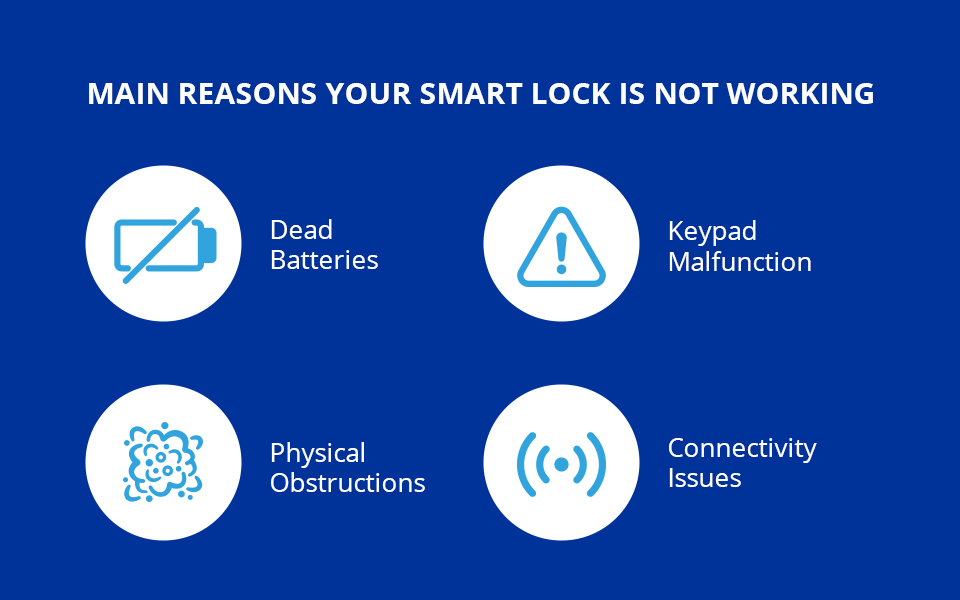
A smart lock can fail because of a power problem, a mechanical obstruction, an access setting, a wireless connection, or a fault in the lock itself. These parts work together, but each can fail on its own. Finding the affected part is the first step toward a useful fix.
For example, a dark keypad may point to weak batteries or a power connection problem. A motor that runs without moving the bolt may point to door alignment or an internal mechanism issue. An app that says the lock is offline may indicate a network problem even when the lock still works with a code.
Before you begin, make sure you have a safe way to enter or secure the property. If you are locked out, have a child or vulnerable person inside, or cannot secure an exterior door, treat access and safety as the priority rather than spending time on every test.
Source: smartlocksreviewed.com
Power failure
The batteries may be depleted, incorrectly installed, or unable to supply enough power to move the bolt.
Mechanical resistance
The deadbolt may rub against the strike plate, the door may sag, or the lock mechanism may be obstructed.
Access or keypad error
The code may be wrong, expired, disabled, or blocked by a temporary security feature.
Connection or app failure
Bluetooth, Wi-Fi, a hub, app permissions, or an account setting may prevent phone control.
Hardware or software fault
A damaged component, failed motor, interrupted update, or model-specific fault may need professional support.
Start With the Symptom You Can See
Notice what happens when you try to use the lock. Does the keypad light up? Do you hear a beep or motor sound? Does the app show an error? Can you turn the interior thumbturn smoothly? These details help narrow down the cause without unnecessary changes.
Write down any error message, light pattern, or unusual sound. If the issue began after a battery change, app update, router replacement, or door repair, include that detail when troubleshooting or contacting support.
No lights or sounds
Check the batteries, their orientation, the battery contacts, and the model’s approved emergency power method.
Lights work but the bolt does not move
Check for mechanical resistance with the door open and stop if the motor strains or the bolt binds.
The lock works locally but not remotely
Focus on phone connectivity, the router, the bridge or hub, and the app’s connection status.
1. Check the Smart Lock Batteries
Weak batteries are one of the first things to check when a smart lock stops responding. A lock may still light up or beep even when its batteries cannot provide enough power for the motor to move the deadbolt. Some models also show a low-battery warning in the app or through a light or sound pattern.
Use the battery type listed in the manufacturer’s instructions. Many residential smart locks use AA alkaline batteries, but the exact type and number vary by model. Do not assume that rechargeable batteries or lithium cells are suitable unless the manufacturer approves them.
Replace the complete set when the manual calls for it. Mixing old and new batteries, using different battery types, or reversing the polarity can lead to unreliable operation. If you see corrosion or damaged contacts, do not scrape them with metal tools or pour cleaning fluid into the lock.
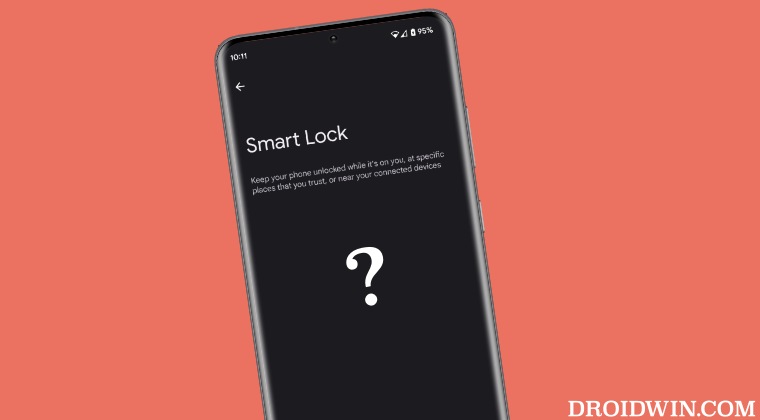
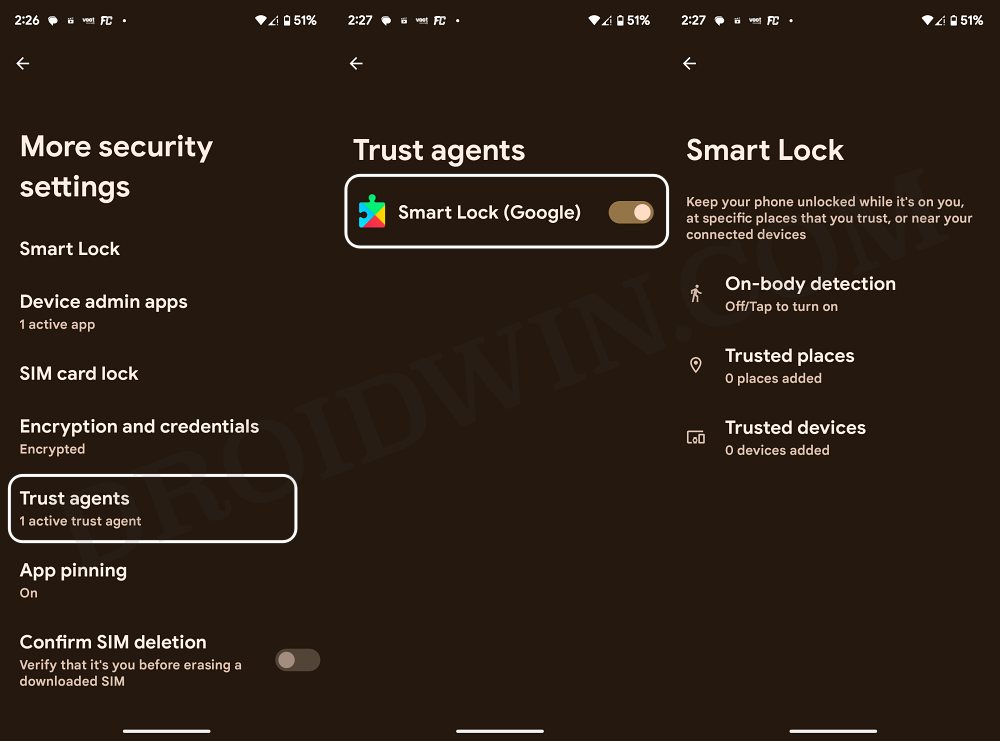
Source: droidwin.com
Step 1: Find the battery compartment
Use the manual to locate the interior cover and remove it as instructed. Keep the door open while testing if you can do so safely.
Step 2: Inspect the batteries
Look for leakage, corrosion, loose contacts, or incorrect orientation. Avoid touching leaking battery material with bare hands.
Step 3: Install fresh batteries
Use the specified type and follow the polarity marks. Fit the complete set rather than mixing used and new cells.
Step 4: Test the lock
Allow the lock to restart, then test an approved entry method with the door open. Check that the motor completes its cycle.
What If the Batteries Are Dead and You Are Locked Out?
Some smart locks have an external emergency power contact or port that can temporarily power the lock from an approved battery or power bank. Other models rely on a physical key or a different backup method. The location, supported power source, and procedure vary, so check your exact model’s instructions before trying anything.
Do not insert wires into an unmarked opening or apply power to unknown contacts. If your lock has no supported emergency power method and you cannot enter, contact the manufacturer or a qualified locksmith. If someone is in immediate danger inside the property, contact local emergency services.
No response after battery replacement
Recheck polarity and contact seating. If the keypad remains dead, the battery contacts or internal electronics may need service.
The lock starts but stops midway
Check for bolt resistance with the door open. A weak battery can contribute, but a binding mechanism must also be ruled out.
2. Check the Deadbolt and Door Alignment
If your smart lock makes a grinding noise, clicks repeatedly, or fails to extend the bolt, check for mechanical resistance before changing the app settings. A smart deadbolt must move freely through the door and into the strike plate, which is the metal opening in the door frame.
Doors can shift with humidity, temperature changes, loose hinges, or normal wear. If the door has moved slightly, the bolt may press against the edge of the strike plate instead of sliding into the opening. The motor then has to work harder, and some locks may stop or report an error.
Do not keep pressing the lock button if the motor strains. Repeated attempts can drain the batteries or damage the motor and gears. If the bolt feels stuck or the door is difficult to open, stop and arrange qualified help when needed.
Keep the door open so you can test the bolt without the door frame adding pressure. Make sure the door cannot swing shut unexpectedly.
Step 2: Test the bolt
Use the normal locking method and observe whether the bolt extends and retracts smoothly. Keep your fingers clear of moving parts.
Step 3: Compare the result
If the lock works with the door open but fails when the door is closed, the door alignment or strike plate is a likely cause.
Step 4: Inspect the door hardware
Look for loose hinge screws, visible sagging, or marks showing that the bolt rubs against the strike plate. Do not alter the hardware if you are unsure how to maintain the door’s security.
What If the Deadbolt Works With the Door Open?
This result suggests that the lock’s motor can move the bolt when it is not under pressure from the frame. The next step is to check how the bolt lines up with the strike plate when the door closes. Look for a bolt that scrapes the top, bottom, or side of the opening.
Minor alignment adjustments may solve the issue, but the correct repair depends on the door, frame, and lock design. A locksmith or door professional can correct sagging, adjust the strike plate, and confirm that the door still closes and locks securely. Avoid filing or enlarging the opening without understanding how the change may affect security.
The bolt moves freely with the door open
Investigate the frame, strike plate, hinges, and door position.
The bolt is stiff even with the door open
The lock body, installation, or internal mechanism may be the source of resistance.
The key or thumbturn is also stiff
Treat this as a mechanical problem rather than assuming that the app or wireless connection is responsible.
3. Fix a Smart Lock Keypad That Is Not Working
When a smart lock keypad does not respond, first determine whether the panel is completely inactive or simply rejecting your code. A dark keypad can point to low batteries, a power issue, or a faulty panel. A lit keypad that rejects the code may instead have an access setting or entry error.
Enter the code slowly and follow the instructions for your model. Some locks require a confirmation key after the code, while others unlock automatically. Repeated incorrect entries may trigger a temporary security lockout, so stop trying random combinations if the panel indicates that access is temporarily disabled.
Check whether the code is still active in the app or administrator settings. A code may have expired, been deleted, been restricted to certain hours, or been created for a different user. If another authorized method works, use it to check settings instead of repeatedly testing a code that may be invalid.
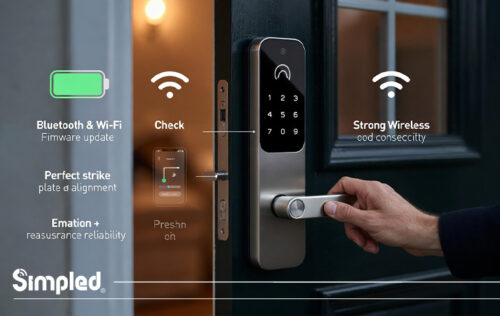
Source: simpled.uk
The keypad stays dark
Replace the batteries with the specified type, verify polarity, and check for a model-specific power or panel issue.
The keypad lights up but rejects the code
Confirm the code, required confirmation key, user permissions, expiration date, and access schedule.
The keypad beeps or flashes repeatedly
Check the manual for the meaning of the light or sound pattern. It may signal low power, an incorrect code, or a temporary lockout.
Only some user codes work
Review the affected users’ permissions and schedules before resetting the whole lock.
How to Restore Access When a Code Stops Working
Open the lock’s official app or administrator interface, if you still have access, and check whether the code is active. Confirm that any time limits or temporary access dates match the intended entry time. If the code was recently changed, make sure the update reached the lock.
If the lock has been offline, a code change made in the app may not have synchronized. Restore the supported connection and allow the device to update. If the code still fails, follow the manufacturer’s documented procedure for editing or recreating it.
Do not publish access codes in support messages or share them with anyone who does not need them. If you suspect an unauthorized person has learned a code, revoke it and create a new one through the official controls.
Check the administrator account
Make sure you are managing the correct lock and have permission to change user codes.
Check for a temporary lockout
Wait for the model’s documented lockout period rather than repeatedly entering codes.
Recreate the affected code
Do this only after confirming that the lock is powered and the administrator controls are functioning.
4. Troubleshoot a Smart Lock App That Will Not Connect
If your smart lock works with a keypad or physical key but not through your phone, focus on the connection between the phone, the lock, and any network equipment. A failed app command does not automatically mean the deadbolt is broken. The problem may be limited to Bluetooth, Wi-Fi, a hub, or the app itself.
First, identify how your model connects. Bluetooth locks may need the phone to be within range. Wi-Fi models may connect directly to the router or use a separate bridge. Other locks use a hub with a supported wireless protocol. The right fix depends on the design, so do not assume every smart lock requires Wi-Fi.
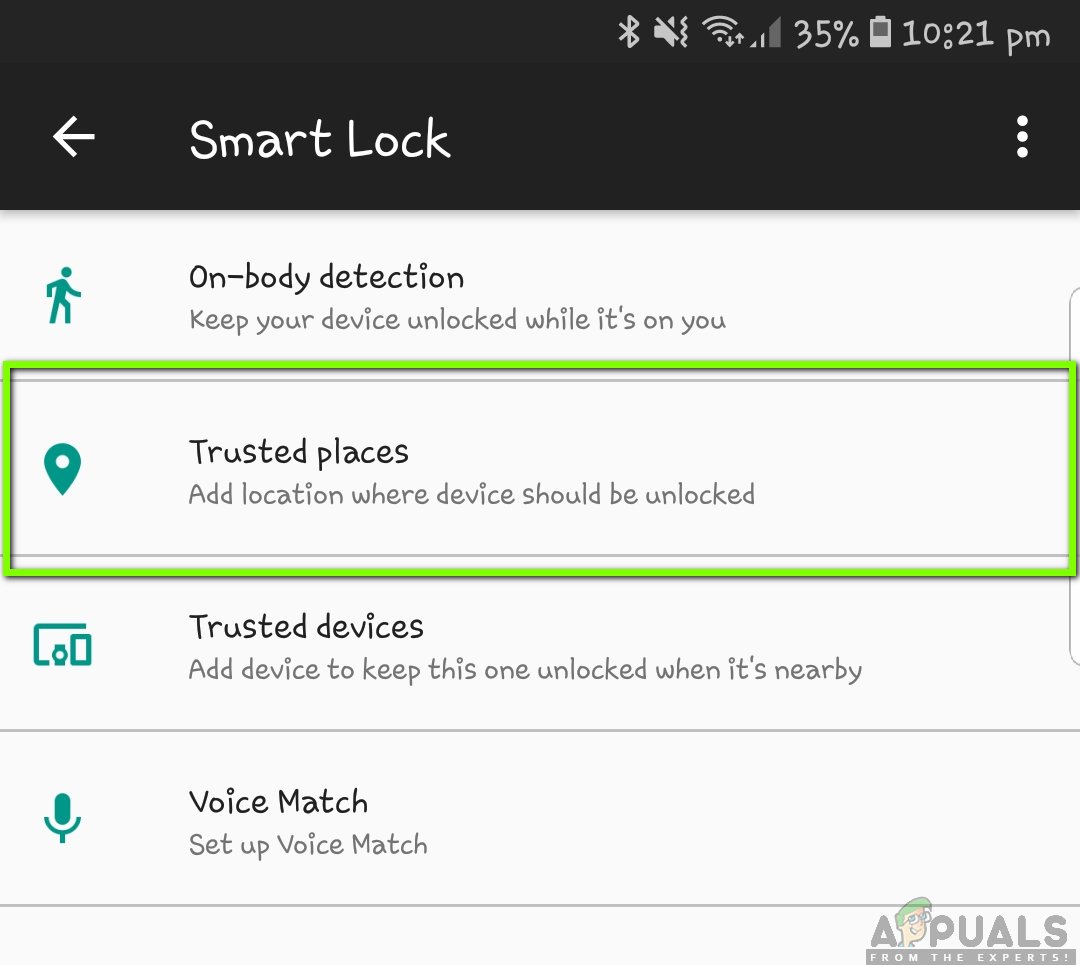
Check the phone’s Bluetooth setting, the app’s permissions, and the lock’s connection status. If remote control has stopped working, confirm that the router and any required hub or bridge have power. A working internet connection on your phone does not prove that the lock itself is connected.
Source: appuals.com
Step 1: Check phone settings
Enable the connection features required by the lock and allow the official app to use the permissions it needs.
Step 2: Move closer
For Bluetooth setup or local control, stand near the lock and follow the manufacturer’s pairing instructions.
Step 3: Check the router or hub
Confirm that the required equipment is powered, connected, and within the supported range of the lock.
Step 4: Restart the app
Close and reopen the official app, then check whether the lock status updates. Avoid removing the device from your account as an early troubleshooting step.
Why Is My Smart Lock Offline on Wi-Fi?
A smart lock may go offline after a router replacement, Wi-Fi password change, power outage, or change in network settings. A weak signal at the door can also cause the connection to drop. Some models support only certain Wi-Fi bands or security settings, so verify compatibility in the manual before changing your router.
Restart the router or bridge only when it is safe to do so and when other household needs will not be disrupted. If the lock requires a 2.4 GHz Wi-Fi network, confirm that the correct network is available and configured as the manufacturer specifies. Do not disable security protections on your home network just to make the lock connect.
If the lock remains offline, use the manufacturer’s documented reconnect procedure. Check whether the service itself is experiencing an outage if the local lock works but remote commands and notifications do not. Local keypad operation may continue during an internet outage, but this depends on the model and its settings.
The app works nearby but not remotely
Check Wi-Fi, the bridge or hub, the internet connection, and the remote-access settings.
The lock stopped connecting after a router change
Verify the new network details and the lock’s supported Wi-Fi settings before pairing it again.
The app shows an outdated lock status
Refresh the app, restore the supported connection, and wait for synchronization before relying on the displayed state.
5. Check Fingerprint, Auto-Lock, and Other Smart Features
Some smart locks still operate normally even when one feature stops working. A fingerprint reader may reject a registered finger, an auto-lock timer may not activate, or a voice assistant may fail to control the door. Treat each feature as a separate issue before assuming that the whole lock has failed.
For fingerprint problems, clean the sensor with a soft, dry cloth and make sure your finger is clean and dry. Moisture, dirt, cuts, and changes in skin condition can affect recognition. If the problem continues, use the manufacturer’s enrollment instructions to register the fingerprint again, provided you have another reliable way to enter.
For auto-lock problems, review the timer, door-position sensor if fitted, and any settings that control when the feature operates. Some locks need a door sensor or a specific installation setup for automatic locking. A door that does not close fully can also prevent the feature from working as expected.
Source: acslocks.com
Fingerprint recognition fails
Clean the reader, dry your finger, and retry. Re-enroll the print only through the approved setup process.
Auto-lock does not activate
Check the timer, door sensor, lock state, and any conditions that must be met before automatic locking begins.
Voice commands fail
Check the connected assistant account, device permissions, internet connection, and whether the command is supported.
Notifications stop arriving
Review app notification permissions, account settings, and network connectivity. Missing notifications do not necessarily mean the lock itself failed.
What If the Lock Stops Working After an Update?
If the problem began after an app or firmware update, record the timing and any error message. Check the manufacturer’s support page for known issues, supported app versions, and instructions for completing or recovering from the update. Do not interrupt a firmware update while the lock is actively installing it.
Restart the app or phone if the manufacturer recommends it, and check whether the lock has power and can operate locally. If the lock is mechanically stuck or cannot secure the door, prioritize the physical problem instead of repeatedly trying software fixes.
Do not install unofficial firmware or follow reset instructions intended for a different model. If the lock became unresponsive during an update, contact the manufacturer for model-specific recovery steps.
Check the exact model
Confirm that the support instructions and firmware apply to your lock’s model and hardware revision.
Keep another entry method available
Do not begin a firmware recovery procedure if it may leave you unable to enter or secure the property.
6. Use This Smart Lock Troubleshooting Table
The table below connects common symptoms with likely causes and the next safe check. These are starting points, not guaranteed diagnoses. Different models use different lights, sounds, motors, and emergency features, so confirm any model-specific instructions in the official manual.
Source: cnyglock.com
Keypad is completely dark
Likely causes include depleted batteries, incorrect battery orientation, poor contacts, or an electronic fault. Replace the batteries as directed and inspect the contacts.
Motor runs but the bolt will not move
Possible causes include a binding deadbolt, door misalignment, installation problems, or an internal mechanism fault. Test with the door open and stop if the motor strains.
Keypad works but the app says offline
Check Bluetooth, Wi-Fi, the hub or bridge, app permissions, and remote-access settings.
Access code is rejected
Verify the code, entry procedure, expiration, schedule, and administrator permissions. Check for a temporary lockout.
Fingerprint is not recognized
Clean and dry the sensor and finger. Re-enroll the print if needed and if another entry method is available.
Auto-lock does not engage
Check the timer, door sensor, door closure, and feature settings. Confirm whether the model requires a separate sensor.
The lock fails after an update
Check official support notices and model-specific recovery steps. Avoid unofficial firmware or an unverified reset sequence.
The physical key or thumbturn is stiff
Treat the problem as mechanical. Stop forcing the mechanism and contact a locksmith if it remains stiff or jammed.
A Simple Order for Troubleshooting
For most residential smart locks, a useful sequence is to confirm safe access, check the batteries, test the bolt with the door open, verify the code or entry method, and then inspect the connection and app. This sequence helps separate power and mechanical faults from wireless problems.
Change one thing at a time and test the result. If replacing the batteries fixes the problem, there is no need to reset the lock. If the bolt is jammed, reconnecting the app will not correct the physical resistance. A focused approach saves time and reduces the risk of losing access settings.
First
Make sure you can enter or secure the property and have a backup method available.
Second
Check power and mechanical movement before investigating wireless settings.
Third
Check credentials, app access, network equipment, and documented software updates.
Last
Consider a factory reset or professional repair only after the earlier checks fail and you understand the consequences.
7. Should You Reset or Replace a Smart Lock?
A factory reset should be a last resort, not the first troubleshooting step. Depending on the model, it may erase access codes, enrolled fingerprints, paired phones, network details, schedules, and other settings. You may then need administrator access and the original setup instructions to configure the lock again.
Before resetting, confirm that the batteries are good, the bolt moves freely, the correct entry method is being used, and the app or network issue is not caused by a simple setting. Check the manufacturer’s manual for the exact reset procedure. Never assume that button combinations or timing are the same across brands.
Replacing the lock is worth considering when a qualified repair is not practical, the unit has suffered serious physical damage, or the manufacturer confirms an internal failure. A single app connection problem or low-battery warning is not enough reason to buy a new lock.
Confirm administrator access, backup entry, setup instructions, and the ability to recreate users and settings.
Contact the manufacturer
Ask about warranty coverage, documented error codes, approved recovery procedures, and replacement options.
Call a locksmith when needed
Get professional help for a jammed mechanism, damaged hardware, repeated motor failures, or a door that cannot be secured.
When Is Professional Help the Safer Choice?
Call a qualified locksmith if the deadbolt remains jammed, the physical key will not turn, the interior thumbturn is stuck, or the door cannot be secured reliably. A locksmith can assess the lock and door hardware without relying only on app settings. If the fault appears electronic, the manufacturer may also be able to diagnose it or arrange service.
If the lock is still under warranty, contact the manufacturer before disassembling it. Unapproved repairs can cause further damage and may affect warranty coverage. Keep your model number, purchase details, error messages, and the steps you have already tried ready for support.
For a rented home or apartment, check with the property manager before changing the lock or altering the door frame. In a shared building, an unauthorized lock replacement may affect access rules or emergency entry arrangements.
Repeated grinding or clicking
Stop repeated motor attempts and request a mechanical inspection.
Visible damage or battery leakage
Stop using the affected component and follow the manufacturer’s service guidance.
Door will not lock securely
Arrange prompt repair and use a safe, permitted alternative to secure the property while waiting.
8. Prevent Smart Lock Problems Before They Start
Routine checks can help you spot problems before they cause a lockout. You do not need to change settings every week, but you should know how your lock signals low power, how its backup entry method works, and where to find the correct manual.
Replace batteries when the lock gives a low-power warning or when the manufacturer’s maintenance guidance calls for it. Keep the battery compartment dry and check for visible damage during normal maintenance. Use only approved cleaning products and lubricants, if any are specified for your model.
Test the lock with the door open when you perform maintenance, then confirm that it locks properly with the door closed. If the door becomes harder to close or the bolt starts scraping, address the mechanical problem before it leads to a motor fault. A lock that works only when the door is pushed or pulled into place needs attention.
Keep the official app updated and review access codes when household members move out or temporary visitors no longer need access. Use a strong administrator password, protect your account with available security features, and remove access for old phones or users when appropriate.
Source: acslocks.com
Keep backup access ready
Know where your physical key is or how your model’s approved backup entry method works.
Watch for battery warnings
Use the specified batteries and replace the complete set as directed by the manufacturer.
Check door alignment
Look for a stiff thumbturn, scraping bolt, loose hinge, or door that no longer closes smoothly.
Review user access
Remove expired codes and review app users, schedules, and permissions when access needs change.
Use official software
Install supported app and firmware updates according to the manufacturer’s instructions.
How Can You Keep a Smart Lock Secure During a Network Outage?
A network outage does not affect every smart lock in the same way. Some locks can still use local keypad codes, fingerprints, or physical keys when the internet is down. Others depend on a hub or connection for certain features. Check your model’s instructions so you know which entry methods remain available.
If remote access matters to your household, test the approved local entry methods and make sure the administrator account is accessible. Do not assume that an app’s last displayed status proves that the door is currently locked. Confirm the physical state of the bolt whenever possible.
Know the offline features
Confirm which entry methods work without Wi-Fi, the internet, or a hub.
Verify the physical lock state
Check the door directly instead of relying only on an old app status or a missing notification.
Frequently Asked Questions
Q
Why is my smart lock not working even with new batteries?
New batteries do not rule out every power problem. Check the battery type, polarity, contact seating, and any visible corrosion. Then test whether the deadbolt moves freely with the door open.
If the keypad remains dark, the motor continues to stall, or the lock still fails after these checks, the cause may be a damaged contact, installation issue, or internal electronic fault. Follow the model’s support instructions or contact the manufacturer.
Q
Can a smart lock work without Wi-Fi?
Yes, many smart locks can still work without Wi-Fi, but the available features depend on the model. Keypad entry, a fingerprint reader, Bluetooth control, or a physical key may remain available even when remote access is lost.
Some features, such as remote commands, cloud notifications, or integrations with other devices, may stop working. Check the manufacturer’s manual to learn which functions are local and which require a network or hub.
Q
Why does my smart lock make noise but not unlock?
A motor or clicking sound without bolt movement may indicate low battery power, a binding deadbolt, poor door alignment, or an internal mechanism problem. Open the door and test the bolt using the normal operating method, provided you can do so safely.
If the bolt moves smoothly with the door open but not when the door is closed, check the alignment of the door and strike plate. Stop if the motor grinds or repeatedly stalls. A locksmith can inspect the hardware if the problem continues.
Q
Why is my smart lock not responding to the app?
The app may have lost its Bluetooth connection, the lock may be offline, or the required router, bridge, or hub may not be working. The phone may also lack a required permission, or the app may need to be restarted.
Confirm that the lock has power, move closer for Bluetooth control, and check the official app’s connection status. If remote control fails after a router or password change, follow the model’s network reconnection steps. Do not factory-reset the lock unless the manufacturer recommends it after other checks.
Q
How do I unlock a smart lock when the batteries are dead?
Use the physical key if your model has one, or follow the manufacturer’s approved emergency power procedure if it supports one. Some models use an external power contact or port, while others offer different backup methods.
Do not apply power to unknown contacts or force the lock. If no approved backup method is available and you cannot enter, contact the manufacturer or a qualified locksmith. Contact emergency services if a person is in immediate danger.
Q
Should I factory-reset my smart lock if it stops working?
Not as your first step. A factory reset can erase codes, fingerprints, paired devices, network settings, and schedules without fixing a dead battery or jammed bolt.
First check the power supply, bolt movement, access settings, and app connection. If a reset is still needed, use the exact instructions for your model and make sure you have a safe backup entry method and administrator access.
Q
Why does my smart lock keep unlocking or locking incorrectly?
Check the auto-lock timer, schedules, app automations, user permissions, and door sensor settings if your model has one. A phone integration or scheduled action may also be sending commands that you did not expect.
Review the lock’s activity history if available and remove any automation or user access that is no longer needed. If the lock physically moves on its own or does not stay secure, contact the manufacturer or a locksmith rather than relying on software changes alone.
Q
When should I replace a smart lock instead of repairing it?
Replacement may be reasonable when the manufacturer confirms an internal failure, the unit has significant damage, or repair is not practical. First check whether the lock is still covered by a warranty and whether an approved repair is available.
A weak battery, expired code, or lost Wi-Fi connection alone does not usually justify replacement. If the door cannot be locked securely, arrange prompt professional help while deciding whether to repair or replace the unit.
✦ Wrapping Up
Conclusion
When a smart lock is not working, start with the simplest and safest checks. Confirm that the lock has power, test the deadbolt with the door open, and make sure your access code or other entry method is valid. If the lock works locally but not through your phone, investigate Bluetooth, Wi-Fi, the hub, and the app rather than assuming that the hardware has failed.
Avoid forcing a jammed bolt or resetting the lock before you understand what the reset will erase. Keep a backup entry method ready and follow the instructions for your exact model. If the lock remains unreliable, shows signs of damage, or cannot secure the door, contact the manufacturer or a qualified locksmith.
💡 Key Takeaway
Start by checking the batteries and testing the deadbolt with the door open. Then troubleshoot the keypad, app, and network according to the symptom. Stop if the lock binds or cannot secure the door, and get qualified help.
I’m Ethan Carter, a home security systems specialist at Diggons.com. I focus on modern surveillance solutions and smart protection technologies that help people keep their homes safe and secure.
I have hands-on experience working with security cameras, video doorbells, alarm systems, and motion detection devices. I test real products and explore practical setups so I can provide clear, easy-to-follow guidance for everyday users.
My goal is to simplify home security by helping you understand how these systems work, how to fix common issues, and how to choose the right products with confidence. At Diggons.com, I share honest insights, comparisons, and real-world advice to make home security easier and more effective.