

You might spot a recording camera by watching its behavior and checking a few simple signs. Look for steady power sources, blinking LEDs, visible lenses, or devices that follow movement; these often show a camera is active. If the camera has power, network activity, or a visible lens that tracks motion, it is likely recording.
Ethan Carter at Diggons.com notes that many cameras also send alerts to phones or store footage online, so check for app notifications, unusual network devices, or recent files on shared drives. If something feels off, a quick physical check and a scan with a phone or simple detector can confirm whether a device is live.
Key Takeaways
- Check for power, lens movement, and network activity to spot active recording.
- Verify app alerts, storage locations, and recent files to confirm footage capture.
- Use simple physical checks and detection tools to find hidden or covert cameras.
Understanding Security Camera Indicators
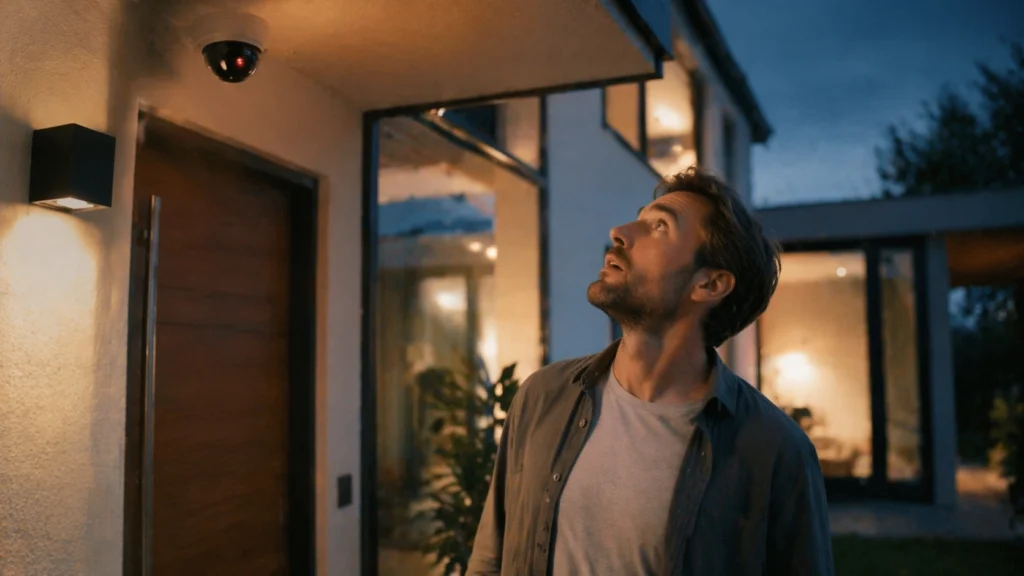
Security cameras often show simple signs when they record. Lights, sounds, and faint glowing dots can tell if a camera is active. Knowing what each sign means helps people check cameras quickly and safely.
LED Light Signals
LEDs on camera housings usually indicate power, network activity, or recording. A steady green or blue light commonly means the camera has power. A blinking light often shows network traffic or motion-triggered recording. Red LEDs sometimes mean the camera is recording to local storage or is in standby recording mode.
Different manufacturers use different colors and patterns. The table below shows common meanings, but users should check their camera manual to confirm.
| LED Color / Pattern | Common Meaning |
|---|---|
| Steady green/blue | Power on / normal operation |
| Blinking green/blue | Network activity or motion-triggered recording |
| Steady red | Recording to local storage or standby record |
| No light | LED disabled or camera powered off |
If LEDs are absent, the camera may have a setting to hide them. Covering a visible LED can block that sign but does not stop recording.
Beeping and Sound Cues
Some cameras emit beeps at power-up, on network join, or when motion is detected. A single beep at startup usually means the unit powered on and passed a basic self-test. Repeated beeps or tones often signal alerts like lost network connection, low battery, or a system error.
Audio cues can be disabled in settings, so silence does not guarantee the camera is off. If a camera beeps only when motion occurs, it may be set to notify nearby people. Users should check the device’s settings or app to adjust sounds and view logs of recent alerts.
Visible Infrared Lights
Night-vision cameras use infrared (IR) LEDs that glow faintly when recording in low light. This glow often appears as dim red or purple dots around the lens in the dark. It is most visible through a phone camera or when viewing from certain angles.
The IR glow means the camera is using active night illumination, which usually indicates the camera is recording or ready to record. Some models use low-glow or no-glow IR to be less visible. If someone needs to confirm, they can switch off lights briefly and look for the faint glow or use a phone camera to see IR reflections more clearly.
Checking Camera Physical Features
Inspect visible parts and simple indicators to decide if a camera is recording. Look for moving parts, ports, and lights, and note whether the device is hard-wired or wireless — those details affect how and where footage is stored.
Lens Movement
A camera that pans, tilts, or zooms likely has active motors and often records when it moves to track motion. Watch the camera for at least a minute; small, repeated adjustments or a slow sweep across the area usually mean the unit is powered and functional.
Some cameras only move during scheduled patrols or when they detect motion. If the device moves after someone walks by, it’s likely engaging a recording or tracking routine.
Hidden or subtle lens movement can be heard as soft clicks from the housing. If the camera is enclosed in a dome, look closely for a tiny lens that shifts position inside the dome; that internal motion is a strong sign of active operation.
Wired and Wireless Model Differences
Wired cameras connect to power and a recorder (DVR/NVR) and often record continuously or on a set schedule. If you can trace a cable to a wall outlet, junction box, or recorder, assume local recording is possible even if Wi‑Fi is off.
Wireless cameras run on Wi‑Fi or batteries and commonly send footage to cloud servers or local SD cards. A power adapter plus an Ethernet cable generally means local network recording, while only a power cable often indicates cloud or SD card options.
Use this table to compare common signs:
| Feature | Wired Camera | Wireless Camera |
|---|---|---|
| Power source | Direct cable, PoE | Battery or power adapter |
| Likely recording method | DVR/NVR or local storage | Cloud or SD card |
| Common indicator | Ethernet cable, bulkier base | Wi‑Fi antenna, removable battery |
Remote Monitoring and Mobile Alerts
Remote monitoring lets people check cameras from afar and get instant alerts when motion or sound is detected. It shows whether live feeds are active and whether recordings upload to cloud storage or a local device.
Live Streaming Capabilities
Live streaming lets users watch a camera feed in real time on a phone, tablet, or PC. If the camera supports live view, the app or web portal will show a current image and a timestamp. A continuous, updating image usually means the camera is online and sending data now.
Many systems show connection status, bitrate, and last keyframe time. These help verify the feed is active without guessing. Some cameras include a live indicator light or a stream icon in the app. If the app lets someone pan, tilt, or zoom the camera, that confirms remote control and active streaming.
Cloud Storage Use
Cloud storage means video files upload to company servers instead of only staying on a local SD card. When cloud storage is active, the app will list recent clips, timestamps, and event types (motion, doorbell press, etc.). Seeing new clips appear after events proves the camera recorded and transmitted data.
Compare storage plans and retention in a quick table:
| Feature | Common Behavior | Why It Matters |
|---|---|---|
| Clip List | Shows recent events with timestamps | Confirms recordings uploaded |
| Retention Period | 7–30+ days by plan | Affects how long footage is available |
| Sync Status | Displays upload success or errors | Indicates if recordings reached the cloud |
If uploads fail, apps often show error messages or retry indicators. Checking upload logs and recent clip timestamps gives a clear way to know whether remote alerts and recordings actually reached cloud storage.
Testing Camera Response
This section shows quick, practical checks to see if a camera records when someone moves or enters its view. It focuses on triggering motion sensors and mapping the camera’s field of view.
Motion Detection Triggers
They start by doing a walk test. Have someone walk slowly across the area while watching the camera app or recorder. If the system records only on motion, the app will show recent clips or a timeline jump when movement occurs.
Try different speeds and angles. Walk directly toward the lens, then cross side-to-side at varying distances. Note any delay between movement and recording; short delays (less than a few seconds) are normal, but long gaps can mean motion zones are off.
Use common triggers like waving an arm, opening a door, or dropping an object. If the camera has adjustable sensitivity, raise it to catch small movements or lower it to avoid false alarms from trees or passing cars.
If available, enable a live view while testing. Record timestamps on a phone to compare with saved footage. This confirms whether the device truly records on motion or only streams live.
Field of View Checks
They map the camera’s coverage by placing markers at measured spots in the room. Use tape or small objects at 1, 3, and 6 meters (or appropriate distances) from the camera and view the live feed to see which markers appear.
Move an object slowly across the marked line to find blind spots. Pan-tilt cameras should be checked at each extreme position. Note where facial features are clear; poor detail at a distance means the camera won’t reliably identify people.
Test at different heights. Cameras mounted too high or low can miss faces or nearby actions. Also check at night or in low light if the camera has infrared; some areas may go dark despite daytime coverage.
If the camera’s app shows angle or coverage overlays, use them to confirm the manual test. Record which zones are visible and which are not, then adjust mounting angle or position as needed to cover priority areas.
Reviewing Camera App Settings
Check the app for recent clips, live feed status, and alert rules. These items show whether the camera is actively recording, saving, or only streaming.
Accessing Video History
They should open the camera app and go to the “History,” “Recordings,” or “Events” tab. Look for timestamps, clip lengths, and file sizes. If clips appear every time motion happens, the camera records on motion. Continuous clips with no gaps mean constant recording.
Check storage location shown in the app: SD card, cloud, or local NVR/DVR. If it lists a cloud plan and shows recent uploads, recordings likely save off-device. If the app shows “No recordings” but the live feed works, the camera may stream only or storage is full. Play a recent clip to confirm audio and video are present and check metadata for resolution and bitrate.
Notification Review
They should open the app’s notification or alert settings and inspect which events trigger alerts. Common options are motion, sound, person/vehicle detection, and all activity. If notifications are enabled for motion or people, the camera records those events by default.
Check delivery method: push notifications, email, or SMS. If the app logs sent notifications with timestamps, match them to recorded clips to verify recording behavior. Turn on or test notifications and then trigger motion to confirm both the alert and the saved clip appear in the history.
Identifying Hidden or Covert Cameras
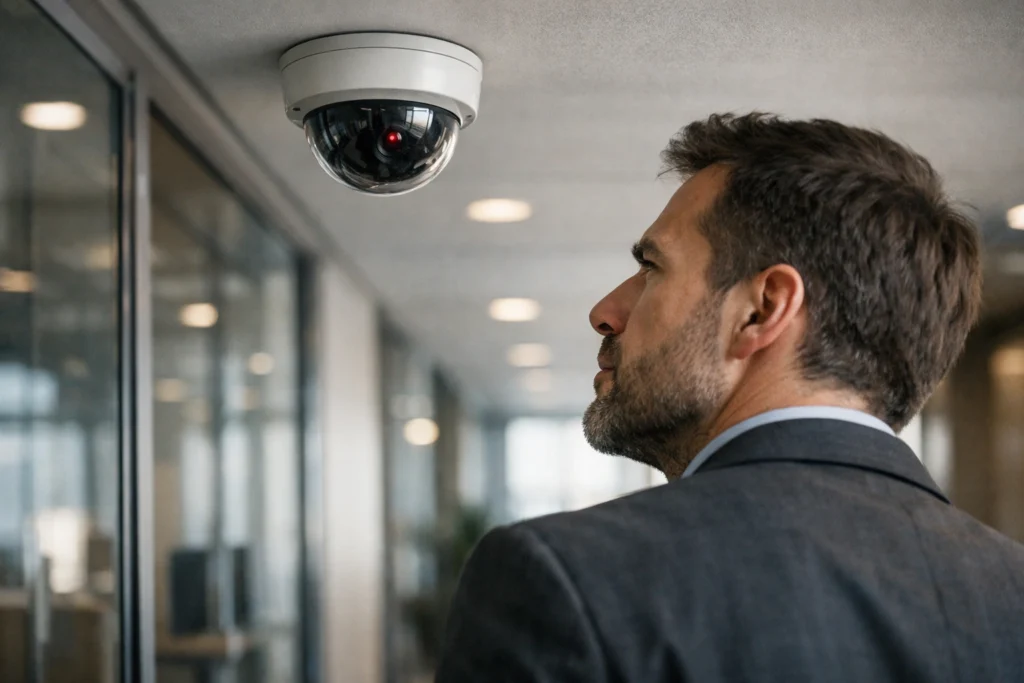
Look for objects that don’t belong, tiny lenses, and small wires. Check for reflective points, unusual mounts, or devices placed at eye level or near power sources.
Disguised Devices
Hidden cameras often hide inside everyday items: smoke detectors, clocks, air purifiers, picture frames, and USB chargers. Inspect these items for seams, loose panels, or new-looking parts in older rooms. If a device sits where it can see a bed, couch, or doorway, treat it as suspicious.
Use a checklist when searching:
| Item to Check | What to Look For |
|---|---|
| Smoke detectors | Small holes or extra vents facing the room |
| Clocks / radios | Unusual thickness, added lenses, or power cords |
| Decor items | Odd gaps, glued seams, or new components |
They may use battery packs or thin power cables. If a device is mounted oddly or placed to get a clear line of sight, open it if possible or ask the host/property manager about it.
Lens Reflection Detection
A camera lens reflects light differently than plastic or paint. In a dim room, use a flashlight or phone torch and slowly scan suspicious objects. Look for a small, bright pinpoint reflection that stays fixed as the light moves.
Use this simple method:
- Turn off most lights so the room is dim.
- Hold a bright light about arm’s length.
- Move the light in a slow, sweeping motion over mirrors, electronics, and decorations.
If reflection appears, angle the light to see if a tiny circle or dot reflects back. That dot usually marks a lens. Photograph the spot and compare it to other surfaces to confirm it’s glass, not a glossy finish.
Analyzing Footage Retention and Privacy Policies
They should first look for a clear retention period in the camera owner’s privacy policy. Many businesses state how long they keep footage—often 30 to 90 days for routine security video. If the policy lacks a timeframe, that is a sign to ask for clarification.
Check what events trigger longer storage. Policies sometimes list exceptions for incidents, investigations, or legal holds that extend retention. Those exceptions matter because footage kept longer increases privacy risk.
Look for who can access the recordings and why. Good policies name roles (e.g., security staff, law enforcement) and purposes (safety, loss prevention). If access rules are vague, people should be cautious about sensitive activities near the camera.
Read how footage is protected and deleted. The policy should describe encryption, access logs, and secure deletion methods. If it does not, then the camera operator may not follow strong safeguards.
Quick checklist:
- Retention period listed? Yes / No
- Exceptions explained? Yes / No
- Access rules clear? Yes / No
- Security & deletion described? Yes / No
They can request the policy in writing or ask the site manager for details. Simple questions often reveal whether footage is routinely recorded, how long it stays, and who sees it.
Consulting With Property Owners or Managers
When someone suspects a camera is recording them, they should first speak with the property owner or manager. A brief, polite ask can clarify whether cameras are active and why they are placed.
They can request the camera’s purpose and whether it records audio. Laws vary by location, and managers should know the rules that apply to their property.
If the owner confirms recording, the person can ask about recording times, storage period, and who can access the footage. These details help people understand their privacy risk and what to expect.
If the manager is unsure, suggest they check the system settings or the vendor’s documentation. Often, a quick look at the recorder or app will show status lights, recording schedules, or an on/off indicator.
When dealing with landlords or businesses, it helps to mention local rules calmly. If the answer is unclear or seems unlawful, the person can document the conversation and consider contacting local tenant or privacy authorities.
Helpful questions to ask:
- Is the camera actively recording video or audio?
- What areas does it cover and when does it record?
- Who can view the footage and how long is it kept?
A polite, direct approach usually resolves confusion and gives the person clear next steps.
Tools and Gadgets for Camera Detection
A few affordable tools can find hidden cameras by spotting radio signals or using phone sensors. Each tool has limits, so using more than one method gives better results.
RF Signal Detectors
RF (radio frequency) detectors pick up wireless transmissions from battery-powered spy cameras and transmitters. They work by scanning for common frequencies used by cameras, like 900 MHz, 2.4 GHz, and 5.8 GHz. When a detector senses a signal, it gives a beep or shows a signal strength bar to help localize the source.
Pros and cons matter. RF detectors find wireless devices but miss wired cameras or devices in standby with no transmission. False positives can come from Wi‑Fi routers, Bluetooth, baby monitors, and cordless phones. To reduce mistakes, sweep slowly, check walls, lamps, smoke detectors, and vents, and turn off known wireless devices when possible.
A simple checklist:
- Scan at multiple positions in a room.
- Note strong signal peaks to narrow the location.
- Re-scan with nearby electronics powered off.
- Use alongside a visual inspection or camera lens finder for best results.
| Feature | What to Expect |
|---|---|
| Frequency Coverage | 900 MHz, 2.4 GHz, 5.8 GHz common |
| Detection Type | Wireless RF only |
| Common False Positives | Wi‑Fi, Bluetooth, cordless phones |
| Best Use | Sweeping rooms for active wireless spy cams |
Smartphone Apps
Smartphones can help find cameras using two main methods: network scans and lens reflection checks. Network apps list devices on the local Wi‑Fi. They show IP addresses, MAC addresses, and device types so the user can spot unknown cameras connected to the same network.
Lens reflection checks use the phone camera or flashlight to catch tiny camera lenses. Shining the flashlight across suspect objects can reveal a small bright dot from a lens. This method works for both wired and wireless cameras that have a lens aimed at the room.
Limitations exist. Network scans only find cameras on the same network and miss offline or wired devices. Lens checks can miss very small or recessed lenses and give false positives on shiny objects. For best results, users should combine both methods and, when possible, compare device MAC addresses to known router device lists.
Tips for Protecting Your Privacy Around Cameras
People should position cameras where they monitor necessary areas only. They can cover or angle cameras away from private spaces like bathrooms and bedrooms to reduce unnecessary recording.
Use simple physical tools to block unwanted views. A piece of tape, a lens cover, or a camera cap works on webcams and smart devices when not in use. For built-in mics, muting or disabling the microphone helps limit audio capture.
Secure the network that cameras use. Change default passwords, enable strong Wi‑Fi encryption, and keep firmware updated. They can learn more about wireless security basics from trusted sources like Wi‑Fi security.
Choose devices with privacy features. Look for cameras that show recording lights, allow scheduled recording, or offer local storage. These features make it clearer when footage is stored or transmitted.
Limit who can view footage. Use unique accounts, two‑factor authentication, and regular permission checks. They should remove old accounts and review third‑party app access often.
Consider legal and workplace rules before recording others. Laws vary by place, and workplaces often have policies on surveillance. When unsure, consult official guidance or a local authority to avoid violating rights.
FAQS
Can a camera record without Wi‑Fi?
Yes. Many cameras save video to an SD card, DVR, or NVR. They can record locally even when not on a network.
How can someone tell if a camera records audio?
Look for small microphone holes or grille near the lens. They can also check the camera model online or inspect cables for audio connectors.
Do indicator lights always mean the camera is recording?
Not always. A light may show power or standby. A blinking or steady LED often means the unit is on, but it may not mean active recording.
Can infrared glow show a camera is active at night?
Yes. IR LEDs often glow faint red when the camera uses night vision. That glow usually means the camera is powered and watching the area.
How can someone check if a camera is on a network?
They can try accessing the camera’s IP address or app feed. Network scanning tools can also find devices, but they should get permission first.
Is it legal to record audio or video?
Laws vary by place. Generally, public video is allowed, but secret audio or private recordings may need consent. They should check local rules before recording.
What if someone suspects hidden cameras?
They can look for unusual objects, use a flashlight for lens reflections, or use RF and camera-detection tools. If concerned, they can contact authorities or a professional.
Conclusion
They can use simple checks to know if a camera is recording. Look for indicator lights, IR glow, and moving parts. Listening for hums or checking for cables also helps.
If a camera is on a network, they can check network activity. A pause, live feed, or cloud storage hint shows recording might be happening. Not all active cameras record continuously, though.
When worried about hidden devices, they can scan the room slowly. Use a flashlight to spot lenses and a phone app to find wireless signals. Calling a pro helps for a thorough sweep.
For privacy steps, they can cover or unplug cameras they control. They should also ask property owners or managers about camera policies. Knowing local laws helps them understand what others can and cannot record.
Being observant and asking questions gives them control. Simple actions often solve the problem and reduce worry.