

If your security camera shows faint doubles, streaks, or shadowy copies of moving objects, those are almost never ghosts. Most ghost images come from simple causes you can fix: reflections, lens or sensor quirks, infrared bleed, or wiring and playback glitches. Ethan Carter at Diggons.com often points out that a quick check of lighting, lens cleanliness, and cable connections clears most problems.
You can stop guessing and start testing step by step. Adjust placement to avoid glass reflections, tweak IR settings for night shots, swap cables, and update firmware to rule out electrical or software faults before replacing expensive gear.
Key Takeaways
- Simple optical and lighting issues often create ghosting.
- Electronics, wiring, or software faults can make false images appear.
- Basic checks and small fixes usually restore clear footage.
Image Sensor Anomalies
Image sensor problems can create faint duplicates, streaks, or smearing in footage. These issues usually come from hardware faults or settings that affect how pixels record light.
Dead Pixels and Burn-In
Dead pixels show as tiny black, white, or stuck-color dots that stay in the same spot across frames. They happen when individual photodiodes fail or a row/column of the sensor loses power. Burn-in is similar but shows as a faint ghost of a static bright object that remains after the object moves.
Both problems are most visible on uniform backgrounds like walls or the night sky. A simple check: move a bright object across the scene and watch whether the mark moves with the object (not sensor) or stays fixed (sensor issue). Short-term fixes include pixel-mapping (some cameras auto-correct), masking the bad area, or replacing the camera if many pixels are affected.
| Symptom | Likely cause | Quick test | Typical fix |
|---|---|---|---|
| Fixed dot(s) | Dead/stuck pixel(s) | Move object across frame | Pixel remapping or replace camera |
| Faint persistent shape | Image burn-in | Remove bright object and re-check | Power cycle; replace if persistent |
Sensor Aging Effects
As sensors age, noise increases and dynamic range shrinks, causing ghosting in low light or high-contrast scenes. Aging can introduce hot pixels that flare in long exposures and uneven response across the sensor that produces faint after-images.
Regularly inspect older cameras in both day and night modes. If noise patterns and trails grow over months, the sensor likely needs replacement. Cleaning optics and updating firmware help but won’t stop physical wear. Upgrading to a newer sensor with higher sensitivity and better noise reduction gives the clearest improvement.
Improper Sensor Calibration
Incorrect calibration can create doubled images, shifted color channels, or trailing when the sensor processes motion. Common calibration problems include wrong gain/ISO settings, improper white balance, and misconfigured exposure time. These make the sensor amplify weak signals, which exaggerates reflections and internal reflections inside the sensor assembly.
Troubleshoot by resetting the camera to factory settings and using automatic exposure and white balance. Adjust shutter speed to reduce motion blur and lower gain in well-lit areas. If calibration controls are complex, consult the camera’s manual or use manufacturer software to run a sensor calibration routine.
Lens and Optical Issues
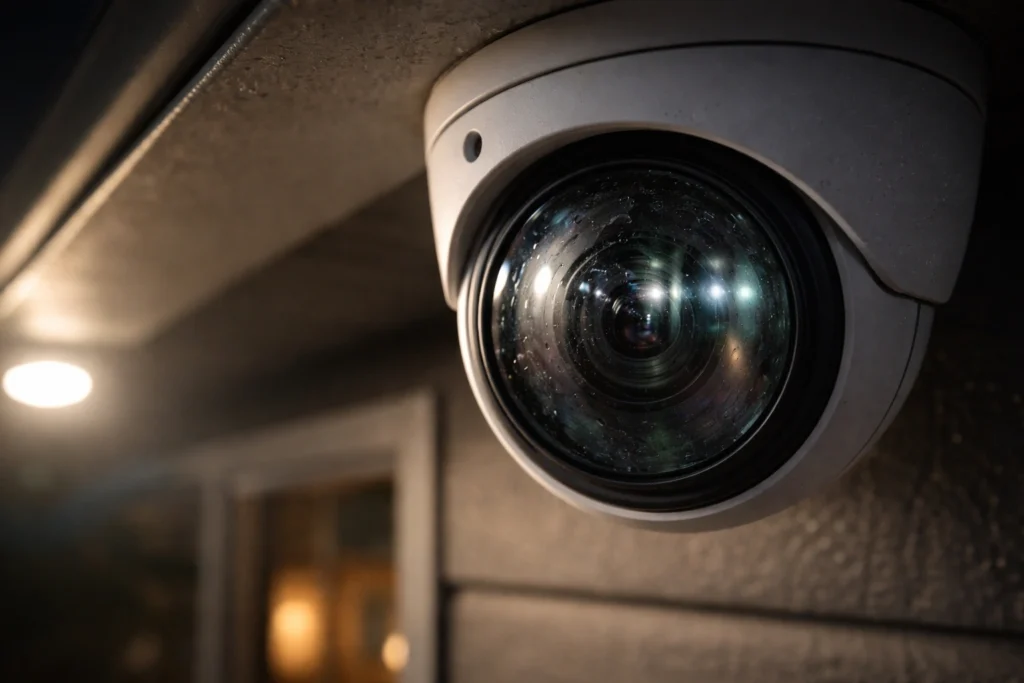
Lens and optical problems often create ghost images by scattering or misdirecting light inside the camera. These issues include bright reflections, smudges, and nearby shiny objects that bend light into the sensor.
Lens Flare
Lens flare happens when a strong light source—like the sun or a bright streetlamp—hits the lens directly or at a shallow angle. Light scatters between lens elements and creates streaks, spots, or faint secondary images across the frame. This is most common with wide-angle lenses and cheap multi-element optics.
Prevent flare by checking camera angle and using a hood or sunshield. Position the camera so bright lights are outside the frame or behind a physical barrier. If hardware changes are not possible, enable any in-camera flare reduction or use a higher-quality lens with anti-reflective coatings.
Dirt and Debris on Lens
Dirt, dust, water spots, and fingerprints on the lens cause blurred edges and ghosting by diffusing light unevenly. Night footage shows this more clearly because infrared and artificial lights interact strongly with smudges. Even small specks can create visible halos or ghost spots near bright objects.
Clean the lens regularly with a microfiber cloth and lens cleaner. For outdoor cameras, inspect after storms or construction. Keep a simple cleaning kit and log maintenance dates to reduce recurring problems.
Reflective Surfaces Near Cameras
Shiny nearby surfaces—car windows, metal signs, glass doors—bounce scene light back into the camera and produce duplicate or faint mirror images. Reflections inside the camera housing or protective dome can also form concentric ghosts around bright sources.
Use a table to compare common reflective sources and countermeasures:
| Reflective Source | Effect on Image | Fix |
|---|---|---|
| Glass windows | Double images, mirrored motion | Reposition camera or add polarizing filter |
| Car windshields | Faint streaks near headlights | Change angle or install hood |
| Metal signs | Bright spots and flares | Cover or dull surface, move camera |
If reflections persist, test different camera angles at night and daytime to find the least reflective line of sight.
Infrared Lighting Problems
Infrared lighting can make night images useful but also creates common faults. Reflections, too much IR, and misaligned filters each cause different ghosting and glare issues.
IR Light Bleed
IR light bleed happens when infrared from the camera or nearby illuminators reflects back into the lens. This often occurs on dome cameras where the inner dome or lens surface has dust, fingerprints, or condensation. The reflected IR shows as bright spots, hazy areas, or faint secondary images offset from the real subject.
Installers should inspect and clean domes and housings first. Simple fixes include wiping the dome with a lint-free cloth, resealing the housing to stop condensation, and removing nearby reflective objects like metal signs or glass panes. If bleed persists, moving the IR illuminator angle or switching to a camera with recessed IR LEDs reduces direct reflection into the lens.
Overexposure from Night Vision
Overexposure appears when IR illumination is too strong for the scene or the camera’s sensor settings. Faces and nearby objects can blow out to white shapes while background detail disappears. This causes a washed-out look and can create ghost outlines from over-bright regions.
Adjusting IR power or using adaptive IR (if supported) helps control intensity. Lowering gain, exposure time, or using an ND filter can reduce sensor overload. The table below shows common adjustments and their effects:
| Adjustment | Effect | When to Use |
|---|---|---|
| Reduce IR power | Less washout, clearer mid/long range | Close-range bright subjects |
| Lower gain/exposure | Prevents sensor clipping | Night scenes with bright IR hotspots |
| Use ND filter | Attenuates overall light | Fixed, very bright IR sources |
Improper IR Filter Alignment
An IR cut filter switches on and off in many cameras to block IR in daylight and allow it at night. If that filter is misaligned or damaged, the transition can leave ghost layers or color shifts. A stuck filter may cause double images as the sensor receives mixed visible and IR light.
Technicians should check the mechanical movement and alignment of the filter assembly. Signs of a problem include intermittent ghosting tied to light changes or color inversion at dusk/dawn. Replacing a worn filter or recalibrating the mechanism usually restores clean images. In some designs, upgrading to a camera with a better-built IR cut mechanism prevents repeat issues.
Electrical Interference
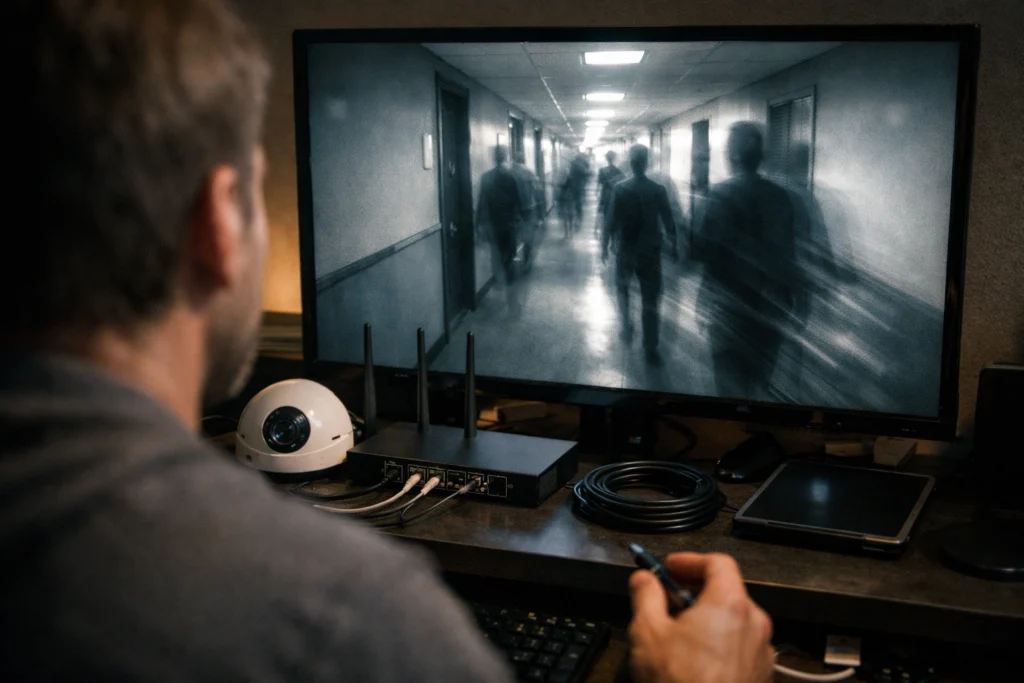
Electrical interference can cause faint duplicate images, flicker, or motion trails on camera footage. It usually comes from wiring faults, unstable power, or nearby electronics that disrupt the video signal.
Ground Loop Issues
A ground loop happens when different parts of a system connect to earth at different voltages. That small voltage difference can inject a low-frequency hum or rolling bars into the video. In analog CCTV systems this often shows as dim, repeating ghost images; in digital IP systems it can cause packet errors that look like brief afterimages.
Technician steps: check that all cameras and the recorder share the same ground point, use a single grounding rod or a properly bonded building ground, and avoid chaining grounds through equipment racks. Use isolated video baluns or fiber optic links to break ground loops on long runs. If the problem persists, a multimeter reading between grounds will reveal stray voltage and guide corrective action.
Power Supply Fluctuations
Voltage drops, surges, or unstable power can make camera sensors and processors misread frames. This often produces intermittent ghosting, smeared motion, or exposure shifts that look like faint doubles of moving objects. Low-voltage LED lighting on cameras can make the effect worse at night.
Fixes include using a dedicated, appropriately rated power supply for each camera or a regulatedDC/PoE switch with per-port surge protection. Add an uninterruptible power supply (UPS) for recorders and network switches to filter brief spikes. For large systems, consider line conditioners or solar/UPS hybrids where mains quality is poor.
Nearby Electronic Devices
Nearby motors, radio transmitters, or heavy-duty appliances can emit electromagnetic interference that corrupts camera video. Wireless routers, cordless phones, and poorly shielded LED drivers are common culprits in small installations. The interference often appears as faint trails, shimmering, or partial duplicate frames, especially when devices cycle on and off.
Mitigation steps: move cameras and cables away from known emitters and avoid running video cables parallel to mains wiring. Use shielded coax or twisted-pair cable with proper grounding. Ferrite beads on cable ends and metal conduit for cable runs can reduce high-frequency noise. If wireless interference is suspected, change Wi‑Fi channels, use 5 GHz links for backhaul, or switch to wired connections.
Connection and Transmission Faults
Faulty cables, weak signals, and poor wireless links can all create faint duplicate images, stuttered frames, or intermittent ghosting. Fixing these parts often stops the problem.
Cable Quality Degradation
Old or damaged coax, twisted-pair, or power cables cause impedance mismatches and signal reflections that show up as ghost images. Corroded connectors, broken shields, or kinks introduce noise and let the video waveform reflect back toward the camera, creating faint duplicate outlines of moving objects.
Inspect physical cable runs first. Look for crushed cable, loose BNC/RJ45 connectors, and green or white corrosion on copper. Replace runs with high-quality, properly rated cable (RG59/6 for coax, Cat6 for network) and use new, weatherproof connectors where needed.
Use a simple continuity tester or a video signal meter to check for impedance faults. If the system uses PoE, confirm the cable supports full PoE wattage. Upgrading to better-shielded cable often reduces reflections and removes ghosting.
Signal Loss Over Distance
Video signals weaken with long cable runs and can pick up interference that causes ghosting. Analog video degrades after tens to hundreds of meters depending on cable and camera output, while IP cameras suffer latency and packet loss over long Ethernet runs without switches or repeaters.
Measure signal strength and check for dropped frames at the recorder. For coax, add a line amplifier or use video baluns for longer runs. For Ethernet beyond 100 meters, install a network switch, use fiber with media converters, or add PoE extenders to maintain clean, full-strength packets.
Document cable lengths and run types. Use a table to compare common limits and fixes so technicians can choose the right upgrade.
| Connection Type | Typical Max Run | Common Fix |
|---|---|---|
| Coax (RG59) | ~100–300 m | Use RG6/RG59 amp or convert to IP |
| Ethernet (Cat5e/Cat6) | 100 m | Add switches, use fiber, or PoE extenders |
| Fiber | km+ | Use media converters for camera connection |
Poor Wireless Network Conditions
Wireless cameras depend on stable Wi‑Fi. Congestion, low signal-to-noise ratio, and interference from other devices create packet loss and frame duplication that appears as ghosting. Walls, metal, and distance reduce throughput and increase retries.
Place cameras where the router or access point has at least -65 dBm signal strength. Use 5 GHz for less interference if the camera supports it, but remember 5 GHz has shorter range. Change channels to avoid nearby networks and disable legacy modes that slow the band.
If interference persists, deploy dedicated access points, use directional antennas, or switch to wired or cellular links. Log packet loss and latency from the camera to confirm improvement after changes.
Environmental and Weather Effects
Environmental and weather conditions change how a camera sees light and moisture. These changes can create faint doubles, blurs, or floating shapes in footage.
Condensation or Fogging
Condensation forms when warm, moist air meets a cold lens or housing surface. It creates tiny water droplets that scatter light and blur edges, making moving objects appear doubled or soft. This often happens overnight or when a camera moves from a warm shop into cold outdoor air.
Interior housings or heater pads reduce condensation by keeping the lens surface above the dew point. Wiping the lens and using silica gel packs during installation helps too. For outdoor cameras, choose models with IP ratings and built-in defog or heated windows to limit fogging.
Temperature Extremes
Extreme cold slows camera electronics and thickens lubricants, which can change focus and create motion blur or smeared frames. Extreme heat increases sensor noise and can warp plastics, causing misalignments that show as faint ghost outlines.
Use cameras rated for the site’s temperature range and mount them in shaded or ventilated enclosures. Add thermostatic heaters for cold sites and fans or sun shields for hot locations. Regular checks for physical warping or loosened mounts help prevent temperature-related ghosts.
Lightning or Electrical Storms
Electrical storms produce sudden voltage spikes and electromagnetic interference. A nearby strike can induce transient currents that disrupt image sensors or reset the camera briefly, leaving afterimages or repeating faint frames.
Protect systems with surge protectors, grounded enclosures, and fiber-optic links where practical. Uninterruptible power supplies (UPS) and routine grounding inspections lower the risk of storm-related artifacts. If ghosting appears after a storm, inspect cabling and power supplies first.
Misconfigured Camera Settings
Incorrect exposure, sharpening, and frame choices often create faint duplicates, motion trails, or washed-out areas in footage. These settings directly affect how the camera records light and motion, so small changes can fix most ghosting problems.
Incorrect Exposure Settings
If the camera uses too long a shutter time, moving objects leave trails that look like ghost images. In low light, the camera may slow shutter speed to brighten the scene, which increases motion blur. Raising the shutter speed or increasing gain helps, but high gain adds noise that can make faint double images worse.
Automatic exposure can overreact to bright spots like headlights or reflections, causing momentary under- or overexposure that creates afterimages. Use manual exposure when possible and set an exposure limit or backlight compensation. Test settings at night and during daytime to find a balance that prevents blur without amplifying noise.
Sharpness and Contrast Adjustments
Excessive sharpness can create halo artifacts around edges that look like second images. The camera’s sharpening algorithm boosts local contrast and can leave a faint outline offset from the true edge. Reduce in-camera sharpness to a neutral setting to remove these halos.
High contrast settings exaggerate differences between light and dark areas, which can make reflections or IR highlights appear as ghosted shapes. Lower contrast and avoid aggressive edge enhancement. If the camera supports software-side sharpening in the recorder, compare results by disabling that feature first.
Frame Rate and Resolution Choices
Low frame rates increase motion blur and make fast-moving subjects appear as smeared duplicates. Choosing 15 fps or lower for a scene with quick motion raises the chance of ghosting. Increase the frame rate to 25–30 fps for smoother, more accurate motion capture.
Very high resolution with compression limits can also cause artifacts that look like faint duplicate frames. If bandwidth forces heavy compression, reduce resolution slightly or raise bit rate to preserve clarity. Match frame rate, resolution, and compression settings to the scene’s motion and available network/storage capacity.
Recording and Playback Errors
Recording and playback problems can make clear footage look like faint duplicates, smears, or sudden jumps. These issues often come from how the camera compresses video or from damaged files on the recorder.
Compression Artifacts
Compression reduces file size by removing some visual data. If a camera uses aggressive compression (like high H.264 or H.265 settings), fast motion or low light can produce blocky edges, blurred outlines, or ghost-like trails behind moving objects.
Lower bitrates increase the risk. When the network or storage limits force lower bitrates, the encoder drops detail, and the image may smear across frames. CPU or hardware encoders that strain under load can also produce dropped frames or repeated macroblocks that look like faint duplicates.
Fixes include raising bitrate, switching to a less aggressive profile, or enabling constant bitrate (CBR) when possible. Upgrading the recorder or camera to a model with better hardware encoding can reduce artifacts.
Corrupted Video Files
File corruption on an NVR, DVR, or SD card can create partial frames, misaligned timestamps, or duplicated image slices. These corruptions often occur from sudden power loss, improper ejection of storage media, or failing drives.
Corruption symptoms include frozen frames that resume as a shifted overlay, jittery playback with repeated fragments, or audio-video mismatch. Recovery tools sometimes repair header issues, but severe corruption may lose frame sequences permanently.
Preventive steps: use uninterruptible power supplies (UPS), schedule regular checks on disk health, and replace aging drives. Keep at least one backup copy of critical footage to avoid losing evidence.
| Problem | Common Cause | Quick Fix |
|---|---|---|
| Compression artifacts | Low bitrate or aggressive encoder settings | Increase bitrate, change profile, upgrade encoder |
| Corrupted files | Power loss, failing drives, improper removal | Use UPS, run disk checks, keep backups |
Maintenance and Upkeep Shortcomings
Poor upkeep often creates the conditions that let ghost images appear. Dust, smudges, outdated firmware, and loose connections each create specific faults that degrade image clarity and cause faint duplicates or flare.
Irregular Camera Cleaning
Dirty lenses and enclosures scatter light and blur details. Dust, rain spots, spider webs, and fingerprints can cause reflections and light scattering that show up as faint “ghost” shapes in footage. Outdoors, pollen and salt buildup speed this problem.
Technicians should clean lenses weekly in dusty areas and monthly in cleaner environments. Use a microfiber cloth and lens cleaner; avoid household glass cleaner that can strip coatings. Also check domes and housings for condensation. Replace scratched or clouded covers—polishing only helps minor scratches.
Maintain a simple checklist: inspect for debris, wipe lens, clear housing seals, and note any stubborn spots for replacement. Document each cleaning so patterns of recurring contamination become clear.
Neglecting Firmware Updates
Old firmware can mismanage sensor timing and image processing, producing artifacts that look like ghosting. Camera makers release fixes for exposure control, IR handling, and compression glitches that directly affect image clarity.
Operators should schedule firmware checks monthly. Review release notes for fixes related to image quality before updating. Back up current settings, apply updates during low-activity hours, and verify day/night and IR functions afterward.
If a firmware update causes new issues, roll back to the previous stable version and contact support. Keep a log of firmware versions and test results to track whether updates reduce ghosting over time.
Preventative and Troubleshooting Steps
Routine checks, correct mounting, lens care, and getting expert help fix most ghosting problems. Focus on cleaning, cable checks, angle adjustments, and firmware or sensor diagnostics to restore clear footage.
Regular Inspections
They should inspect cameras at least once a month. Clean the lens and housing with a microfiber cloth and camera-safe solution to remove dust, smudges, and insect deposits that cause reflections. Check the IR LEDs for dirt or damage; blocked or uneven IR output often creates ghosting in low light.
Verify all cable connections—power, Ethernet, and coax—are tight and free from corrosion. Look for kinks, exposed wires, or water entry at junctions. Test the recorder and camera power supply voltage because under- or over-voltage can cause sensor artifacts.
Review recorded clips at different times (day, twilight, night). Note when ghosting appears to pinpoint triggers like headlights, nearby reflective surfaces, or bright streetlights. Log findings to track recurring patterns and changes after fixes.
Optimal Camera Placement
They should place cameras to minimize direct light into the lens. Avoid pointing cameras toward bright sources such as windows, vehicle headlights, or reflective signs. If unavoidable, install sun shades, hoods, or gooseneck mounts to block stray light and reduce lens flare.
Position cameras at an angle that reduces reflections from glass, water, or shiny siding. Increasing distance from reflective surfaces or changing the height by a few feet often eliminates double images. For indoor cameras behind glass, move the camera outside the glass or use an anti-reflective mounting box.
Adjust settings: lower IR strength, enable WDR/HDR if available, and set a faster shutter speed to cut motion blur that can look like ghosting. When making changes, test and record samples to confirm improvement. For general camera tech terms, see camera basics.
Consulting Technical Support
When basic fixes fail, contact the camera maker or installer. Provide clear details: model number, firmware version, time-stamped clips showing ghosting, and notes from inspection. This speeds diagnosis and helps them reproduce the issue.
They may request firmware updates, remote logs, or ask to swap lenses or cameras to isolate hardware faults. Professional technicians can test the sensor, replace failing IR boards, or correct grounding and interference issues. If the system is under warranty, request authorized repair or replacement to avoid voiding coverage.
For complex installations or persistent interference, hire a licensed CCTV technician who can run signal tests, check grounding, and recommend higher-spec cameras or filters tailored to the site.
FAQS
What are ghost images and why do they appear?
They are faint duplicates or trails of moving objects in video. They usually come from reflections, lens flare, or infrared bleed inside the camera.
Can low light cause ghosting?
Yes. Low light makes sensors boost brightness, which can increase noise and highlight reflections. This makes faint, ghost-like shapes more visible.
Do camera settings affect ghost images?
Absolutely. High ISO, slow shutter speed, or aggressive image processing can create motion blur and doubling. Adjusting these settings often reduces the problem.
Will cleaning the lens help?
Yes. Dirt, smudges, and water droplets create extra reflections. Wiping the lens and housing with a soft cloth often removes minor ghosting.
Can IR LEDs cause ghost images at night?
They can. IR light can reflect off nearby glass or the camera’s own housing, creating translucent shapes. Moving the camera or adding a hood can cut down reflections.
Should the camera be replaced?
Not always. Old or low-quality cameras are more prone to ghosting. Upgrading helps, but trying lenses, settings, and mounting changes first is cheaper and often effective.
How can false alarms be reduced?
Reduce false alarms by fixing ghosting sources and tuning motion detection zones. Proper lighting and regular maintenance also help.
Quick checklist to try:
- Clean lens and housing
- Check angles to avoid reflections
- Adjust ISO/shutter settings
- Add sun/IR shield or move camera
- Consider upgrading sensor or lens
Conclusion
Ghost images on security cameras usually come from simple, fixable causes like reflections, lens flare, IR interference, or settings that don’t match the scene. They rarely mean a hardware failure, though worn lenses or loose mounts can make the problem worse.
Technicians and users can reduce ghosting by checking camera placement, cleaning lenses, and adjusting settings such as exposure or IR illumination. Changing angles, adding shades, or using anti-reflective housings often helps without a full replacement.
When problems persist, testing with a different camera or swapping lenses can reveal if the issue is hardware-related. Firmware updates and proper mounting also improve stability and image quality.
If the footage must be crystal clear for evidence, consider professional assessment. Specialists can diagnose complex causes and recommend upgrades or repairs. They can also suggest recording settings that balance image clarity with storage needs.