Security cameras do more than record video; they act as active parts of your smart home. They can trigger lights, lock doors, and send alerts when they spot motion, so you get faster responses and fewer false alarms. A well‑integrated camera turns security into automation that protects your home and makes daily life easier.
Ethan Carter from Diggons.com notes that modern cameras connect with locks, lights, and voice assistants to create simple, non‑invasive automations you can control from anywhere. They also offer real‑time alerts, remote monitoring for family safety, and analytics that cut down on unnecessary notifications, helping you focus on real threats.
Cameras can save energy and time by automating routines—like turning lights on at dusk or starting cameras when you leave. They work with existing sensors and systems, scale as needs grow, and require only basic upkeep to stay reliable, so you get strong protection without constant fuss.
Key Takeaways
- Cameras automate responses and cut down on false alarms.
- Remote alerts and simple integrations improve safety and convenience.
- Scalable systems and light maintenance keep automation effective.
Smart Integration with Connected Devices
Smart cameras become more useful when they talk to other devices. They can feed live video, trigger lights, lock doors, and send alerts. Proper setup and compatibility ensure smoother automation and fewer false alarms.
Connecting Surveillance to Home Hubs
They link cameras to hubs like Amazon Echo, Google Nest, or Apple HomeKit to centralize control. Once paired, the hub can show camera streams on smart displays, run voice commands to view footage, and include cameras in routines. For example, a morning routine might turn on a porch camera feed on a smart display and adjust lights.
Compatibility matters: check camera protocols (Zigbee, Z-Wave, Wi‑Fi, or Matter) and the hub’s supported brands. Network reliability and strong Wi‑Fi where cameras are placed reduce dropped streams. Use separate SSIDs or VLANs for cameras where possible to improve security.
Syncing Cameras with Other Smart Sensors
Cameras work best when paired with door/window sensors, motion detectors, and smart locks. When a motion sensor triggers, the camera can start recording and send a clip to the homeowner. Linking a door sensor to a camera by the entrance lets the system capture who opened the door and when.
Use rules to avoid unnecessary recordings: set schedules, define motion zones, and adjust sensitivity. The table below shows common automation pairings and typical actions.
| Sensor | Camera Action | Typical Use |
|---|---|---|
| Motion detector | Start recording, push alert | Driveway or hallway monitoring |
| Door/window sensor | Capture entry clip, timestamp | Front/rear doors |
| Smart lock | Record on unlock, log user | Package delivery or guest access |
| Glass-break or alarm | Save high-priority footage | Respond to security events |
Remote Monitoring via Mobile Apps
Mobile apps let users view live feeds, play recorded clips, and receive real-time alerts. They also let users change settings like motion zones, notification rules, and recording length while away.
Good apps show multiple cameras, timeline scrubbing, and quick clip export. Security features to watch for include two-factor authentication and encrypted cloud storage. Low-bandwidth modes help when cellular is weak, and push notifications should include short clips or snapshots to speed decision-making.
Real-Time Alerts and Custom Notifications
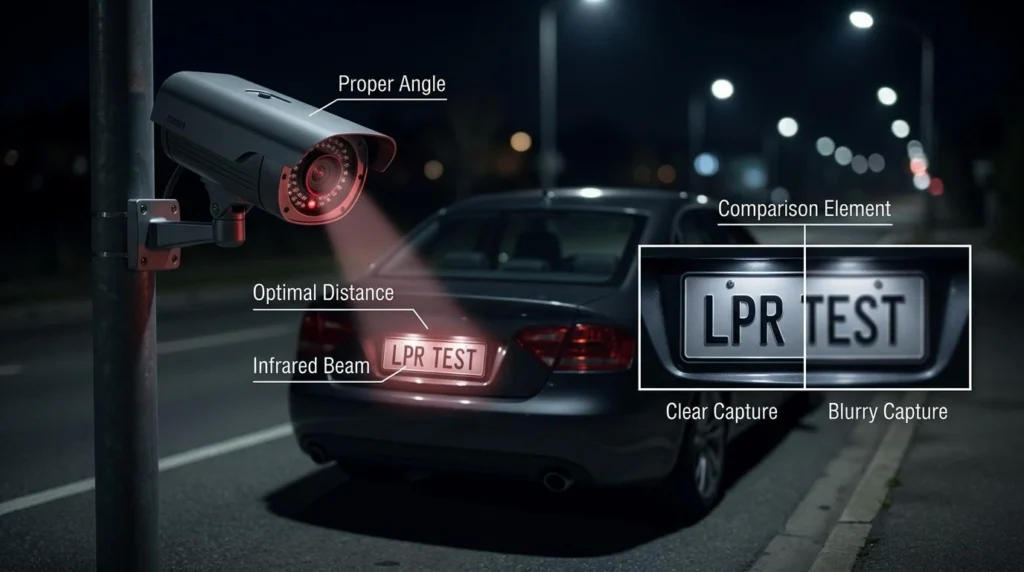
Security cameras send instant alerts, link to other smart devices, and let users choose which events matter most. This gives clear, timely information and reduces unnecessary interruptions.
Motion Detection Triggers
Motion sensors in cameras spot movement by comparing pixels or using AI to track objects. When motion fits a set threshold, the camera records and can trigger other devices like lights or alarms.
Users can set sensitivity levels to cut down on false alarms from rain, pets, or passing cars. They can also define activity zones so only motion in front doors, driveways, or windows triggers an alert.
Some systems use AI to classify motion as a person, vehicle, or animal. This helps prioritize alerts and speeds response when a human is detected.
Event-Based Mobile Notifications
Cameras send event-based push notifications, email clips, or SMS when specific actions happen. A doorbell press, glass break, or person detection can produce different alert types and urgency levels.
Notifications often include a thumbnail or short video clip so users can judge the situation quickly. Many apps let users tap the alert to view live video or speak through the camera.
Systems can escalate alerts. For example: a person detected at night might trigger a louder alarm and a call to emergency contacts, while daytime motion only logs a clip.
Personalizing Alert Preferences
Users control how and when they get alerts to suit daily routines and reduce distractions. Common options include time schedules, device-specific rules, and do-not-disturb windows.
A simple table shows typical preference settings:
| Setting | Purpose | Example |
|---|---|---|
| Activity Zones | Limit alerts to key areas | Front porch only |
| Detection Types | Choose what triggers alerts | People only, ignore animals |
| Notification Channels | Where alerts are sent | Push to phone + email |
| Schedules | Active monitoring times | Night: high sensitivity |
Advanced systems let users set rules that integrate with other smart devices. For example, a night-time person detection can turn on lights and record a clip while sending an urgent mobile alert.
Enhancing Home Security Protocols
This section explains how cameras can trigger locks, alarms, and access rules to stop threats quickly. It shows practical setups and what to watch for when linking cameras to other devices.
Automated Lock and Alarm Integration
Cameras can trigger locks and alarms when specific events occur. For example, a door camera that detects motion after midnight can send a signal to lock smart deadbolts and arm the perimeter alarm.
Set clear triggers: motion in a zone, person detection, or a facial match. Then map each trigger to actions such as locking doors, turning on exterior lights, and sending push alerts. Use short delays for false-positive checks—like a 5–10 second confirmation window—so pets or passing cars don’t cause full lockdowns.
Prioritize secure rules: require encrypted connections, two-factor alerts for critical actions, and logging of every automated event. Test scenarios monthly to ensure locks respond and alarms escalate to the monitoring service if needed.
Access Control Based on Camera Input
Cameras can control who enters by using face recognition or QR-code scans at entry points. When a camera verifies an authorized face, it can unlock the door for a set time and log the entry with a snapshot.
Design access policies that match real needs: temporary access for guests, recurring access for cleaners, and restricted hours for deliveries. Keep a rollback option so a human can override automation via an app or control panel. Include audit logs showing time, camera image, and the rule that allowed entry.
Ensure privacy and accuracy: store face templates securely, and use local processing when possible to reduce cloud exposure. Regularly review the access list and remove permissions no longer needed.
Energy Efficiency and Resource Management
Security cameras can cut energy waste, free people from manual control, and lower costs by working with lights, HVAC, and appliances. They use motion, presence, and behavior patterns to make systems run only when needed.
Adjusting Lighting with Activity Detection
Cameras can detect when people enter, leave, or move through rooms and send real-time signals to lights. When a camera senses motion in a hallway at night, it can trigger dimmed lighting for safety and then switch lights off after no movement for a set time. This reduces hours that lights run unnecessarily.
Many systems use zones and sensitivity settings to avoid switching lights on for pets or small motions. Integrations let users set schedules, brightness levels, and minimum-on times so lights don’t flicker from brief motions.
| Feature | Benefit |
|---|---|
| Motion zones | Only activates lights where people are present |
| Timeout settings | Prevents frequent on/off cycles |
| Brightness control | Uses lower power levels when full light is unnecessary |
Automated Appliance Control
Cameras can tell smart plugs and appliances when rooms are empty or occupied. For example, a camera that sees no one in a living room for 30 minutes can cut power to a TV or set a smart plug to standby mode. This lowers vampire power draw from devices left on accidentally.
More advanced setups use activity patterns: if the camera notices regular morning coffee use, it can preheat a smart kettle only when a person enters the kitchen. Rules can include time windows and occupancy thresholds to avoid wasting energy during short absences.
Reducing False Alarms
False alarms waste energy when systems trigger lights, HVAC, or emergency responses unnecessarily. Cameras with person detection and AI filters reduce triggers caused by pets, shadows, or passing cars. That keeps systems from turning on or calling services without cause.
Settings like sensitivity tuning, motion zoning, and object classification let the system distinguish humans from non-threats. Lower false alarms mean fewer emergency HVAC cycles, less needless lighting, and reduced energy tied to automated responses.
User Convenience and Daily Automation
Security cameras tie into daily routines to save time, add convenience, and make small tasks automatic. They work with smart locks, motion sensors, and apps to let people enter homes hands-free and check visitors without opening the door.
Hands-Free Home Entry
Cameras link with smart locks and facial recognition to unlock doors when a known person arrives. When the camera sees a registered face, it can send a secure signal to a smart lock to open, or it can trigger a one-time code sent to a phone. This removes the need to fumble with keys while carrying groceries or managing kids.
Automations can also set rules by time or presence. For example, lights and thermostats can adjust when the camera detects family arriving after work. Users should enable two-factor checks or approval prompts for unlock actions to prevent false positives.
Visitor Verification Systems
Cameras with two-way audio let people speak to visitors before answering. A live video feed appears in a phone app, and the resident can tell a delivery driver where to leave a package without opening the door. Some systems record short clips of each visitor for later review.
Advanced setups use motion zones and smart alerts to cut down false notices. The camera can send different notifications for a person, vehicle, or package. Clear labeling in the app (person vs. package) helps users decide fast whether to act.
Remote Family Monitoring Features
Remote camera systems let family members check on kids, older adults, and pets from anywhere. They send live video, motion alerts, and two-way audio so someone can respond quickly or make sure routines are followed.
Supervising Children or Elderly
Cameras placed in common areas let caregivers watch daily activities without being physically present. Live streams show meal times, homework, or medication routines. Motion-triggered clips alert caregivers when unusual activity occurs, such as a fall or wandering at night.
Two-way audio helps an adult calm a child or remind an elderly person to take medicine. Smart rules can turn on lights or unlock doors when an authorized person arrives. For added safety, many systems include encrypted cloud storage and user access logs so families can control who sees footage and when.
For more on eldercare best practices, see this resource on caregiving basics: caregiver.
Supporting Pet Monitoring
Cameras with activity zones and pet-detection filters reduce false alerts from small movements like tail wagging. Live video lets owners check feeding, potty breaks, and whether a pet is anxious when left alone. Some systems allow scheduling of automatic recordings during known high-activity times, like mornings or when the owner leaves for work.
Interactive features such as two-way talk and treat dispensers let owners reassure pets or reward good behavior remotely. Integration with smart feeders and thermostats keeps the home comfortable and feeding on schedule. Saved clips can help spot behavior changes early, which owners can then share with a veterinarian.
Video Analytics and Smart Insights
Video analytics turns camera footage into actionable events and smart cues. It flags movements, recognizes people or objects, and sends clear alerts or automations that reduce false alarms and speed responses.
Identifying Unusual Activities
Video analytics uses pattern rules and machine learning to spot activity that differs from normal behavior at a home. It can learn daily routines—like when people enter through the front door or cars park in the driveway—and detect deviations, such as a person loitering by a window at night or a package left in an unusual spot.
Cameras classify objects (person, vehicle, animal) and filter out common triggers like tree motion or rain. They can mark zones—driveway, porch, backyard—and only alert when events occur inside those areas. Alerts include a short clip plus a label (e.g., “person at side gate”) so users see context quickly.
This reduces false positives and helps first responders or family members decide next steps faster. Users can also set sensitivity and schedule quiet hours to match real household patterns.
Integrating with AI Assistants
Smart cameras connect to AI assistants to automate routines and voice control. When a camera detects a person at the front door, it can trigger a routine that turns on porch lights, announces “visitor at the door” through smart speakers, and starts recording a longer clip.
Integration often uses secure local or cloud APIs and supports direct actions: lock/unlock doors, arm alarms, or notify specific contacts. Users can create conditional rules—if a recognized family member arrives after sunset, then disarm the alarm and turn on hallway lights.
This tight linking makes responses faster and hands-free. It also enables multi-device scenes where cameras, lights, locks, and sensors act together based on a single visual event.
Privacy and Data Protection Measures
Cameras should limit who can see footage and how it travels. Strong access rules and encrypted links keep video private and reduce the chance of hacks.
Setting Access Levels
They set distinct user roles: owner, adult user, guest, and service technician. Owners keep full control: they add or remove users, set schedules, and revoke access immediately when needed.
Use multi-factor authentication for owner accounts and require strong passwords for other users. Assign time-limited access for guests and service workers so temporary keys expire automatically.
Log and review access events regularly. The camera or hub should record who viewed or downloaded footage, with timestamps. Automated alerts notify the owner of new device logins or permission changes.
Device-level privacy settings let users turn off recording or mask specific zones, like a neighbor’s window. Those controls prevent unnecessary capture and help meet local privacy laws.
Encrypted Video Transmission
They should use end-to-end encryption so video is unreadable outside the owner’s devices. Look for cameras that use AES-256 or similar standards for stored and transmitted data.
Transport layer security (TLS) protects streams during upload and remote viewing. The device should support TLS 1.2 or higher and avoid outdated protocols like SSL.
Check whether the vendor holds encryption keys or whether keys stay with the owner. Vendor-held keys simplify recovery but increase risk; owner-held keys offer stronger privacy but require careful backup.
Verify firmware updates digitally signed by the maker. Signed updates prevent attackers from installing malicious software that could disable encryption or expose feeds.
Scalability and Future-Proofing Your System
They can add cameras, replace old units, and adopt new cloud or AI features without rebuilding the whole setup. Planning cabling, network capacity, and storage makes those changes easier.
Expanding Device Capabilities
They should pick cameras and hubs that support plug-and-play addition and standard protocols like ONVIF or RTSP. This lets them add wired or wireless cameras, doorbell cams, or sensors without swapping the recorder.
Plan network capacity: estimate 4–8 Mbps per 4K camera and ensure the router and switch have spare Gigabit ports. Use PoE switches for simple power and data on one cable. For wireless, keep extra bandwidth and strong Wi‑Fi coverage at camera locations.
Think about storage growth. Choose NVRs that accept extra drives or cloud plans that scale by camera. Label ports and record IP addresses to speed future installs. These small steps cut time and cost when expanding.
Ensuring Compatibility with Updates
They must confirm firmware and app update policies before buying. Vendors that push regular security patches and clear update schedules reduce the risk of unsupported devices.
Use devices that support secure protocols (TLS, HTTPS) and two-factor authentication on accounts. Test updates on one camera or a spare hub before rolling them out to the whole system.
Keep a simple inventory: model, firmware version, and install date. That list lets them track when devices need upgrades or replacement. When a vendor ends support, prioritize replacing units that handle core functions like recording or alarm integration.
Troubleshooting and Maintenance Tips
Cameras need regular checks to work well. They should inspect lenses for dirt and adjust focus if footage looks blurry.
They should verify power and connections first. For wired cameras, check cables and PoE injectors. For wireless ones, confirm the battery level and Wi‑Fi signal strength.
They should keep firmware and app software up to date. Updates often fix bugs and improve compatibility with other smart devices.
A simple reboot can fix many glitches. They should restart the camera and the router if video drops or motion alerts act oddly.
They should test motion detection and notification settings monthly. False alerts often come from wrong sensitivity, poor placement, or moving plants in view.
They should clean lenses with a soft cloth and avoid harsh chemicals. Moisture and insects can also reduce image quality; sealing housings helps outdoors.
Use a short checklist to track tasks:
- Inspect lens and housing
- Check power or battery
- Test network signal
- Update firmware and app
- Verify motion and recording settings
They should keep a backup plan for recordings. Local SD cards, a network video recorder, or cloud storage reduce the chance of losing footage.
If problems persist, they should consult support or a professional. Clear photos of the issue and device logs speed up diagnosis.
FAQS
What can security cameras do in a smart home?
They send live video to apps, trigger lights or alarms, and record events. They also can start routines, like turning on porch lights when motion is detected.
Are all cameras compatible with home automation systems?
No. Some cameras work with major platforms like Alexa or Google Home, while others use their own apps. Buyers should check compatibility before they buy.
Do cameras invade privacy?
They can if placed wrongly. Homeowners should avoid pointing cameras at private areas inside neighbor properties and should use strong passwords and encryption.
Do security cameras need constant internet?
Many features, like remote viewing and cloud backup, need internet. Local recording to an SD card can work without cloud access but limits remote control.
How much storage is needed?
Storage needs depend on resolution, frame rate, and how long footage is kept. Cloud plans often charge monthly, while local storage has a one-time cost.
Can cameras trigger other devices?
Yes. They can start actions such as turning on lights, locking doors, or sending notifications. This makes the home more responsive and can deter intruders.
Is it hard to set up automation with cameras?
It can be simple or technical depending on the system. Many consumer cameras offer step-by-step app setup, while advanced integrations may need a smart hub or network knowledge.
Conclusion
Security cameras give a smart home clear, useful ways to improve safety and convenience. They let the system detect events, trigger actions, and show live or recorded video for quick checks.
They work with smart locks, lights, and alarms to automate responses. For example, a camera can turn on lights when it senses motion, or send a clip to a phone when someone approaches a door.
Privacy and security need careful attention. Users should pick encrypted devices, use strong passwords, and keep firmware updated to reduce risks.
Costs and setup vary, but many options fit different budgets and tech skills. Cloud services add convenience, while local storage can limit data exposure.
Benefits include faster alerts, better situational awareness, and fewer false alarms. Cameras add context that motion sensors alone cannot provide.
A simple checklist helps when choosing cameras:
- Compatibility with existing hub or app
- Video quality and night vision
- Encryption and update policy
- Storage options (cloud vs local)
When integrated thoughtfully, cameras become helpful members of a home automation setup. They make homes more responsive and easier to manage without adding undue complexity.